1.
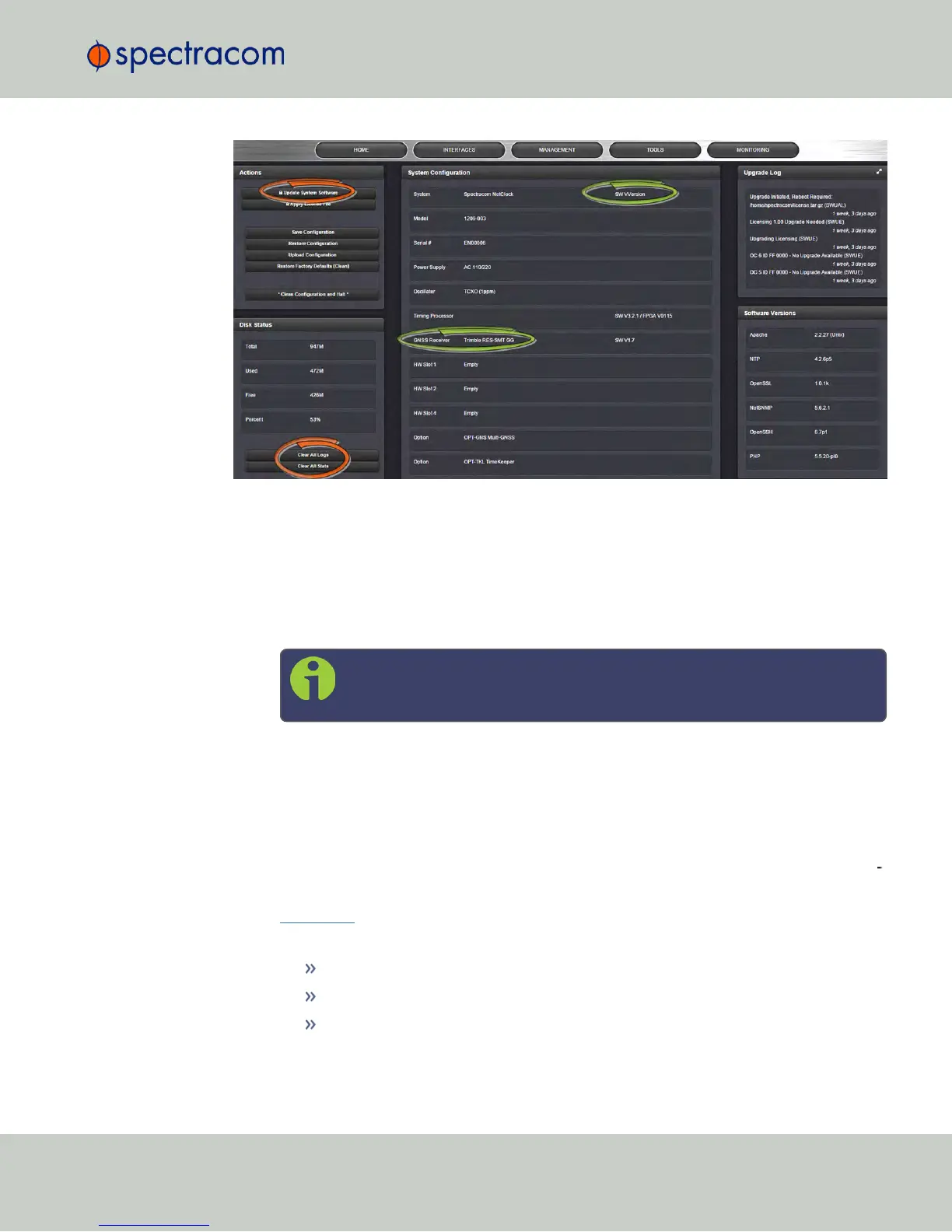
In the WebUI, under Tools > Upgrade/Backup, determine the System software version
and the type of GNSS receiver. Proceed if your existing software is V5.1.5 or higher,
AND you have a RES-SMT GG receiver.
(Otherwise, consult the above-mentioned instructions for updating NetClock software.)
2.
Free up disk space, if needed:
Under Tools > Upgrade/Backup > Disk Status, check Percent Used: If the number is
greater than 70%, free up disk space.
Note: If required, existing logs can be archived; for details consult the
above-mentioned instructions for updating NetClock software.)
To free up disk space:
a.
Delete old log files: Tools > Upgrade/Backup > Disk Status > Clear All Logs.
b.
Delete old statistics files: [~] > Clear All Stats.
c.
Delete previous Upgrade files: Tools > Upgrade/Backup > Actions > Update
System > Delete Upgrade File(s). Note that Delete Upgrade File and Update Sys
tem cannot be selected at the same time.
3. Download the upgrade software bundle onto your PC.
4.
Check if you have any of the following option cards installed:
Simulcast (Model 1204-14)
PTP (Model 1204-12)
Gigabit Ethernet (Model 1204-06)
4.6 Updates and Licenses
CHAPTER 4 • NetClock User Reference Guide Rev. 16
311



 To Next Page