While Standard Mode is the default setting, the High-Security Level is preferred (unless you
require the extra compatibility), since High Security turns off TLSv1, which has known secur
ity vulnerabilities.
B r o w s e r S u p p o r t
Note that the High-Security Level requires the use of current browsers – as of July 2016, the oldest
compatible clients include:
• Firefox
®
27
• Chrome
®
30
• Internet Explorer
®
11
• Safari
®
9.
(This is not an exhaustive list.)
To enable High-Security HTTPS:
1.
Navigate to MANAGEMENT > Network Setup.
2.
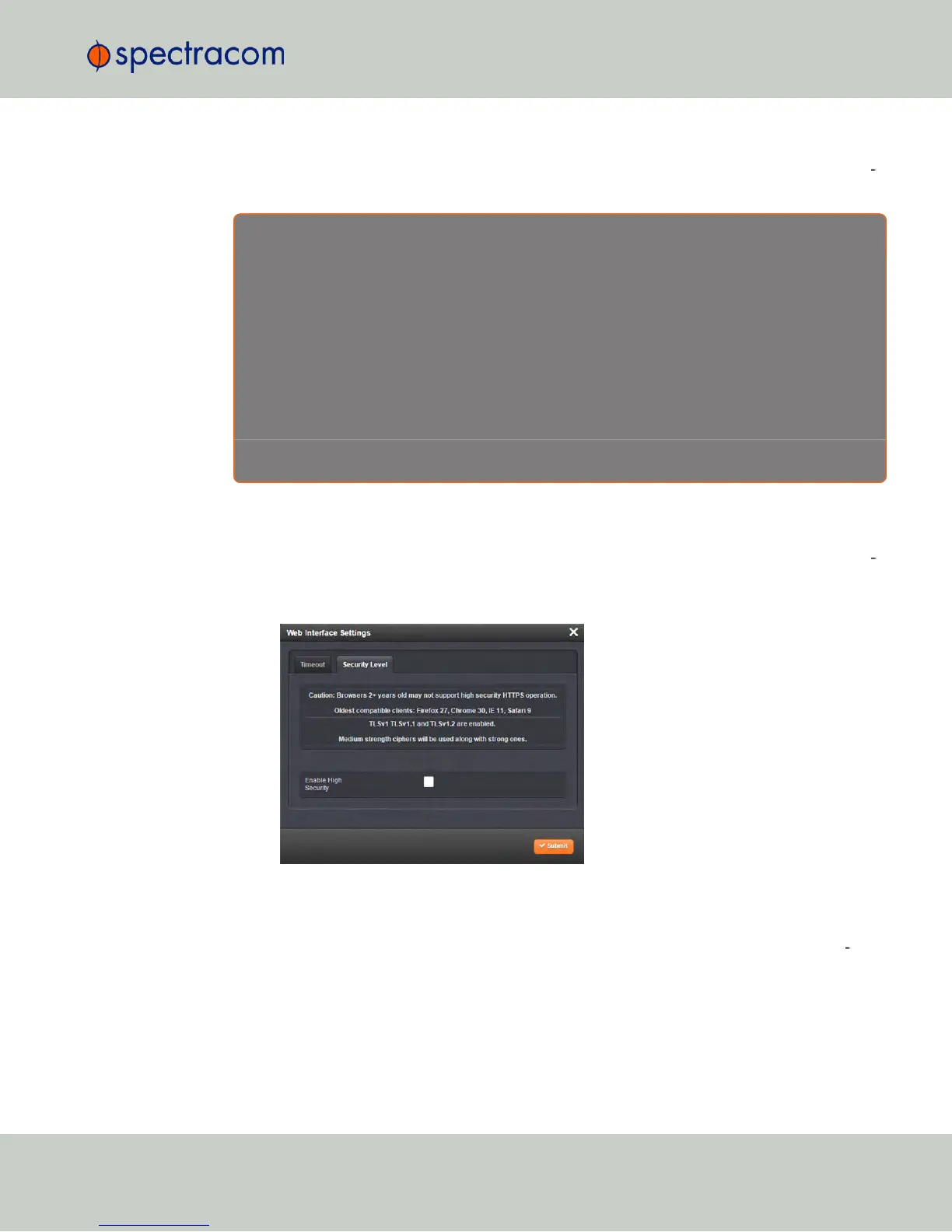
In the Actions Panel on the left, click on Web Interface Settings. The Web Interface Set
tings window will open.
3.
Click on the tab Security Level:
4.
Read the Caution statement and verify that you meet the requirements stated.
5.
Check the box Enable High Security, and click Submit.
6.
While it is NOT necessary to close the Web UI, and restart the browser, it is recom
mended to wait 90 seconds before continuing to use the WebUI, in order to allow the
web server software to restart in the background.
It is also possible to disable High- Security HTTPS and TLS: Follow the procedure outlined
above, but uncheck the box Enable High Security.
For more information on HTTPS certificates, see "HTTPS" on page67.
4.3 Managing Users and Security
CHAPTER 4 • NetClock User Reference Guide Rev. 16
255



 To Next Page