You can access the Web UI either by using the automatically assigned DHCP IP address, or by
using a manually set static IP address (see "Assigning a Static IP Address" on page44):
1.
On a computer connected to the NetClock network, start a web browser, and enter the
IPaddress shown on the NetClock front panel.
2.
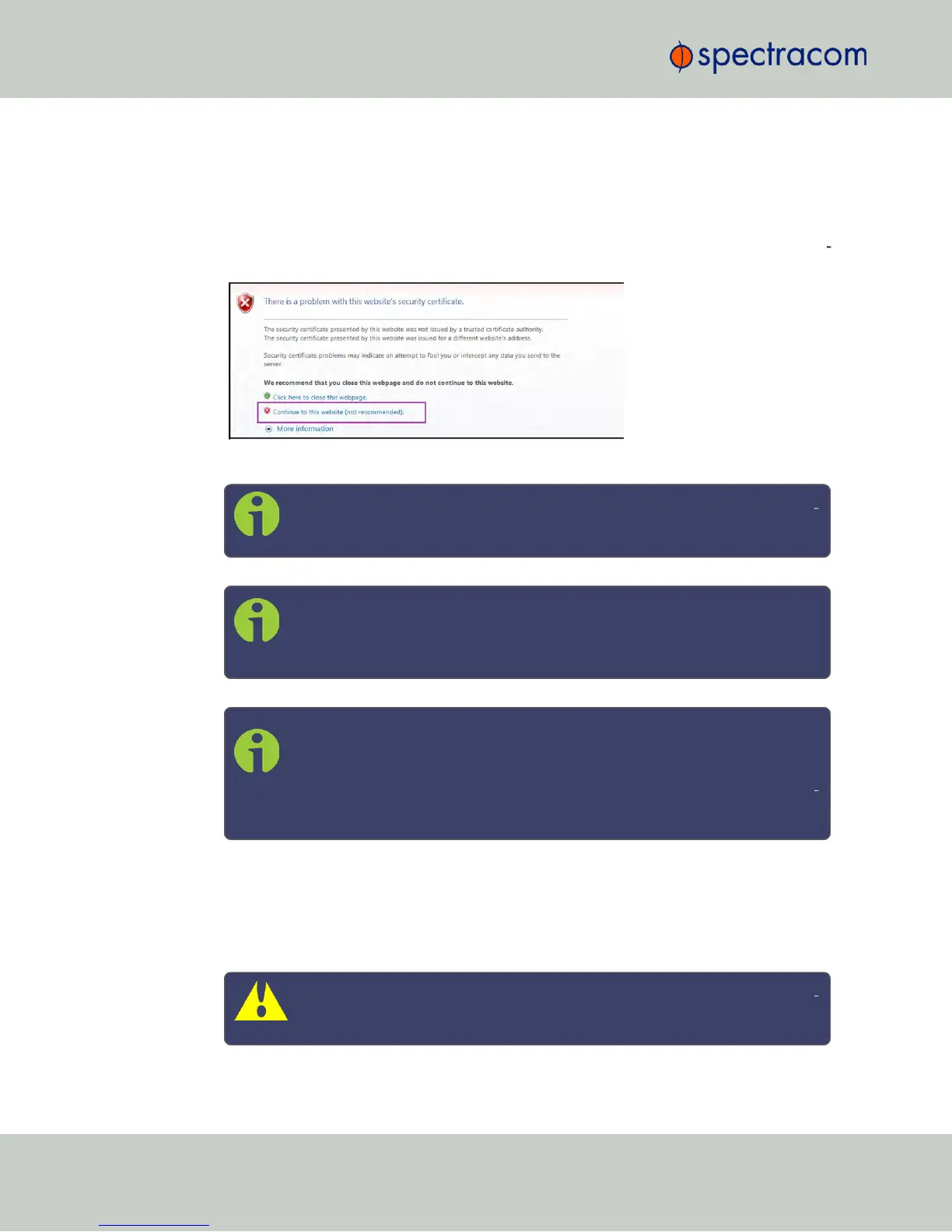
When first connecting to the Web UI, a warning about security certificates may be dis
played:
Select Continue....
Note: "Cookies" must be enabled. You will be notified if Cookies are dis
abled in your browser.
Note: HTTPS only: Depending on your browser, the certificate/security
pop-up window may continue to be displayed each time you open the
Web UI until you saved the certificate in your browser.
Note: Static IPaddress only: To prevent the security pop-up window from
opening each time, a new SSL Certificate needs to be created using the
assigned IP address of NetClock during the certificate generation. See
"HTTPS" on page67 for more information on creating a new SSL cer
tificate.
3.
Log into the Web UI as an administrator. The factory-default administrator user name
and password are:
Username: spadmin
Password: admin123
Caution: For security reasons, it is advisable to change the default cre
dentials, see: "Managing Passwords" on page239.
54
CHAPTER 2 • NetClock User Reference Guide Rev. 16
2.12 Accessing the WebUI



 To Next Page