Once you have assigned the IP address, login to the Web UI. For more information, see
"Accessing the WebUI" on page53.
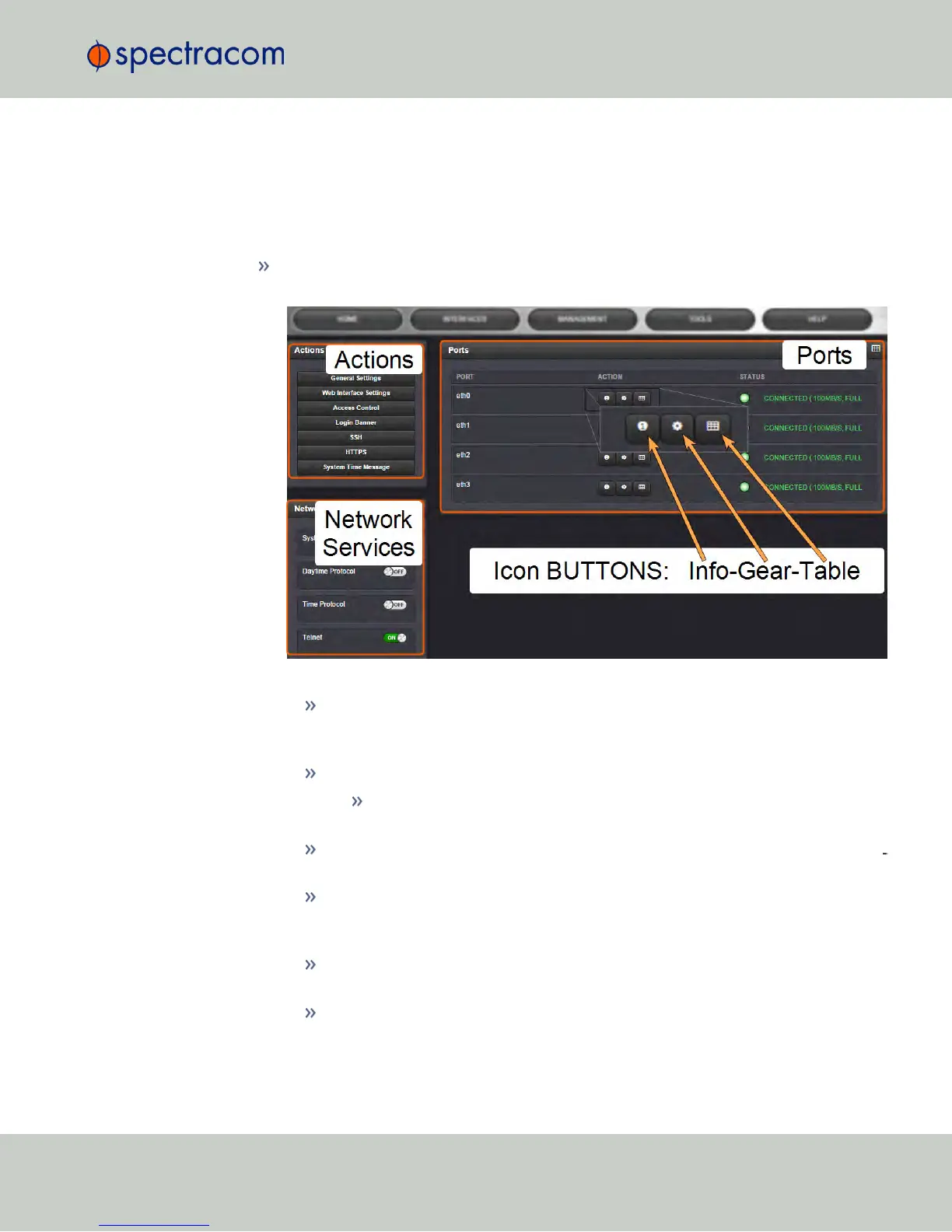
To configure network settings, or monitor your network, navigate to NetClock's Network Setup
screen.
To access the Network Setup screen:
Navigate to MANAGEMENT > Network Setup. The Network Setup screen is divided
into three panels:
The Actions panel provides:
General Settings: Allows quick access to the primary network settings necessary to
connect NetClock to a network. See "General Network Settings" on the next
page.
Web Interface Settings:
Web interface timeout: Determines how long a user can stay logged on.
For more information, see "Web UI Timeout" on page256.
Access Control: Allows the configuration of access restrictions from assigned net
works/nodes.
Login Banner: Allows the administrator to configure a custom banner message to
be displayed on the NetClock Web UI login page and the CLI (Note: There is a
2000 character size limit).
SSH: This button takes you to the SSH Setup window. For details on setting up
SSH, see "SSH" on page77.
HTTPS: This button takes you to the HTTPS Setup window. For details on setting
up HTTPS, see "HTTPS" on page67.
2.14 Configuring Network Settings
CHAPTER 2 • NetClock User Reference Guide Rev. 16
57



 To Next Page