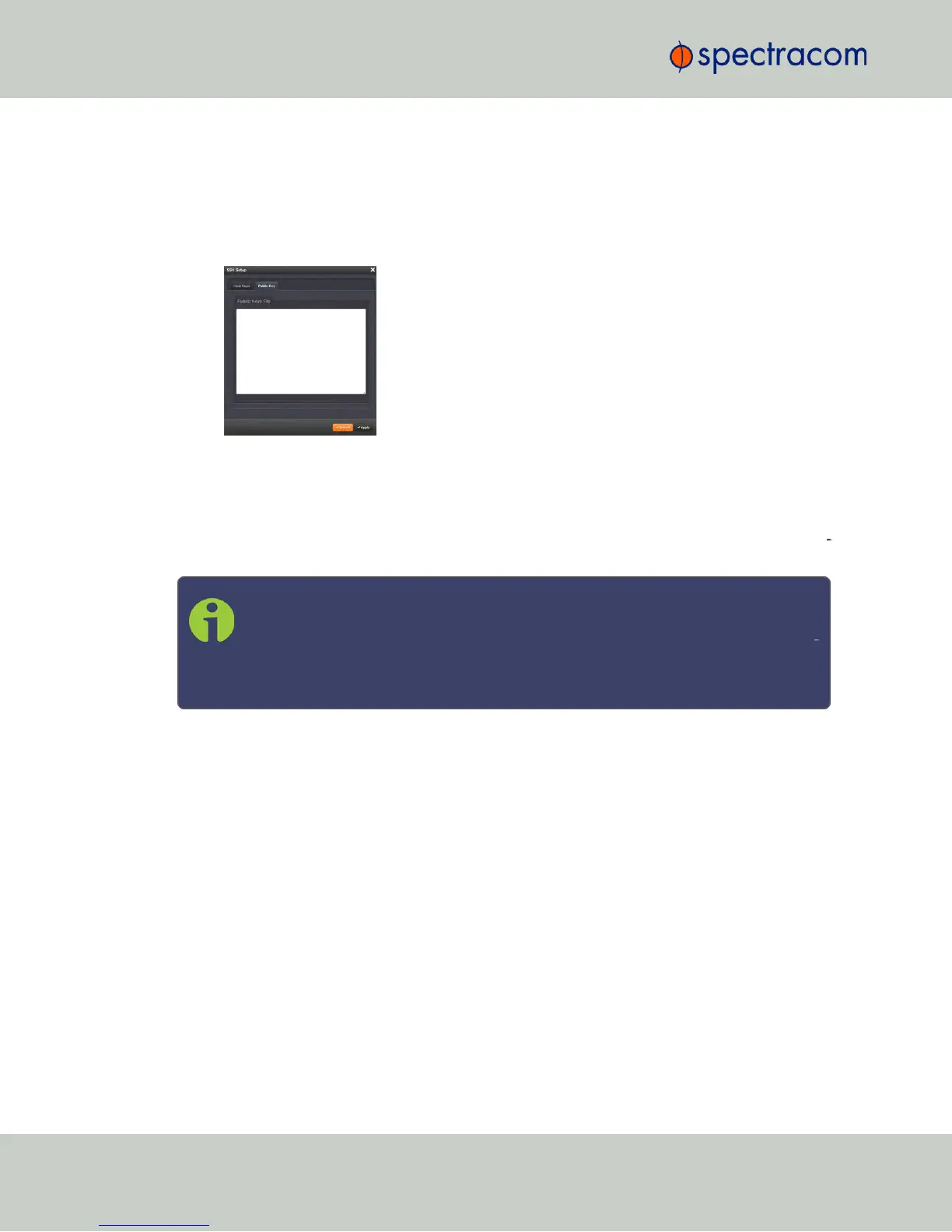
To view and edit the authorized_keys file:
1.
Navigate to MANAGEMENT > NETWORK: SSH Setup. The SSH Setup window will
open to the Host Keys tab by default.
2.
Select the Public Key tab. The authorized_keys file appears in the Public Keys File
window:
3.
Edit the authorized_keys file as desired.
4.
Click the Submit button or Apply button.
The file is to be formatted such that the key is followed by an optional comment, with only one
key per line. The file format, line terminations, and other EOL or EOF characters should cor
respond to UNIX conventions, not Windows.
Note: If you delete ALL Public Keys, Public/Private Key authentication is disabled.
If you have selected SSH authentication using the Public Key with Passphrase
option, login and file transfers will be forbidden. You must select a method allow
ing the use of account password authentication to enable login or file transfers
using SCP or SFTP.
Editing the "authorized_key" File via CLI
Secure shell sessions using an SSH client can be performed using the admin or a user-defined
account. The user may use Account Password or Public Key with Passphrase authentication. The
OpenSSH tool SSH-KEYGEN may be used to create RSA and DSA keys used to identify and
authenticate user login or file transfers.
The following command lines for OpenSSH SSH client tool are given as examples of how to
create an SSH session.
Creating an SSH session with Password Authentication for the admin account
ssh spadmin@10.10.200.5
spadmin@10.10.200.5's password: admin123
You are now presented with boot up text and/or a “>” prompt which allows the use of the
Spectracom command line interface.
82
CHAPTER 2 • NetClock User Reference Guide Rev. 16
2.14 Configuring Network Settings



 To Next Page