Vista 1 Digital Mixing System
2-60 Desk Operation
Document generated: 18.04.17
SW V5.3
Input/Strip Mapping The jingle player can be assigned to a channel strip in the same way as any
other input. It can be selected and patched like an input source in the Graphi-
cal Controller.
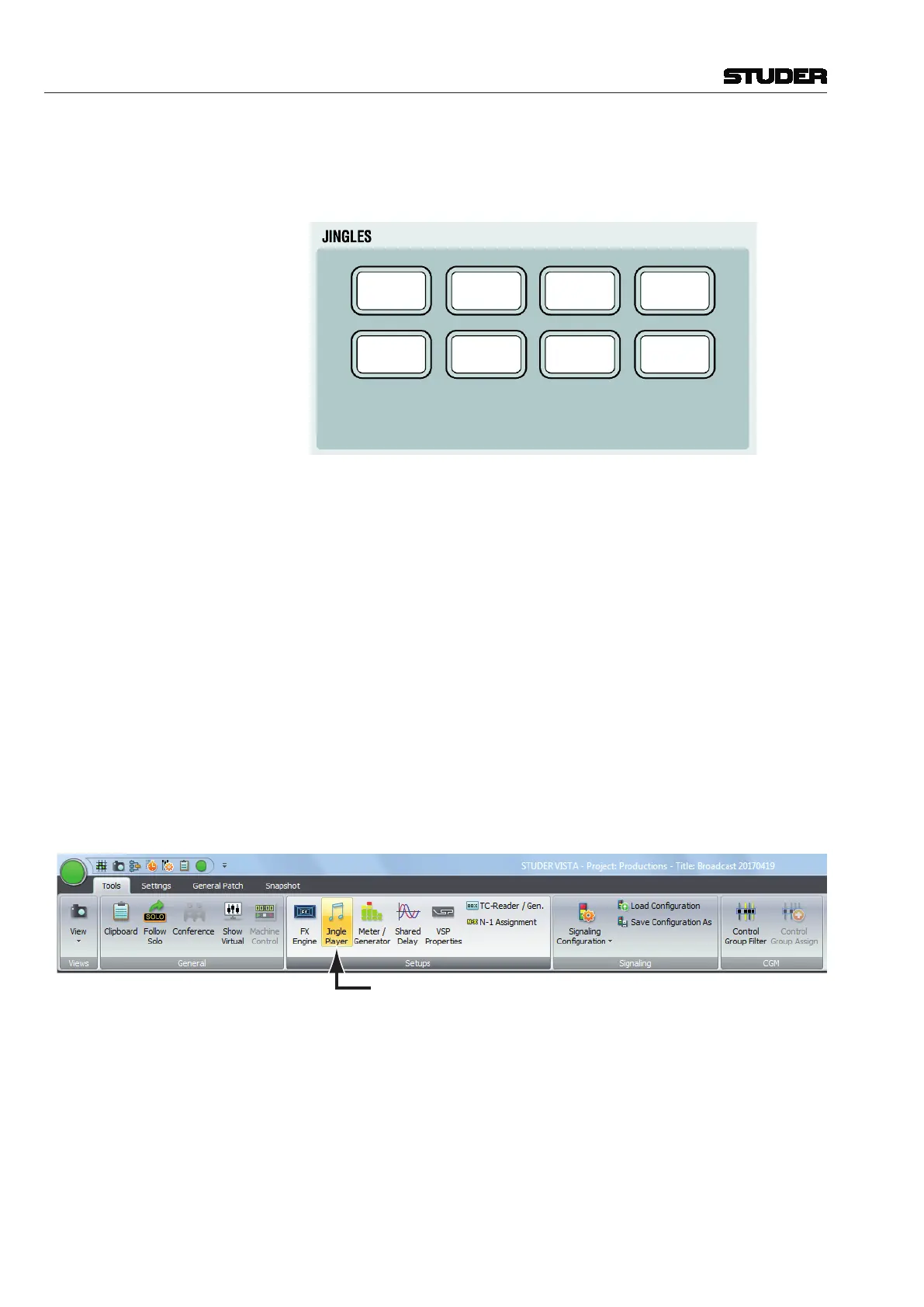
JINGLES Desk Keys
JINGLE
1
JINGLE
5
JINGLE
2
JINGLE
6
JINGLE
3
JINGLE
7
JINGLE
4
JINGLE
8
The JINGLE 1-8 desk keys become active as soon as a USB stick containing
valid jingles is inserted to the USB socket below the desk’s hand rest. Upon
pressing one of the keys, the corresponding jingle audio file starts playing
immediately, and the key is illuminated while playing. When pressing a differ-
ent jingle key while a jingle is currently playing it is interrupted and the new
jingle starts immediately. When pressing the key of a jingle that is currently
playing, it immediately restarts from the beginning.
The default jingle key labels are shown above; the keys have transparent
snap-on caps for easy relabeling.
GC Jingle Player Window Since the JINGLES desk keys cannot be dynamically labeled, a Jingle Player
window was added to the Graphical Controller.
It is opened by a click on the Jingle Player buton in the GC Ribbon tab Tools,
category Setups.
Please note that the Virtual Vista application only shows this Jingle Player
window when in ‘Online’ mode, i.e., when connected to a console and
switched online.
Jingle Player Icon



 To Next Page