Vista 1 Digital Mixing System
GC Operation 4-23
Document generated: 18.04.17
SW V5.3
4.4.2.5.1 Sorting Options
There are two options for sorting the display of the Sources and Targets in the
General Patch Lists. This sorting is independent of which label type is being
displayed due to the global label mode selection.
Sort by Fixed Label: Independent of the User Label, the Sources and Targets will be sorted and
displayed in alphabetical order, depending on the fixed label of the Sources/
Targets.
Sort by User Label: The Sources and Targets will be sorted and displayed in alphabetical order,
depending on the User Labels of the Sources/Targets.
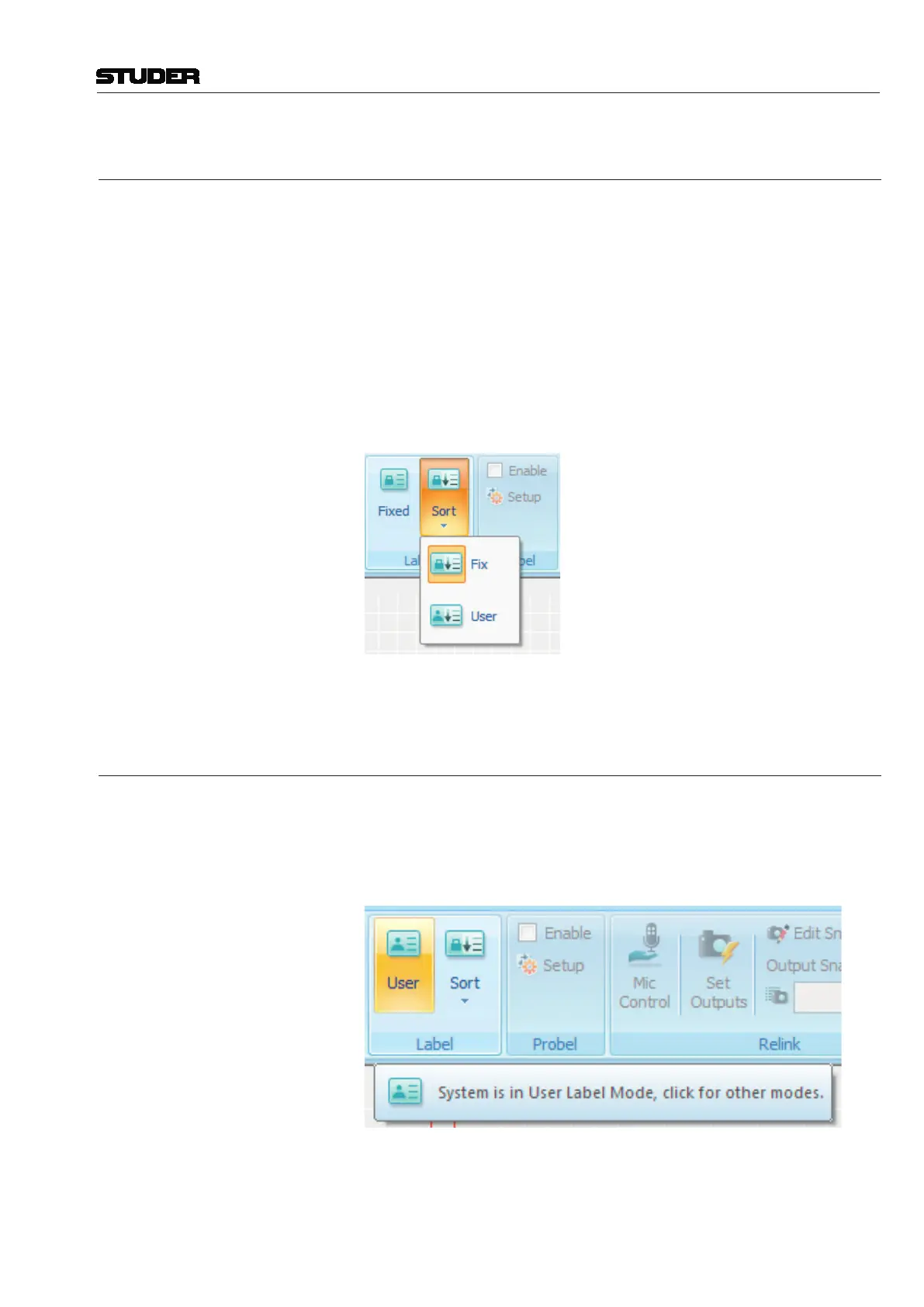
To select the sorting method, choose the ‘fixed label’ or ‘user label’ option
button as shown below:
Tip The most useful sorting method is to sort by ‘fixed label’.
4.4.2.5.2 View the Different Label Types
It is typical that a user will work in a single mode of label type display within
the GC. There are times, however, when it is useful to temporarily display
another of the label types globally within the GC to help with patching. The
Label mode is changed by clicking on the ‘Label’ button in the system toolbar:
Clicking this button will toggle the label view globally throughout all parts
of the GC. The label display can be toggled between FIXED, USER and
Inh /Dev (Inherited/Device). For a detailed description of how to work best
with labels, see below.



 To Next Page