Vista 1 Digital Mixing System
4-86 GC Operation
Document generated: 18.04.17
SW V5.3
4.4.6.1.4 Useful Information
• AnyDSPChannelcanbeassignedtoanyChannelStriponthevirtualcontrol
surface.
• AnyDSPChannelcanbeassignedmorethanoncetoseveraldifferentChan-
nel Strips on any Section.
• ItisnotnecessarytoassignallDSPChannelsavailableinthecurrentlyloaded
configuration; then, however, there will be no control of these channels from
the control surface.
• AssigningDSPChannelstoChannelStripshasnoaffectonaudio.Itispurely
a viewing function, and therefore changing the strip setup can be done at any
time whilst operating the console.
• Anindicationisprovidedtohighlightwhichbaysarecurrentlydisplayedon
the physical console. These displayed bays are in dark gray.
4.4.6.1.5 Labels in Strip Setup
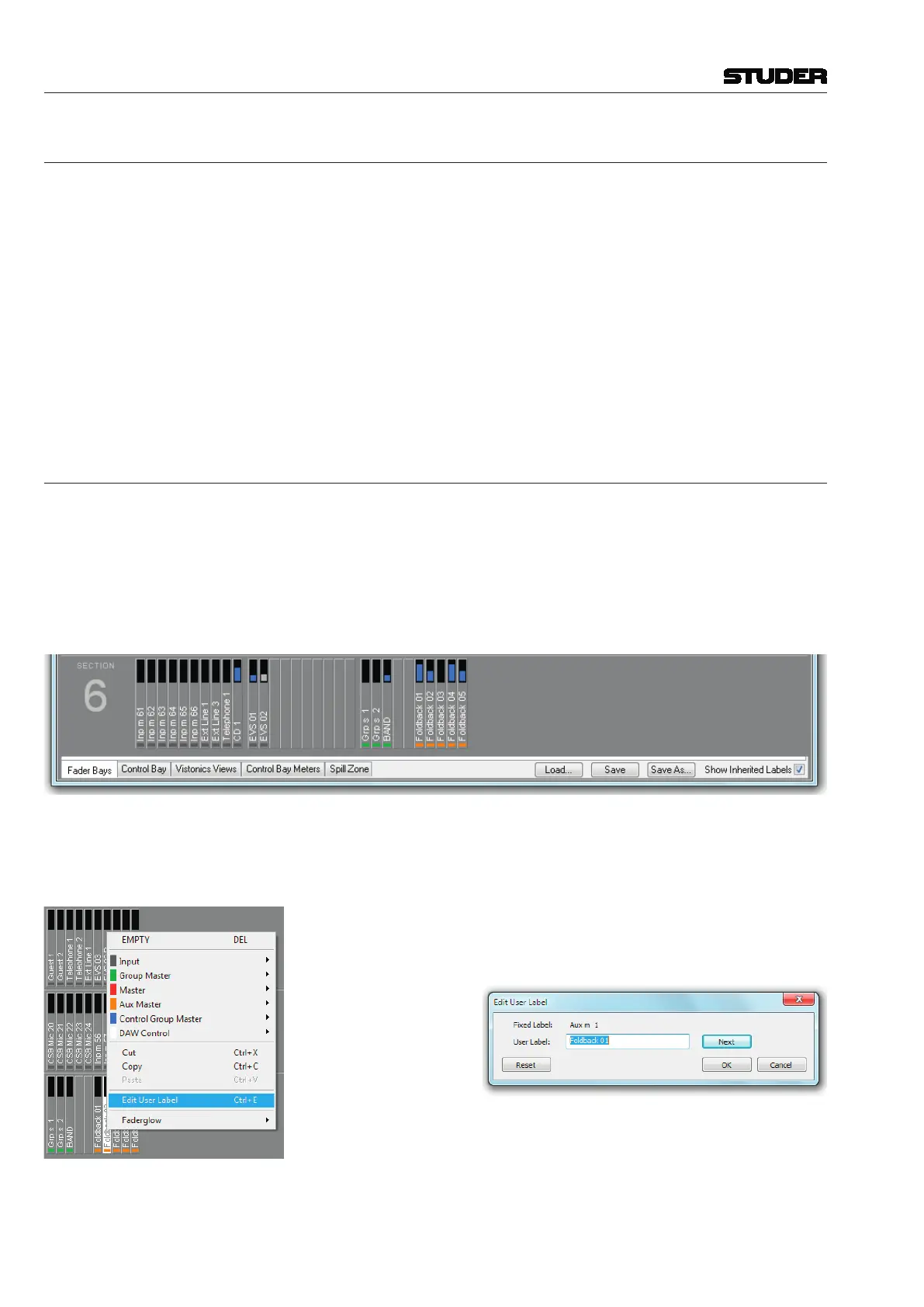
The most useful label type to show in strip setup is the ‘Inherited Label’.
This is the session label of the source that is patched to a DSP channel and
also relates to the large label in the channel strip display. See chapter 4.4.2.6
for more information regarding the Vista labeling system. For this reason, a
checkbox is provided which locks the label type view of Strip Setup to show
the ‘Inherited labels’ (see below). Check the ‘Show Inherited Labels’ box to
always show Inherited Labels in the Strip Setup window.
If the ‘Show Inherited Labels’ box is not checked, the label type shown in the
Strip Setup will follow the choice of the label displayed by the smaller label
in the Channel Strips. See chapter 4.4.2.6 for a description of this label.
The following channel types can directly be labeled in the Strip Setup by
right-clicking the desired channel, and then selecting Edit User Label.
• DAWchannels
• CGM/VCAmasters
• Auxmasters
• Matrixmasters
• Groupmasters
• Masters
Important Input channels are the only channels that cannot be labeled in the strip setup.
This is because the input channels use a special mechanism always propagat-
ing the name of the Input interface (e.g. mic input) to the channel patched to



 To Next Page