Vista 1 Digital Mixing System
GC Operation 4-27
Document generated: 18.04.17
SW V5.3
4.4.2.8 How to Activate the Device Label Functionality
In order to activate the automatic import of your device labels from the device
label file, two conditions must be met:
• Theremustbeapresetfilenamed‘__DeviceLabels.pre’ matching the
currently loaded configuration and holding your device label names.
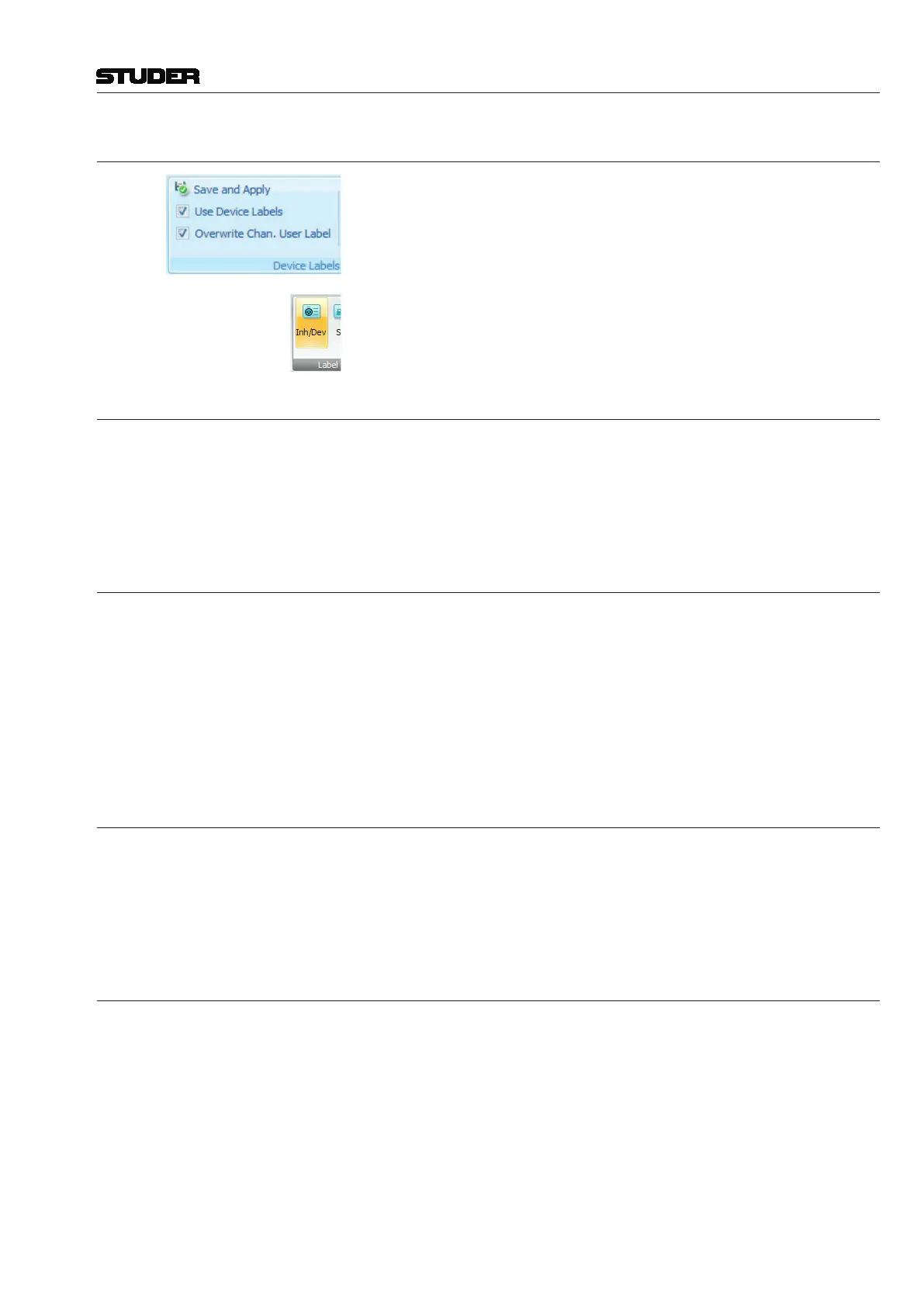
• The‘UserDeviceLabels’optionintheSysAdmin/DeviceLabelsmenu
must be activated.
This will automatically show the device labels in the General Patch window
when switching to the corresponding label mode.
4.4.2.9 Where are the Device Labels Saved?
As you know, these labels are normally not changed for a specific session, but
will stay constant in a studio installation. This is why they are saved in a preset
(
*.pre) file, being valid for the currently loaded configuration, rather than
just a snapshot or title. If a different configuration is loaded, you will need to
import the ‘__DeviceLabels.pre’ file from the previous configuration.
4.4.2.10 How to Create or Overwrite a Device Label
If you create a device label file from scratch or overwrite an existing one with
a new one, you may proceed as follows:
• EnterthedevicelabelsintotheUSERLABELfieldofthepatch(input
ports and output ports). Do this in the USER LABEL field.
• EnterSysAdminmodein the GC byclickingthe padlock icon onthe
toolbar, and enter the system password.
• GototheSysAdmin/DeviceLabelsmenuandselect‘SaveandApplyUser
Labels as Device Labels’.
4.4.2.11 How to Edit an Existing Device Label
Since the device labels are saved in a regular preset file, you just log in as the
system administrator and recall the ‘
__DeviceLabels.pre’ file. You will see
the device labels again in the patch (USER LABEL field). Now you may edit
them; then either click UPDATE, or go to the SysAdmin / Device Labels /
‘Save and Apply User Labels as Device Labels’ menu.
4.4.2.12 Background Information
If you are using the device label functionality (option Settings/Device Labels/
Use Device Labels), you activate an automatic and repetitive import of these
labels from the ‘
__DeviceLabels.pre’ file into your patch. If you create any
snapshots, the current device labels will be part of the snapshot. However,
if you recall older snapshots that have been saved at a time when no device
labels were active, that snapshot on the disk will not be changed at all. The
snapshot will be loaded onto your console, visualized as it was saved in your
General Patch screen; but an instant later the current device labels of your
console will be copied into your patch. If you now choose to update your
snapshot or make any new ones, these will contain exactly the labels you see
on your General Patch screen.



 To Next Page