Vista 1 Digital Mixing System
GC Operation 4-45
Document generated: 18.04.17
SW V5.3
4.4.4.4 Additional Snapshot Functionality
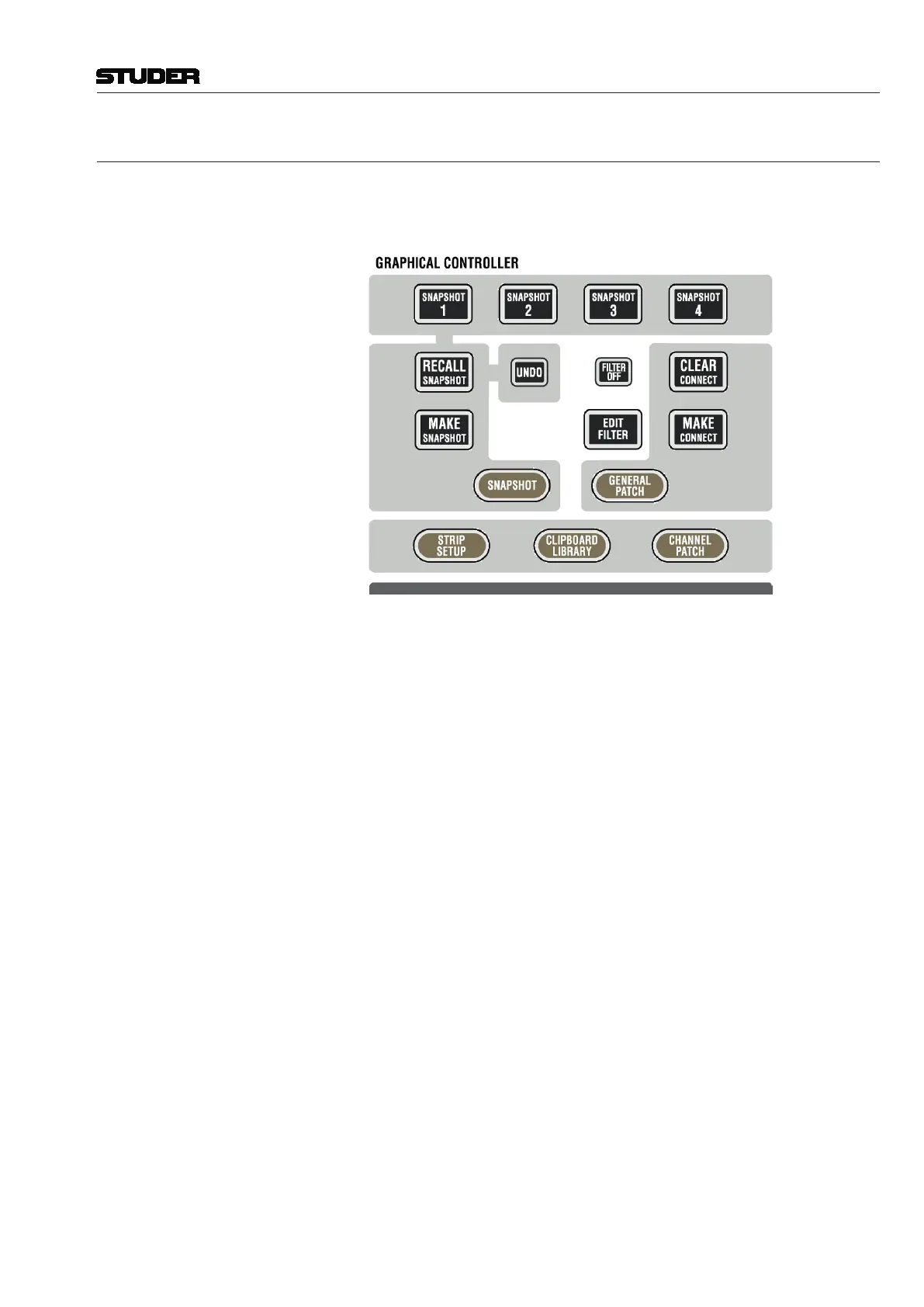
In addition to the dedicated MAKE SNAPSHOT hardware key, there are four
SNAPSHOT 1...4 keys for saving and recalling four individual snapshots on
these keys.
Assign a Snapshot to a Key: To save a snapshot onto one of the 4 keys, push and hold down the MAKE
SNAPSHOT key, then hit the key you would like it to be saved on. Depending
on which of the keys you select, a snapshot will be generated in the snaps-
hot List called
__Snapx_Key, where x is the number of the selected button
between 1 and 4. This snapshot can now be recalled at any time using the
dedicated key by holding down the RECALL SNAPSHOT key and pressing the
desired SNAPSHOT key. The need for a two-key operation provides a certain
level of security.
A new snapshot can be applied to one of the dedicated keys even if the button
already has a snapshot saved to it. In this instance, the previously saved
snapshot will be overwritten.
Tip To ensure that a snapshot that has been saved on a dedicated key is not
overwritten, and hence lost from the snapshot list, always make the snapshot
twice, once to the key and once in the normal way just by pressing the MAKE
SNAPSHOT key by itself. In this case the same snapshot will appear in the
snapshot list twice; once called
__Snapx_Key and a second time as Snapshot
x
. Rename the latter snapshot as required; this will ensure that the snapshot
is not lost even if is removed from the dedicated key.
Note: It is possible to rename any snapshot already existing in the snapshot list
to
__Snapx_Key. Doing this will put the renamed snapshot onto the chosen
hardware key directly without having to recall it first. Make sure that only one
instance of
__Snap1_Key, __Snap2_Key, __Snap3_Key, or __Snap4_Key
exists in the snapshot list at any time.



 To Next Page