Vista 1 Digital Mixing System
4-100 GC Operation
Document generated: 18.04.17
SW V5.3
4.5.2 Save
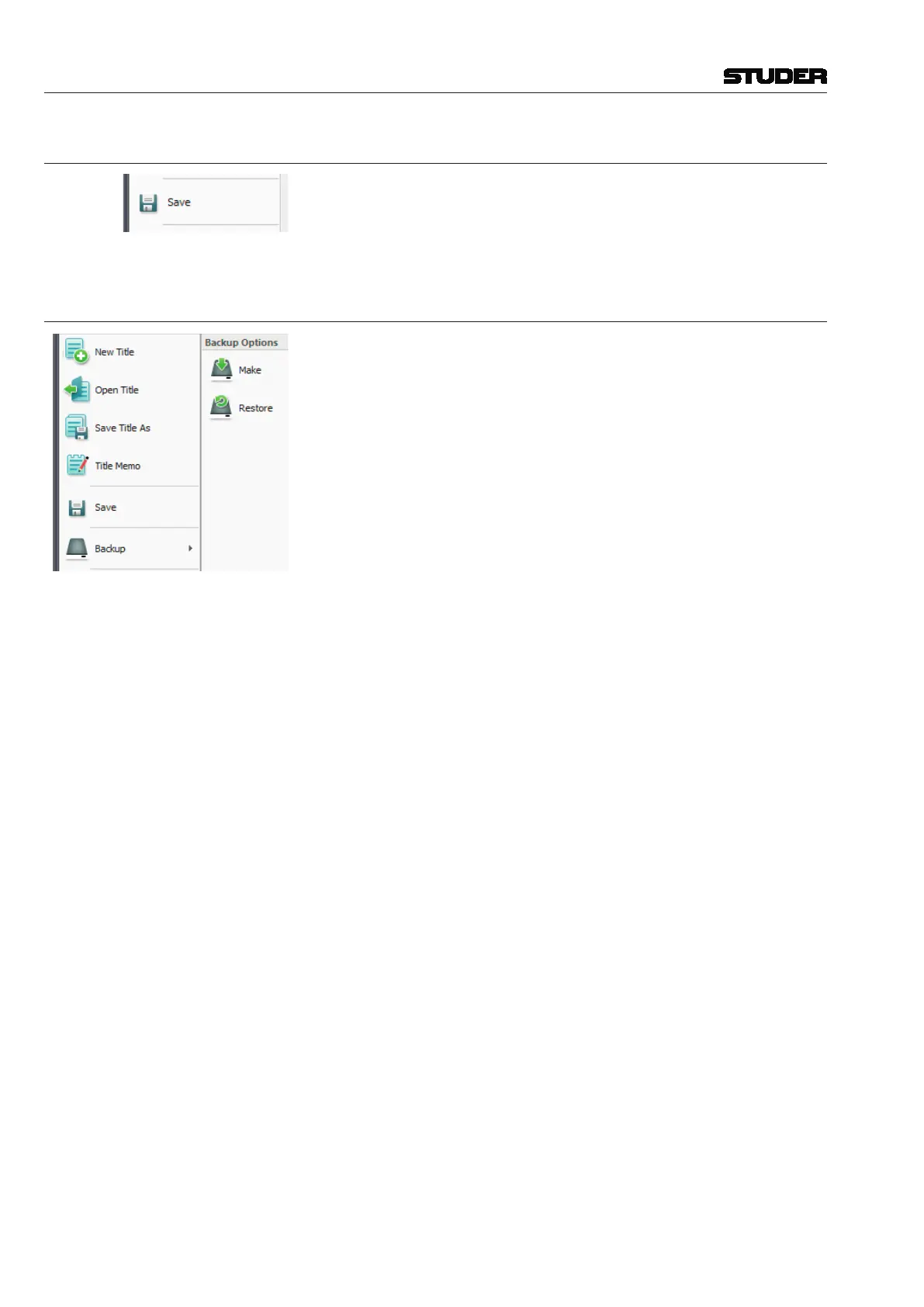
Selection of the Save menu item will save all title oriented information to the
currently opened title.
Since this happens automatically when changing to another title or when
leaving the application, this button possibly may never be used.
4.5.3 Make/Restore Backup
The Vista provides a powerful and easy-to-use data backup utility. This fea ture
enables the creation of a backup subdirectory that contains a copy of all files
from the title folder and all pertinent configuration and system files needed to
recreate the session on this or another Vista. These backup files can be used
for data protection and easy transportation of titles between Vista equipped
facilities.
Backup directories can be made on any storage media of sufficient size. They
can be used to restore all of the files and information needed to recreate the
title at a later date or on a different Vista.
Make Backup This action opens the Create Backup window, where a destination for the
backup directory is selected. backup directories are automatically named by
the utility. After the BCK_D950_BACKUP… portion of the title, names include
the title name and dates of modification and origination.
To create a backup directory for the current title:
• SelectMakeBackupfromtheApplicationmenu;
• Selectthedestinationforthebackupdirectory;
• ClicktheOKbuttonorpressEnter on the keyboard
These actions will perform the following:
• Creationofanewbackupdirectoryatthedesiredlocation;
• Nameanddatethedirectory.
Restore Backup This action opens the Restore Backup window entitled, where a backup direc-
tory is selected for reloading.
To restore a backup directory:
• SelectRestoreBackupfromtheApplicationmenu;
• Highlightthedesiredbackupdirectory;
• ClicktheOKbuttonorpressEnter on the keyboard;
A pop-up dialog box will appear giving you the option of replacing the exis-
ting title, saving the restored title as a new title, or canceling the backup. If
you select ‘Replace the Existing Title’, you will not be able to replace the
Session Configuration if it is currently loaded and will be given the option
to continue. You will also have the opportunity to replace the monitor file
if it also exists. Choosing ‘Restoring the Title As’ will result in the normal
Window’s save screen.
Notes Regardless of the method used to create it, after a backup has been restored,
the resulting title must be opened before use.



 To Next Page