Vista 1 Digital Mixing System
GC Operation 4-59
Document generated: 18.04.17
SW V5.3
4.4.5.2.6 XFade Active
It may be useful to temporarily disable cue cross-fades (e.g., during rehear-
sals). This can be done by un-checking this item.
4.4.5.2.7 Preview
The snapshot/cue preview mode can be activated either by a hardware key or
by clicking on the button located in the top right corner of the cue list window.
When in preview mode, the cue or snapshot currently selected (single click)
is compared to the current audio settings. If there is a difference, Vistonics
shows both values at the same time, using a pink graphical indication. When
pressing the dedicated snapshot keys above the touch pad, the preview mode
is automatically activated until the same key is pressed again.
4.4.5.2.8 MIDI Show Control Device
It is possible to control the cue list by using ‘MIDI Show Control’ commands.
the Vista console acts as a slave in this case. The following ‘MIDI Show
Control’ commands are supported: Go, Stop, Resume, Load, Reset, Standby+,
Standby–, Sequence+, Sequence–.
Vista is designated as a Music Command Format (0x11). The MIDI device
ID is set in the ‘Option: snapshot Automation’ menu.
Examples Next Cue: F0 7F [Device ID] 02 11 01 F7 (Go command)
Previous Cue: F0 7F [Device ID] 02 11 12 F7 (Standby Command), then
F0 7F [Device ID] 02 11 01 F7 (Go Command)
Recall Cue 3.5: F0 7F [Device ID] 02 11 01 33 2E 35 F7 (Go Command with Q specified)
4.4.5.2.9 MIDI Port Deactivation
GP
1
GP
5
GP
2
GP
6
GP
3
GP
7
GP
4
GP
8
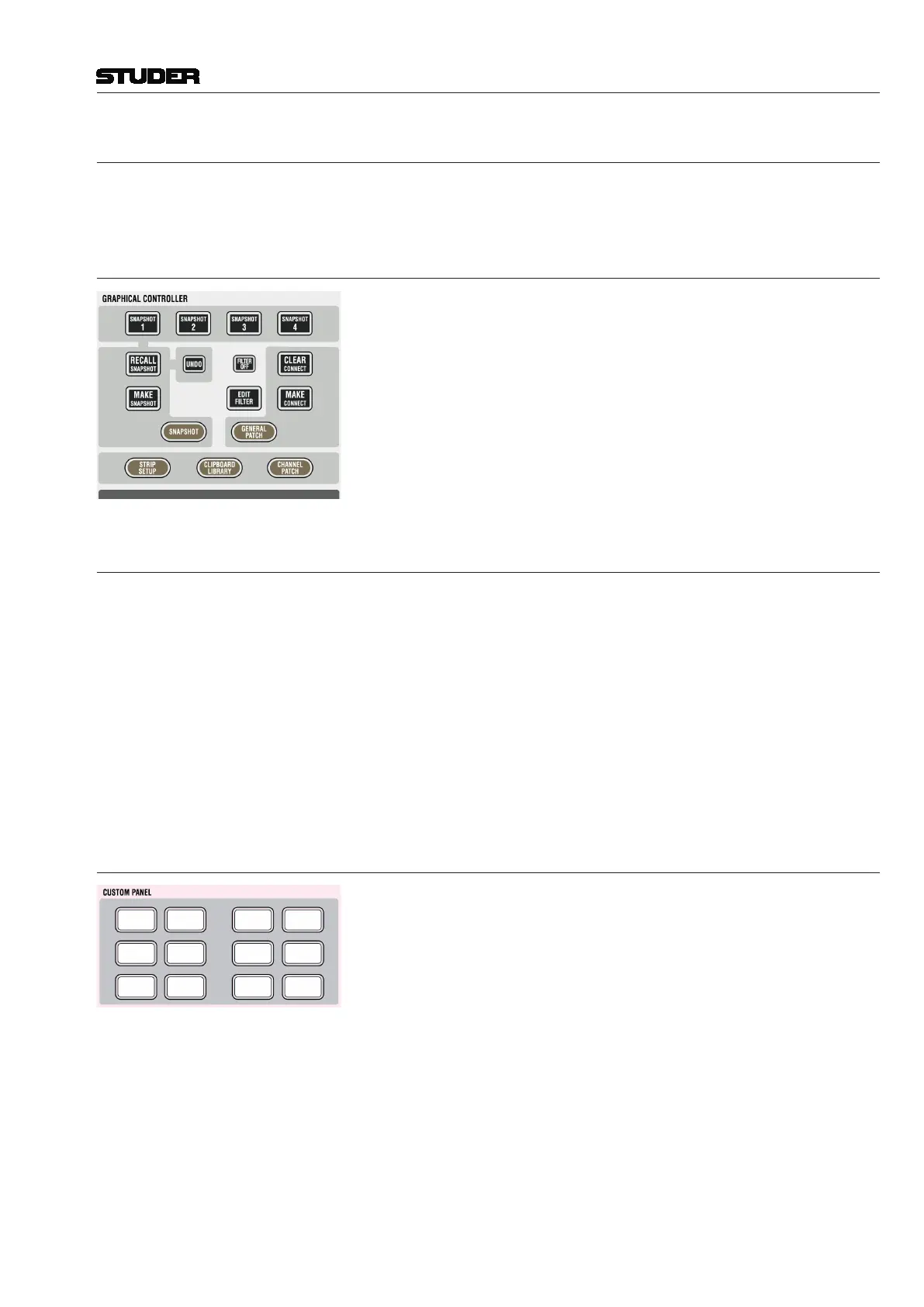
For enabling or disabling (cutting) the MIDI control input and output ports,
two of the CUSTOM PANEL 7-12 desk keys can be used
The MIDI In port can be disabled, in addition (together with the blackout
function as well as the hardware NEXT and PREVIOUS keys on the console
surface) using the ARM CUELIST button in the theatre cue list. Different
options can be set in the Snapshot/Snapshot Automation Options menu.



 To Next Page