Vista 1 Digital Mixing System
GC Operation 4-85
Document generated: 18.04.17
SW V5.3
4.4.6.1.3 Moving Already Assigned DSP Channels to Other Channel Strips
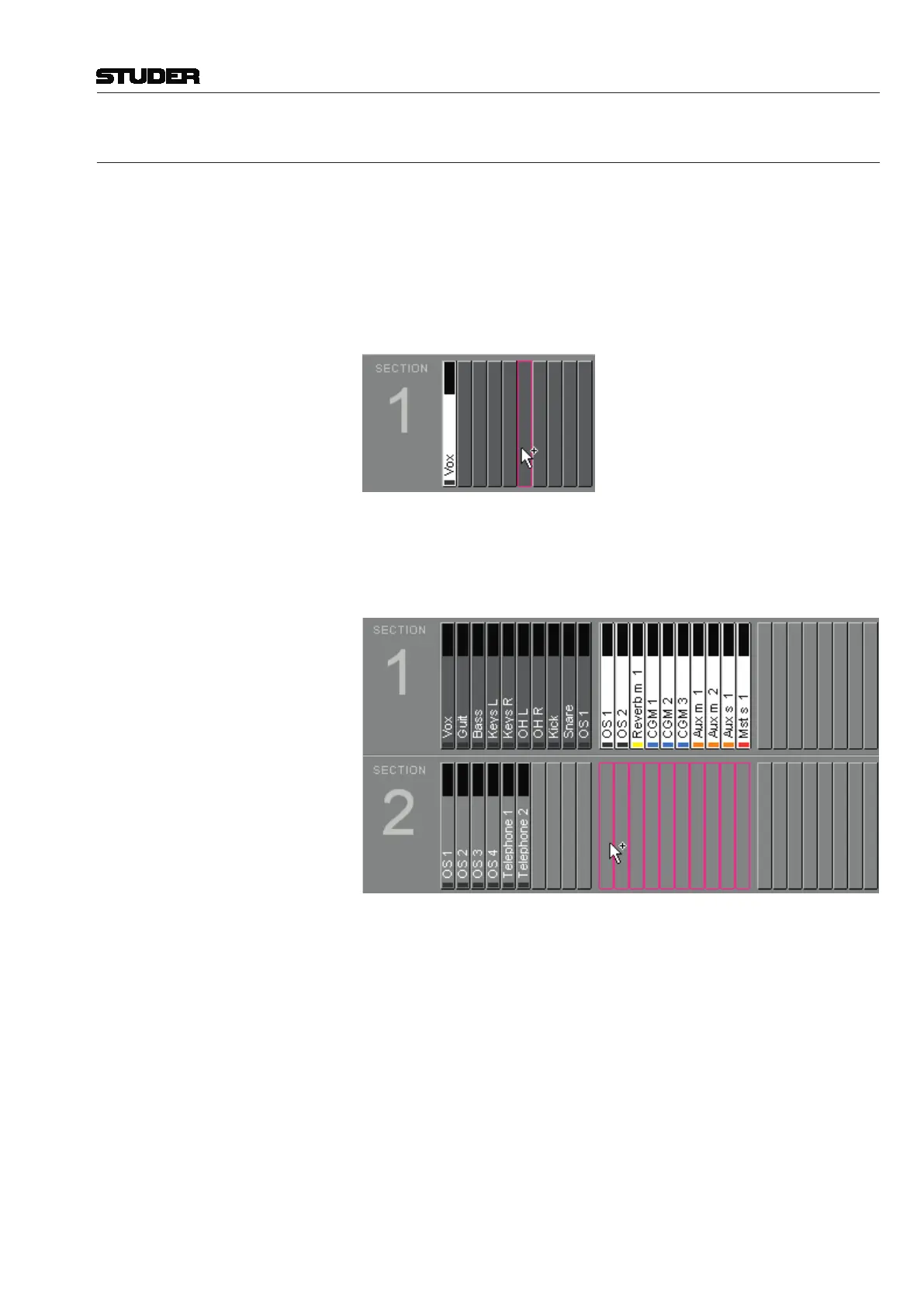
If a DSP channel is already assigned to a channel strip, it is extremely easy
to change the channel strip on which it is shown. Simply click-and-hold the
left touch pad button on the desired channel and drag-and-drop it onto any
other channel strip. This will remove it from its present position and place
it in the new channel strip. Whilst the left touch pad button is held with a
selected channel, a ‘ghost’ view will appear to aid navigation to its newly
selected channel strip. If it is dropped onto a channel strip which is already
displaying a channel, the new channel will replace the existing one.
It is also possible to move numerous consecutive channels in one block by
highlighting a number of channels. Click-and-hold the left touch pad button
and drag-and-drop the channels to the new location. A ‘ghost’ view of the
selected channels appears to help navigation.
Tips By holding the Ctrl key whilst dragging-and-dropping channels, the DSP
channels will be copied to the selected destination, instead of being moved
from their original position. Standard Windows copy/paste functionality
(Ctrl+x for cutting, Ctrl+c for copying, Ctrl+v for pasting) is possible once
channel strips are highlighted.
Note: If ten channel strips are copied or cut, and only five channel strips are high-
lighted to paste the DSP Channels into, then only the first five DSP channels
of the copied ten will be pasted.



 To Next Page