Vista 1 Digital Mixing System
4-76 GC Operation
Document generated: 18.04.17
SW V5.3
4.4.5.3.3 Rehearsal Phase
Once the basic settings are transferred to and saved within the console and the
rehearsals are at a stage where the original cast is rehearsing, e.g. already in
costumes and with the stage props, the cue list can be completed with library
events where necessary.
Library Events Library events can be used to make the necessary parameter changes on a
cue-by-cue basis, without the need of using snapshots to accomplish these
changes. This makes the workflow easier, faster and more straightforward,
allowing the operator focusing on the mix, rather than having to remember
appropriate snapshot and snapshot filter states.
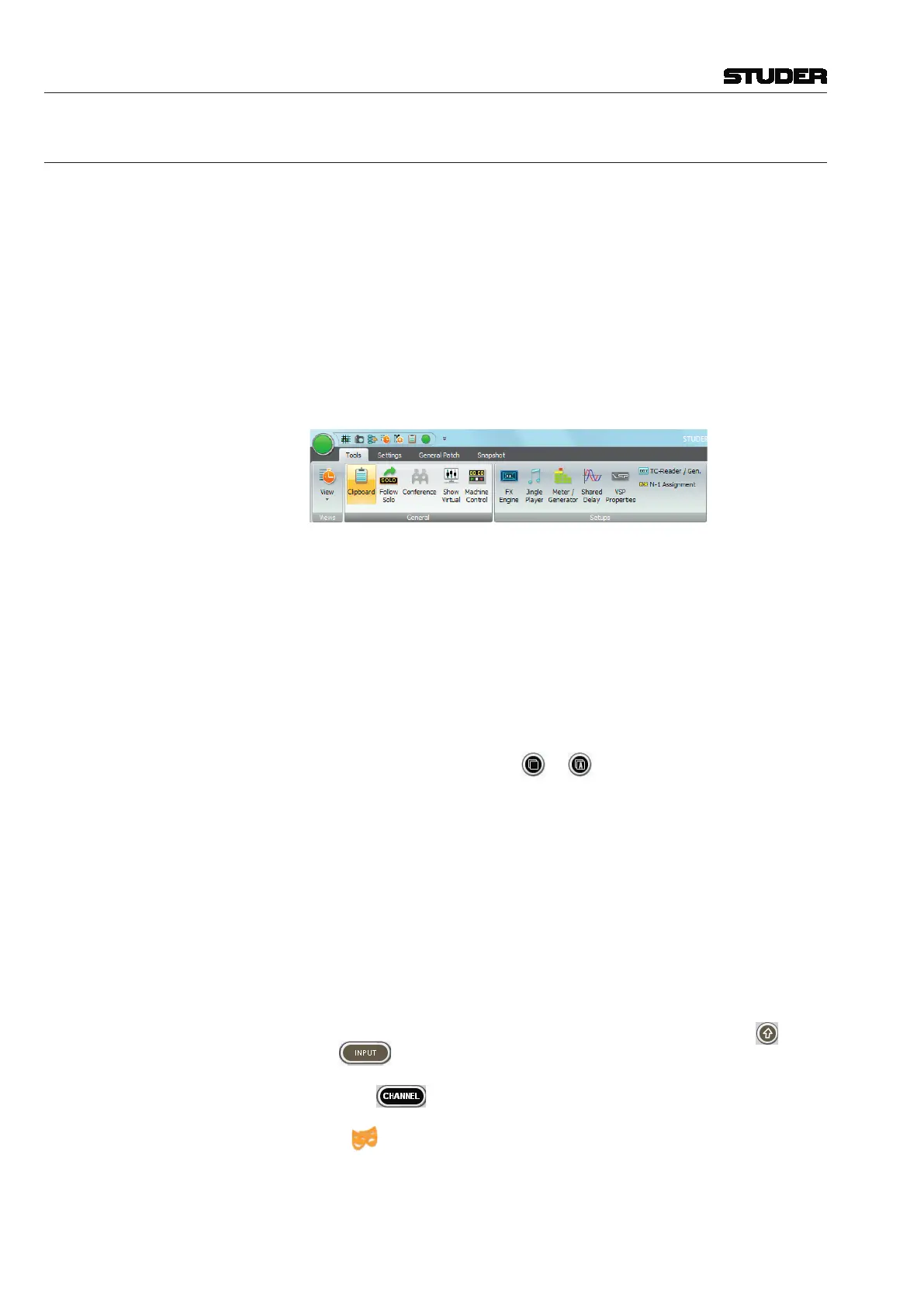
Library event settings are visible in the clipboard library window that is
opened with a click on the Clipboard library icon :
The collected settings are organized in such a way that a setting or a number
of settings belong to a particular actor. Just select the desired actor from the
Actor drop-down list to display his settings.
If the Actors have not been created already, they can also be created on the
fly, together with the actual library event settings by copying them from a
channel strip. To do this, proceed as outlined below.
• Gotothedesiredchannelstriponthedesksurfaceandcopythecurrent
setting of the desired processing block (or a combination of several pro-
cessing blocks – PAN, EQ, DYN, INS/DEL, FILT, or ALL parameters of
a channel at once) with the
or keys.
• Pasteitintothelibraryunderthedesiredactor.Iftheactordoesnotyet
exist, it can be created while the copied parameters remain in the temporary
clipboard.
• Whilebeingpastedintothelibraryunderanactor,thesettingneedsto
be given a name. The naming of the setting is important, since later on
only the names of the settings are shown on the Vistonics screen, and the
operator needs to be able to select to appropriate setting just from reading
the name.
• Onceasettingissavedinthelibrary,itstillneedstobeappliedtothe
desired cue(s). For this purpose, the identification concept uses the names
of the library settings.
Add a Library Event to a Cue First, select the actors view on the Vistonics screen by pressing the
(Shift)
and
(INPUT) keys. This is a global actor view across all Vistonics
channels; a particular actor is also shown when opening the channel view
using the
key.
With a right-click in the Events column of a cue and selecting the library
event
symbol from the list that drops down, a library event is added to
that cue. An alternative way to do this is by dragging-and-dropping the library
event symbol from the Events area at the left of the cue list into the Events
column of the desired cue.
By clicking on the icon once, the Configuration area opens in the lower left



 To Next Page