Vista 1 Digital Mixing System
4-46 GC Operation
Document generated: 18.04.17
SW V5.3
Snapshot Preview: By clicking on the PREVIEW button, the console enters this mode. Regardless
of which snapshot the user selects, pink elements within all Vistonics elements
will show any difference between the current console settings and the settings
within the previewed snapshot. It is still possible to recall any snapshot by all
mechanisms described above.
When pressing any of the four dedicated SNAPSHOT 1...4 keys without
pressing the RECALL SNAPSHOT key at the same time, that corresponding
snapshot is automatically only previewed. It is also possible to preview it
only momentarily by pressing e.g. the SNAPSHOT 1 key for a longer period;
the key will be lit as long as the preview is active.
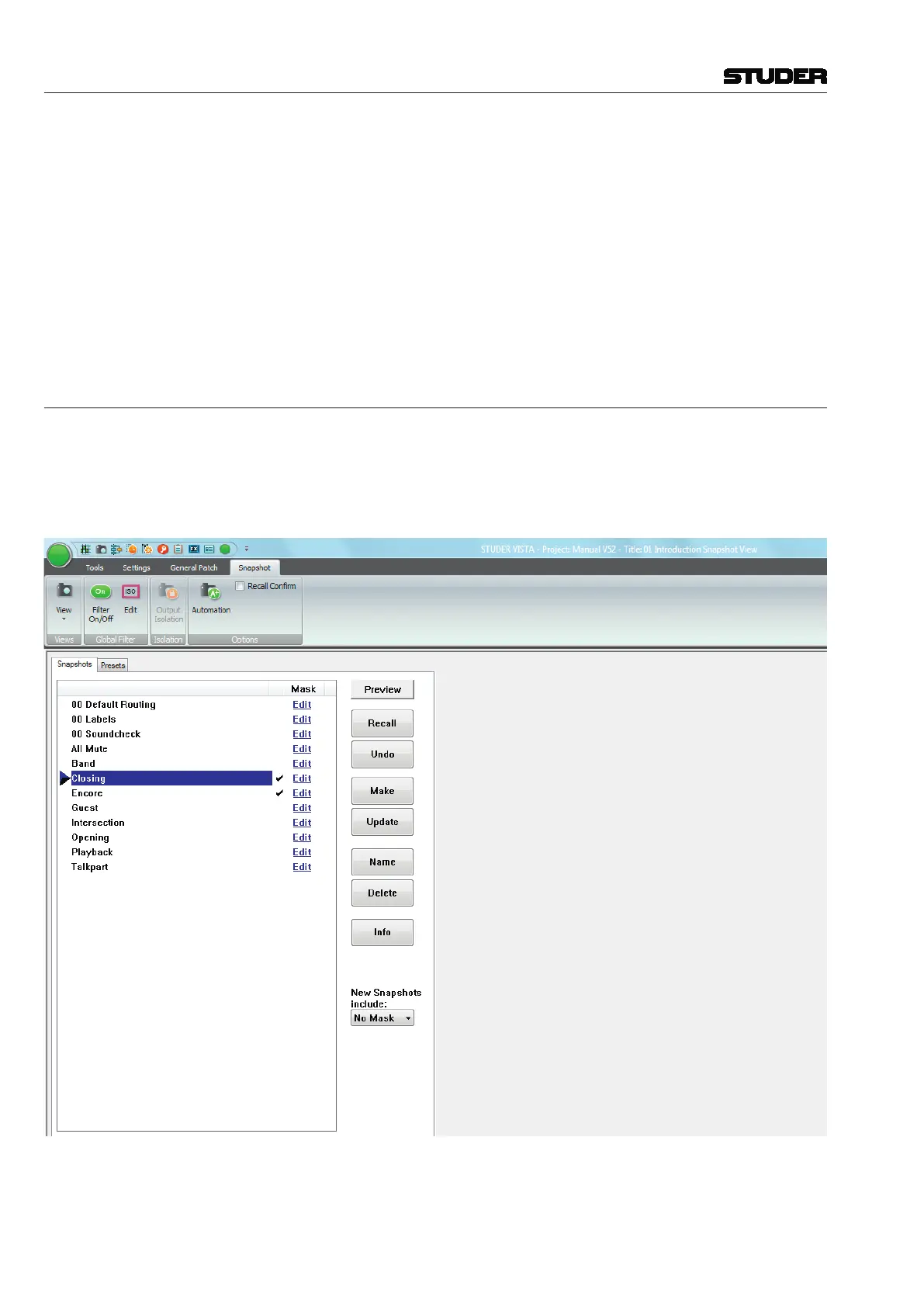
4.4.4.5 Partial Snapshots
It is possible to create snapshots that do not affect the whole console when
recalled. They are called ‘partial snapshots’. When recalling such a snapshot,
only some of the channels – or even only some of their elements – are being
changed on the desk. Partial snapshots are being marked with a checkmark
next to the Edit button.
Creating a Partial Snapshot The easiest way to create a partial snapshot is to gang some channels and
make a snapshot, while having the ‘New snapshots include:’ setting set to
‘Gang’:



 To Next Page