114
Select a Previous SmartPath Pass
If SmartPath is specified as desired pattern, but an active guidance pattern is not being followed, the Guidance System
automatically begins searching for SmartPath patterns to use.
To use a previously-created SmartPath pattern, press on the Active Line Cycle button. This button allows
cycling between available SmartPath patterns.
÷
NOTE!
• When the guidance system looks for other available SmartPath patterns, it first displays the nearest-available
pass.
• Adjust the available area in which the Guidance System searches for previously-created SmartPath passes. To
do this, adjust the Heading Threshold settings on the Smart tab of the Guidance Options screen.
SmartPath Guidance Options
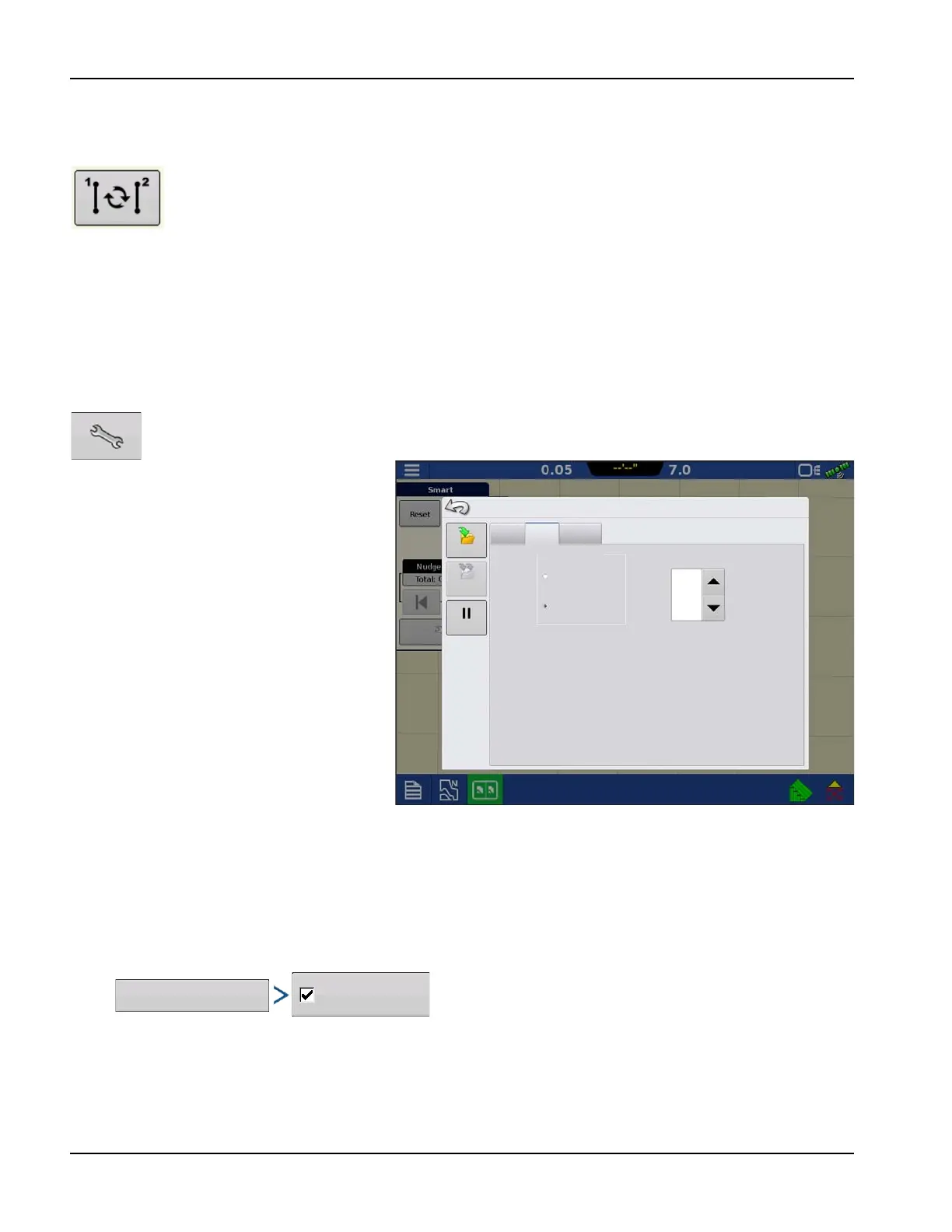
SmartPath only creates a SmartPath pass when data is logging in the field. However, this option can be
switched to create SmartPath passes continually during all field operations.
To adjust this setting, press the
Guidance Options button on the Guidance tab.
The Guidance Options screen appears. Press the
Smart tab Wrench.
• The default setting is Logged Area. This
setting only creates passes while logging
field data.
• Selecting All Area Covered to create
SmartPath passes even when not logging
field data.
• The Heading Threshold setting is the
available area that the Guidance System
uses to search for previously-created
SmartPath passes. The default setting is 20
degrees.
AutoSave
Guidance patterns can be automatically saved
after completion.
• Feature is on by default.
• A toast will notify user that pattern was saved with default name of date and time.
• Patterns can be renamed or deleted.
• Features can be disabled from following location:
Nudge
Path Generation
Smart
Lightbar
Save
Pause
Logged Area
Heading
Threshold
All Area Covered
Guidance Options
degrees
Save
Group
Save patterns
automatically



 To Next Page