In-Field Functions
87
PN 4004700–ENG Rev. K
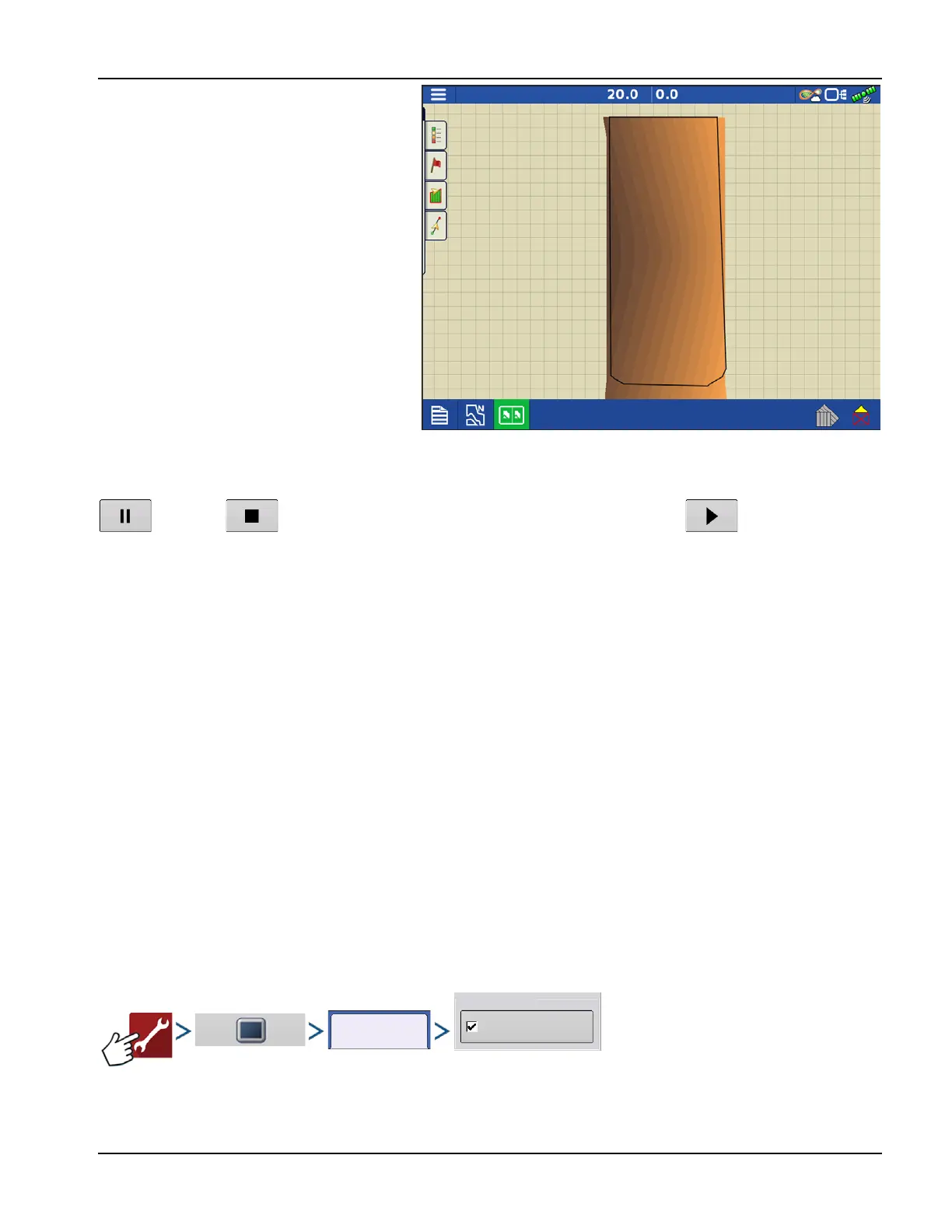
After the survey points have been collected, they
will be converted into a surface layer. Define the
color scheme Red, White, Blue, or Brown-Tan.
Select the number of legend ranges for field that
will show the areas desired. This theme will be
used for each field until changed.
Hues will represent:
Red, White, Blue Scheme
Darker blue = Lower elevation.
Darker red = Higher elevations.
White will be a transition color between.
Brown-Tan Scheme
Dark brown = Lower elevations.
Tan = Higher elevations.
If at any point during collection GPS correction status changes out of RTK fixed, logging will be suspended.
If RTK signal is re-acquire, logging will automatically resume.
(pause) or (stop) collection of the elevation survey at any time, and then (resume) as needed.
If logging while leaving the field, a message will prompt that data collection is still active, and an option will be given to
continue logging, or end operation.
÷
In Odd-shaped fields, the surface rendering of the elevation will connect areas even if that area hasn’t been driven
through.
Satellite Imagery
Satellite Imagery is a free online Service that any user with an AgFiniti® account (no license required) and internet access
on an InCommand™ v1.5+ display can utilize. Each time a field is loaded to the Mapping Screen the satellite image for the
field and surrounding area is downloaded and displayed. Approximately 4.5 MB of data is used each time the Mapping
screen is loaded.
Satellite Imagery Requirements
1. AgFiniti account created at www.agfiniti.com
A. AgFiniti accounts are free to create and no license is required.
B. Logging into AgFiniti. See “Logging into an AgFiniti Account” on page 49.
2. Active internet connection on the InCommand Display
3. Field Boundaries
Enabling Satellite Imagery
Satellite Imagery is enabled by default. To enable/disable this feature check/uncheck “Satellite Imagery” in the AgFiniti
Console Setup menu.
Satellite Imagery
Online Services



 To Next Page