56
A. NOTE!: One AgFiniti Essentials License allows up to 3 displays access. Purchase additional licenses if more than
three displays will be used in the operation.
3. DisplayCast feature unlock on all participating displays
4. Active internet connection on the display
A. 3G or better cellular coverage
5. Be aware of GPS accuracy differences between two machines (for example Autoswath could have increased overlaps
or gaps based on GPS differences).
6. Each configuration, vehicle, implement, controller must be unique for the equipment that it is used on.
A. Having unique naming ensures accurate records and minimizes the chance of the incorrect configuration
being used which could lead to Autoswath and controlling errors.
First time setup and sync
With the InCommand display unlocked, an active AgFiniti Essentials license, and internet access on the display; DisplayCast
will automatically start to synchronize all information to AgFiniti Cloud. The first time the InCommand Syncs with AgFiniti
Cloud it may use a large amount of data. Using an unrestricted data plan may be desired the first time the display
synchronizes with AgFiniti Cloud.
Data syncing intervals
1. Coverage and attribute maps in active events sync at approximately 5-10 second
intervals.
2. New field names and guidance lines sync within a few minutes after being created.
3. Summary information syncs every 10-20minutes.
4. Manual Sync: The Sync button can be pressed at any time. This will sync all new
information to AgFiniti Cloud and update the display with any new information from
other displays.
5. Management Information and Summary information will also be synced and processed
for viewing in AgFiniti Map View and Mobile on the 10-20 minute sync interval.
• Management Info—Growers, farms, fields, boundaries, products, equipment.
÷
This is a one way sync. Management/Summary data added to Map View via SMS will not sync back to the displays
through DisplayCast.
Getting started
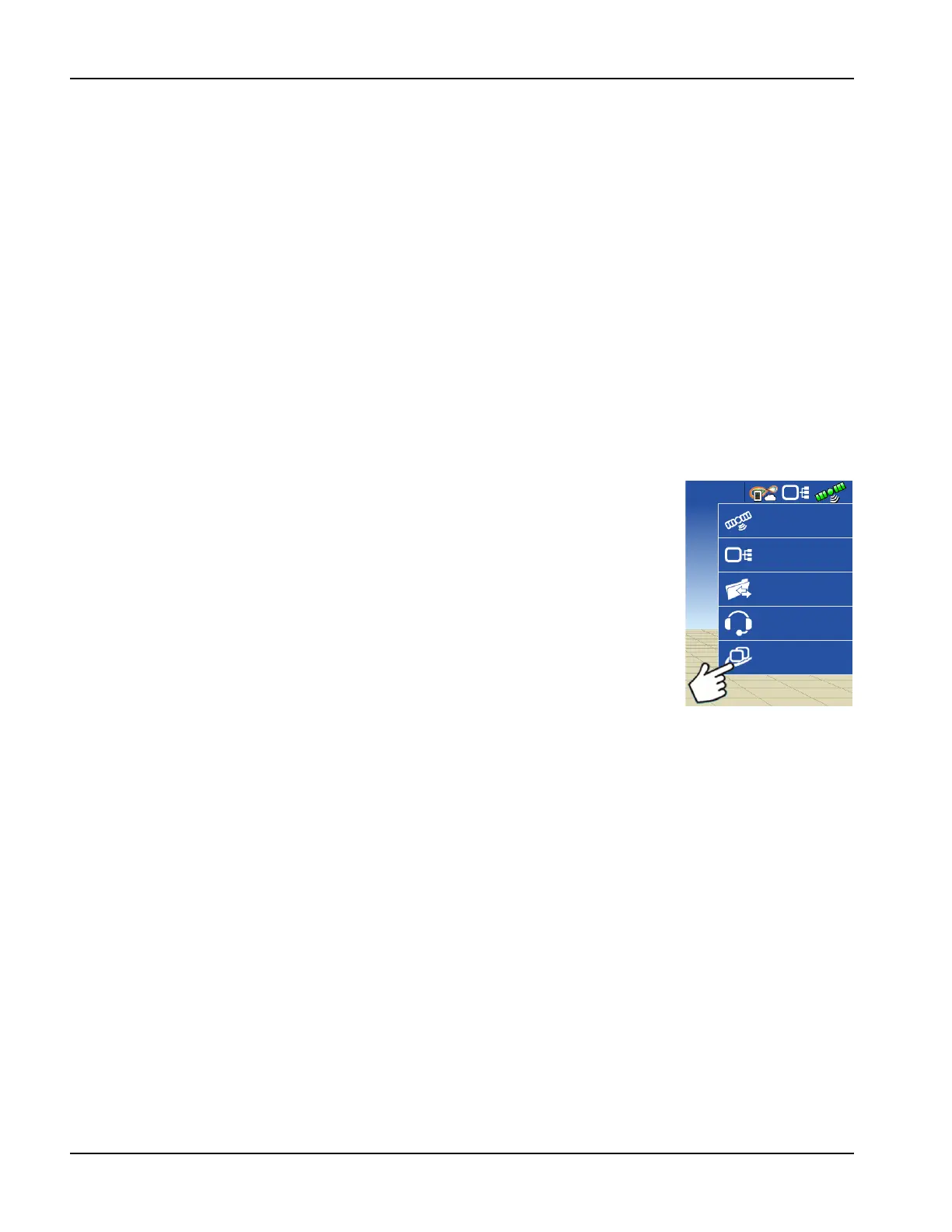
With DisplayCast unlocked on the display a new DisplayCast icon is available under the Status Indicator button. The
DisplayCast menu houses the available sync options.
GNSS
Remote Support
CAN
DisplayCast
Data Transfer



 To Next Page