50
2. Annual Essentials License purchased and active on account attempting to remote support a display.
3. InCommand display connected to internet source via WI-FI adaptor.
4. Be logged into AgFiniti account on InCommand Display.
5. From www.agfiniti.com a user can remotely view the display.
÷
NOTE!: For information on how to setup sharing relationships to allow pre-authorizated remote support viewing as
well as sharing data with trusted advisors, please visit www.agfiniti.com.
Remote Support Pre-authorization
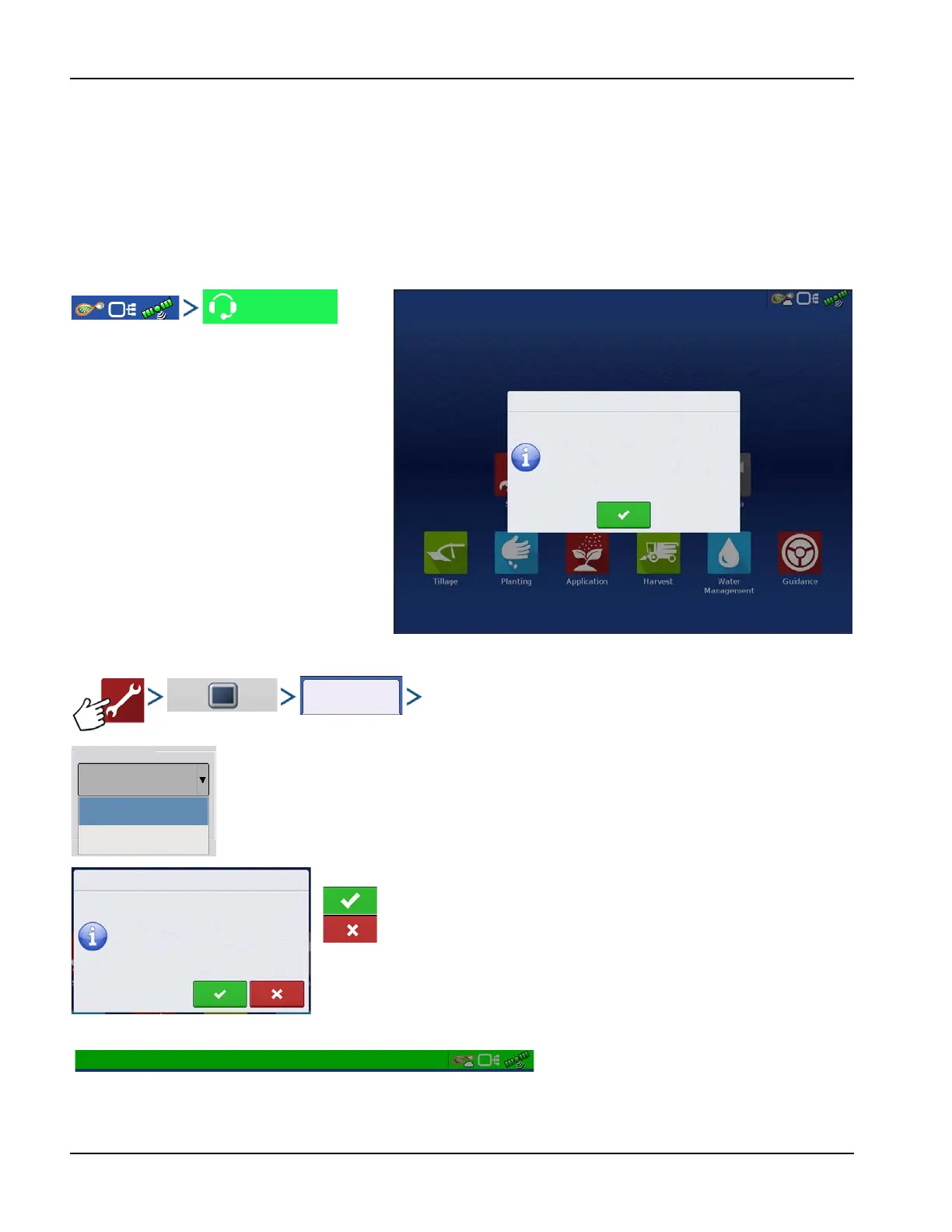
Pressing the remote support button will
generate a 10 digit code that can be verbally
communicated to remote viewer to initiate the
viewing session.
Remote Support Permissions Options
Ask for Permissions—This selection will require the display user to grant remote user
permission to view the display.
Always Allow—Allows remote viewer to view display screens without display user having to give
permissions.
Allow remote viewer access to view the display.
Deny remote viewer access to view the display.
When a remote view session has been initiated the status bar at the top of the screen will turn from blue to green.
Remote Support
Contact the person you would like to allow to view
the display, and provide the following authorization
code:
00012-574GE
Remote Support
Ask for Permission
Ask for Permission
Always Allow
Remote Support
Allow John Doe to remotely view the display?



 To Next Page