40
Stat Cards
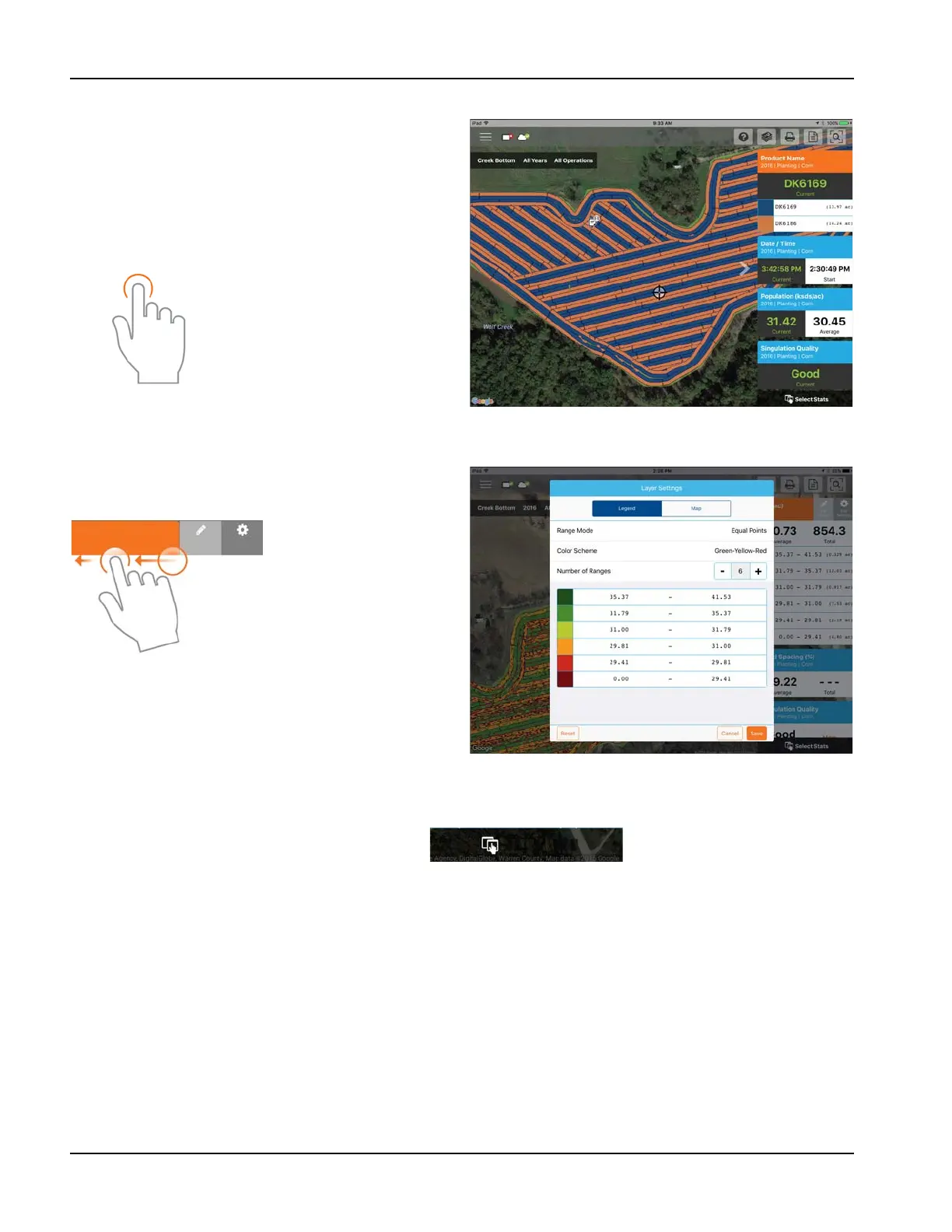
Along the right side of the app are Stat Cards. Stat Cards will
contain information for data currently mapped. Tap on the
Stat Card to view. The Stat Card that is currently mapped will
appear orange in this list. The Stat Card will also indicate field
average (if applicable), total and location specific values if a
position is selected (as shown). Tap on a Stat Card’s average
or current box to view additional details for that specific stat.
Collapse the Stat Cards by tapping on arrow present next to the Stat Cards and expand it out by tapping on the same arrow
again.
Edit the legend or map present by swiping the Stat Card title
to access the stat options. This will display two options, Edit
Source and Edit Settings.
Edit Source will allow selection of different years, operations,
or events—for example switching between two years of
yield data for the same field or showing information about a
field that had been replanted.
Edit Settings to change the map and legend settings. Mode,
number of ranges and the color scheme can all be adjusted here. Adjust various map settings such as the transparency,
map type and drawing settings by tapping on the Map button at the top.
Back on the map screen, tap on the Select Stats option to choose which Stat Cards are
displayed.
Use the tap gesture to select a
location to view additional
information on Stat Cards or
select another stat.
Edit
Source
Edit
Settings
Depth (in)



 To Next Page