14
Choices for Primary Source include:
• Display GPS
• Auxiliary Device
• Manual Speed
Primary vs Secondary Speed Source—By
default the display will use the primary speed
source when operating on the Map screen. If for
some reason the primary speed source is
unavailable it will revert to the secondary speed
source.
Display GPS—The display will use the GPS
receiver attached to the display via Serial or CAN
(Intellislope®) as the speed source.
Auxiliary Device—An auxiliary device can be
either radar or wheel speed (combine). When
using an auxiliary device be sure to calibrate it for
an accurate speed input.
Manual Speed—In the event GPS speed or an auxiliary device is unavailable the display can be set to manual speed.
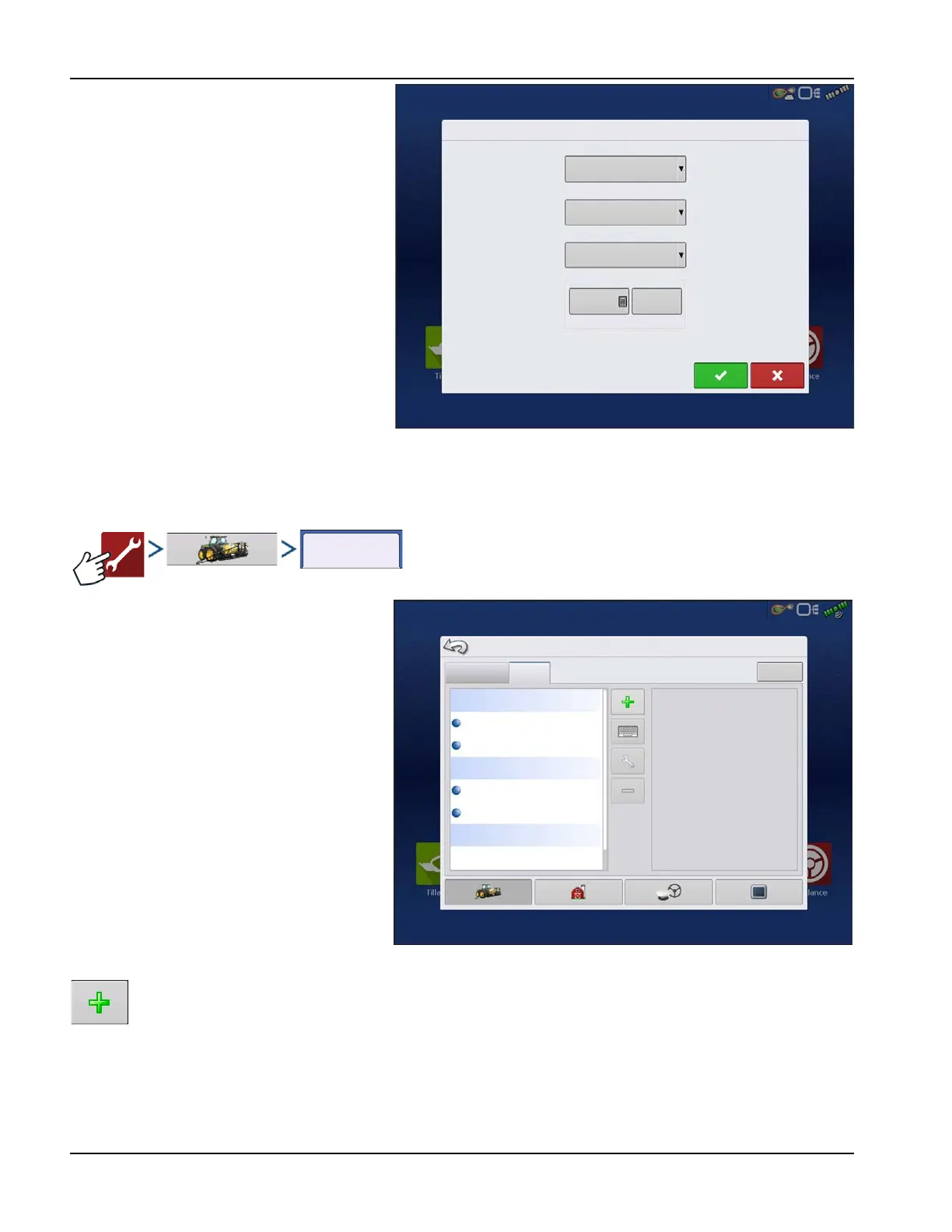
Product tab
The Product tab is used to perform the following
tasks:
• Add or import Planting products.
• Add or import Application products.
• Add product template (such as a tank mix,
or a dry blend of multiple products).
• Add or import Harvest products.
Add button
Press to add or import a product. At the following screen, choose a Product Option: Add Product, Import
Product, or Add Product Mix (if in Application). From here, an on-screen wizard continues through each step of
the setup process.
• When finished, the new product appears in the Product tab.
• When product is highlighted, information about the product appears on the right side of the screen.
Speed Input
Speed Input
Primary Source
Display GPS
Auxilary Device
Backup Souce
Auliary Device Channel
Calibrate
Distance
Radar
Auxiliary Channel Calibration
2000
Pulses / 100
Configuration Setup
Planting
Application
Grain Harvest
Variety1
Configuration
Product
Equipment
Variety2
30% UAN
DAP
Corn



 To Next Page