AgFiniti
47
PN 4004700–ENG Rev. K
Logging into AgFiniti
÷
NOTE!: When logging in, all AgFiniti
Mobile data on the device will be synced
to the AgFiniti account used to log in.
Prior to logging in, delete specific data
that should not be connected to that
account.
After logging in, additional icons appear next to
the display connection icon indicating the status
of both connection and syncing
Indicates a connection to AgFiniti Cloud has been made. At this time, AgFiniti Cloud is checking to see what data
is not currently on the iPad and is preparing the necessary files to sync. By default, only the current and previous
year will be synced.
Indicates that data is being synced to/from AgFiniti Cloud. Once the data is synced to the app, an icon indicating
maps are being built (same as data imported from InCommand) appears.
Tap any of these icons for additional details.
Sync Settings
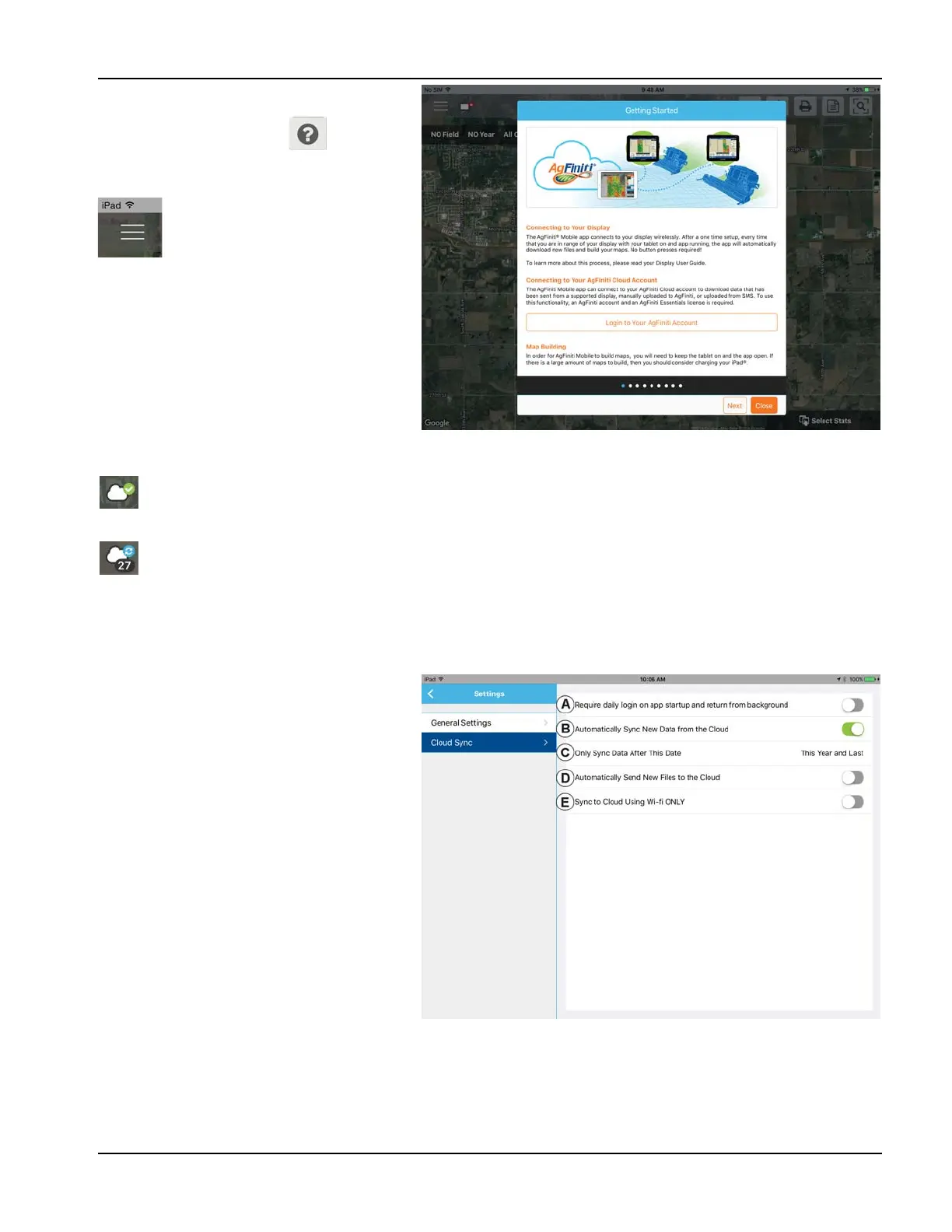
In order to adjust the cloud sync settings, tap on the Menu button - Settings - Cloud Sync
(A) Require daily login on app startup and
return from background—If this option is left
off, the logged in user will remain logged in until
another user logs in. If this option is on, a login is
required once daily when the app is started.
(B) Automatically Sync New Data from the
Cloud—Allows for data present in AgFiniti Cloud
to be automatically downloaded to the app once
a connection is made. This provides the ability to
see newly recorded data that has been transferred
to the AgFiniti Cloud by supported displays or
SMS.
(C) Only Sync Data After This Date—Choose
what year(s) of data to sync with AgFiniti Cloud. By
default, only the current and previous year of data
will be automatically synced down to AgFiniti
Mobile. To only see data for a specific field,
manually download by going to Manage Data in
the menu.
(D) Automatically Send New Files to the Cloud—Allows for the automatic transfer of newly synced InCommand data
to be automatically sent to AgFiniti Cloud. This will allow for instant access to newly recorded data to everyone on the
AgFiniti account, providing quicker access to those that need it.
To login, go to the help icon located on
the main AgFiniti Mobile screen and tap "Login
to Your AgFiniti Account"
or tap the menu button and "Log In"
and use AgFiniti login credentials to
sign in.



 To Next Page