76
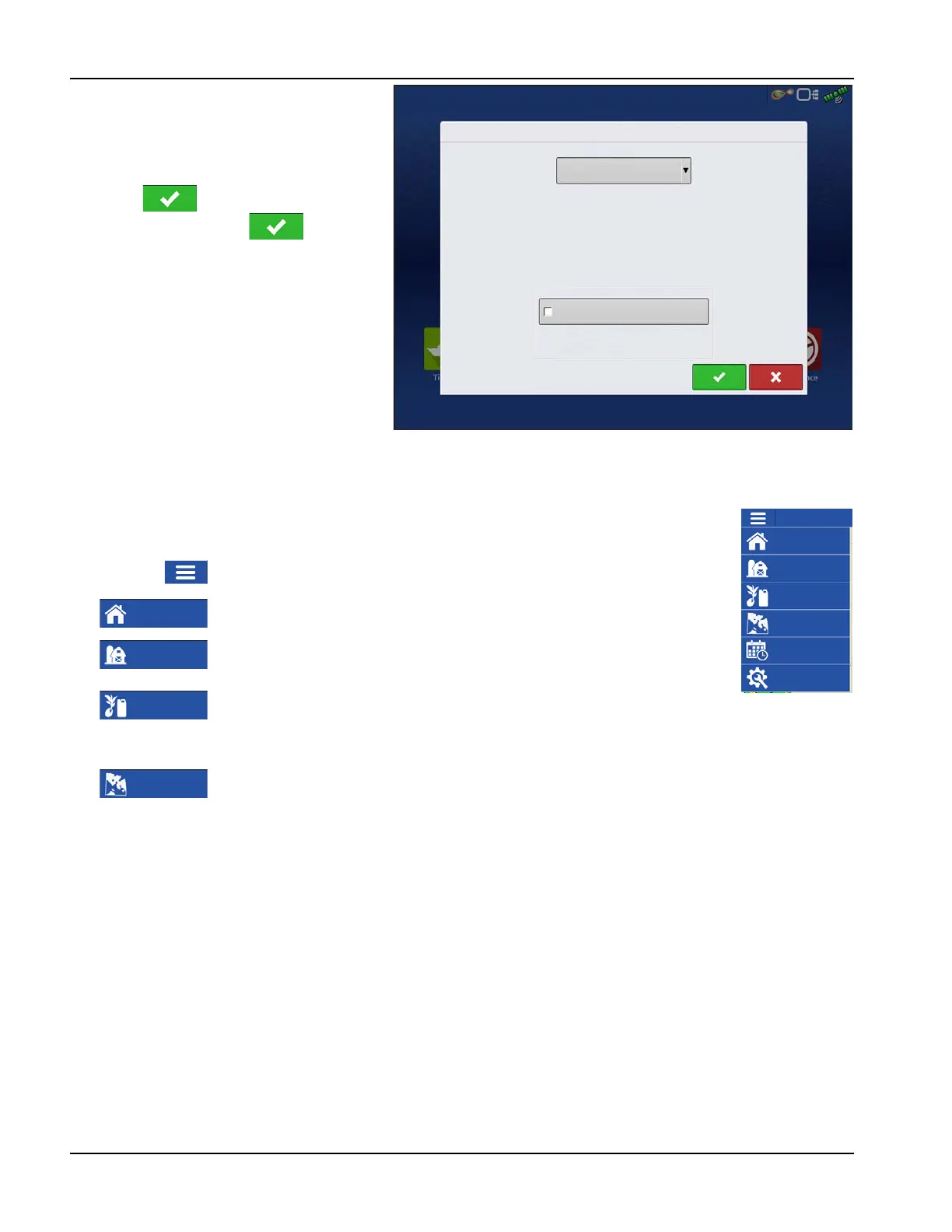
2. Choose the operator from drop-down
menu.
÷
NOTE!: Checkbox will require a password
to be entered upon start up of the display.
Press .
3. Enter password. Press .
The operator will now be selected and
permissions active.
• If operator is changed in mid operation, the
user will be prompted to continue or
suspend event.
• Operator selection will show each time at
startup if the “Show Operator at Startup”
button is check-marked.
Operator Log Out
Users that are both a Manager and Operator can logout which locks Setup and USB access and an operator must log
in before an operation can be performed.
Menu Buttons
Menu button—Allows quick access the regularly used management and
setup features without suspending an operation or leaving the map screen.
Home button—Suspends the current event and returns to the Home
screen.
Field button—Used to change fields and events from the map screen. Takes
user to the management selection portion of the Field Operation wizard.
Product button—Used to change products or hybrids in the middle of a
field operation. Takes user to the product selection portion of the Field
Operation wizard.
Region button—Used to subdivide a field into smaller sections. The region
in which data is currently being logged is listed on the Region button. A new
region can be created at any time while performing a field operation. To
change between or add a new region to a field, press the Region button and
follow the on-screen instructions.
Operator Selection
Select Operator
Jim
Options
Show Operator Selection on Stratup
Note: If the active operator has a password,
the operator selection will always be
displayed on startup.
Settings
Event
Region
Product
Field
Home



 To Next Page