AgFiniti
37
PN 4004700–ENG Rev. K
At this point, the InCommand display and iPad are connected and ready for data transfer. Closed or suspended events
present on the InCommand display will now show up in the app.
AgFiniti Mobile
The data import process occurs automatically. Keep the app open until data finishes processing. After the import process
completes, your maps/reports will be ready for reviewing.
÷
NOTE!: AgFiniti Mobile will download data while running in the background but will need to be open in order to
process information.
iPad
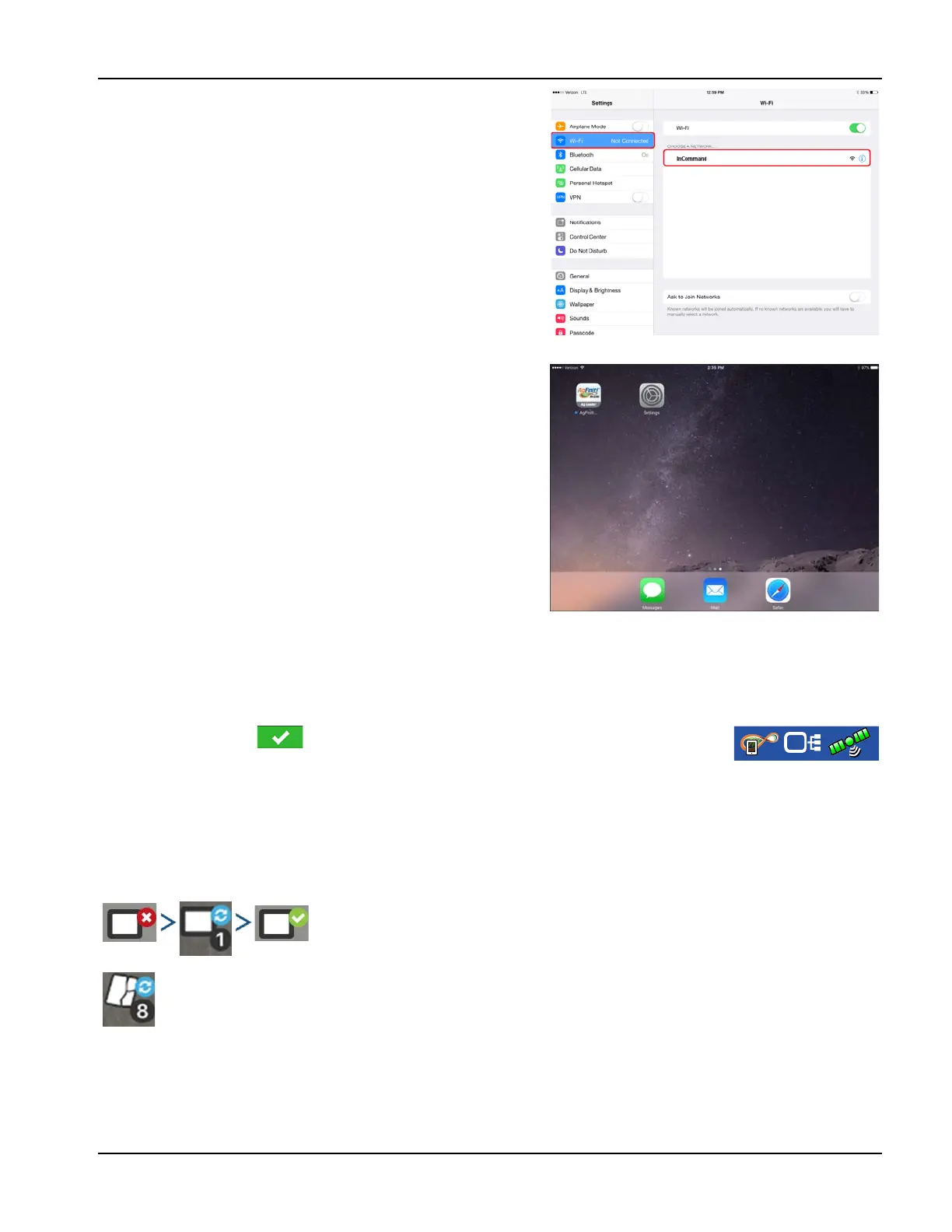
5. Select the “Wi-Fi” tab from the left side menu, ensure that
“Wi-Fi” on the iPad has been enabled, then select the
“InCommand” wireless network. This will connect the iPad
and InCommand display together and ensure proper data
transfer.
iPad
6. Once connected, proceed to open the AgFiniti Mobile
app.
÷
NOTE!: Download AgFiniti Mobile from the Apple® App
store.
7. Once AgFiniti Mobile is open, it will automatically attempt
to connect to the InCommand display.
InCommand Display
8. You will be prompted on the InCommand display to allow connection.
÷
NOTE!: Please wait up to a minute for this to occur. This will happen once per display.
9. After pressing , the iPad will begin accepting data from the display as it becomes
available. This is indicated by the iPad symbol within the AgFiniti status indicator on the
top right corner of the screen.
Once the connection between iPad and display has been established and access
granted on the display, the connection indicator will turn from red (not connected) to
blue (downloading) to green (connected). The number by each icon indicates items
remaining to be downloaded/synced.
An additional icon that indicates maps are being built from the downloaded data will appear shortly after.



 To Next Page