36
When both the InCommand display and iPad are connected to the same wireless network, for example a home Wi-Fi
network, they will be able to recognize one another and transfer data in the same fashion as the other connection types.
If a Wi-Fi connection already exists in the vehicle cab, this connection can be utilized.
See “Shared Wi-Fi Network Connection” on page 53 for step by step instructions to make this connection type
Cellular iPad as Personal Hotspot
Connection scenarios
• Only Cellular iPads when InCommand is accessing AgFiniti Cloud
Cellular based iPads have the ability to act as a personal hotspot. This allows InCommand to access AgFiniti and directly
transfer information to AgFiniti Mobile, both through the iPad’s cellular connection and Wi-Fi hotspot. This connection type
would be used when needing to use AgFiniti Cloud and AgFiniti Mobile at the same time. For example, downloading an
.AGSETUP file (for prescriptions) from AgFiniti Cloud for Remote Support.
Display Access Point Connection Type
InCommand Display
1. With the Wi-Fi adaptor installed in the InCommand display, the AgFiniti symbol will show in the top
right corner of the display.
÷
NOTE!: If the login button is active, one of the other connection types may be utilized.
2. The display will prompt to be restarted. Press to shut down and restart the display.
3. After the restart, the display will be broadcasting a Wi-Fi signal and can now be selected on the iPad.
iPad
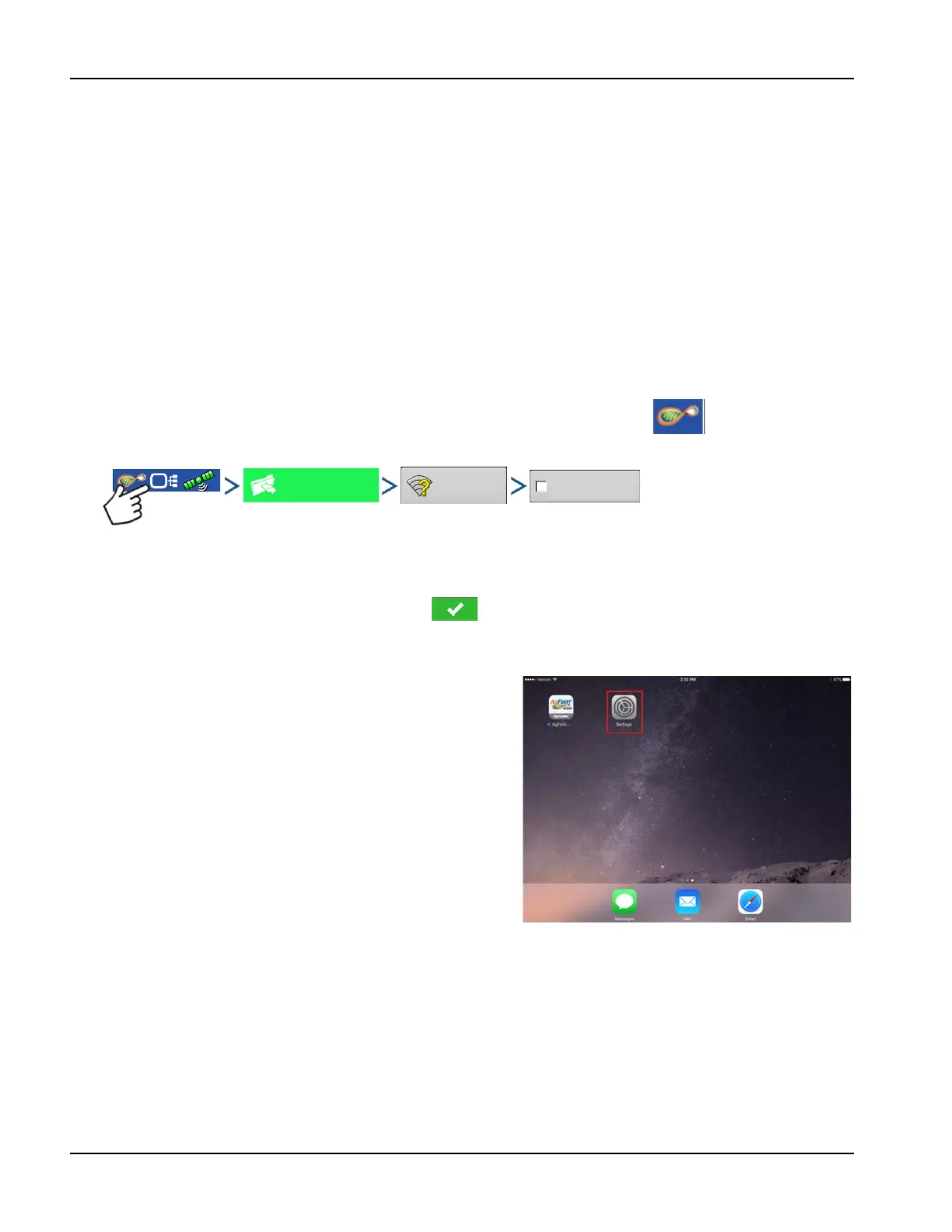
4. To connect t.o the InCommand Wi-Fi signal, go to the
Settings app on the iPad.



 To Next Page