44
Print
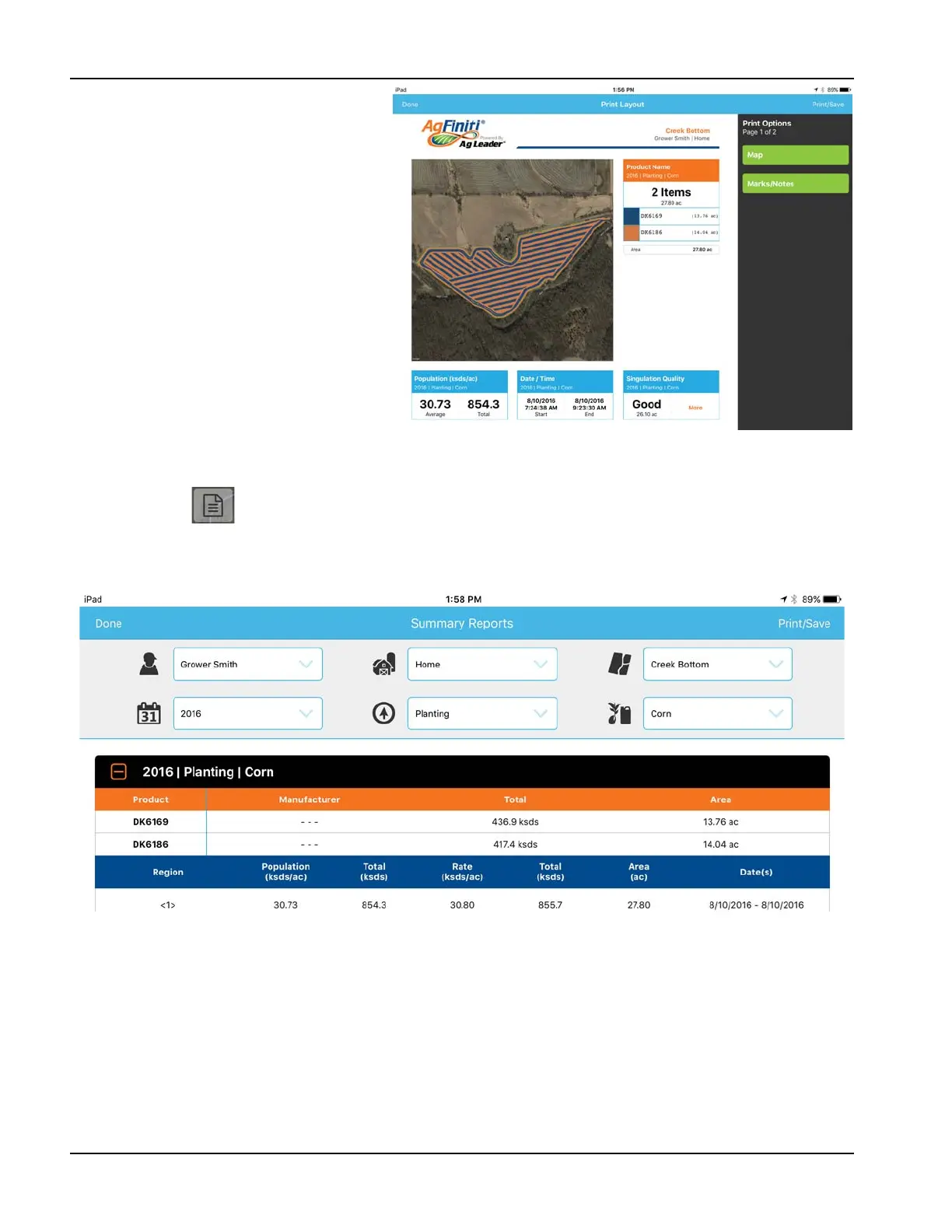
To print any map, tap the Print icon and a
preview will appear. If there are any notes/marks
associated with this field, they will be
automatically displayed on additional pages. if
there are images associated with the field notes,
they will also be included in the print layout.
Both the map and marks can be toggled on/off
along the right side. To print, tap Print/Save.
Choose your desired print or save option from
the list presented.
÷
NOTE!: To filter the notes, they will need to
first be filtered by going to the menu.
Summary Reports
AgFiniti Mobile provides a quick and easy process to view one or more field(s) data in tabular form. To view tap the
Summary Reports button in the top bar.
Begin choosing which data to include in the report. The reports can be as specific or broad as desired: view a single field’s
planting information or look at the grain harvest information for all fields in AgFiniti Mobile. Change the filters at the top
and the report will automatically update.
Depending on the chosen data, expand the 'plus' sign and view product specific information. For example, when viewing
a report containing planting maps, the expanded area will include information for each unique product or, if utilizing
variety tracking, display average yield by variety.
÷
NOTE!: To print the displayed report, tap Print/Save. Choose your desired print or save option from the list presented.



 To Next Page