16
Importing and Exporting Field Boundaries
Boundaries can be created with the display or imported from desktop GIS software. Any boundary files present in the
display can also be exported for use in desktop mapping software.
USB Import button
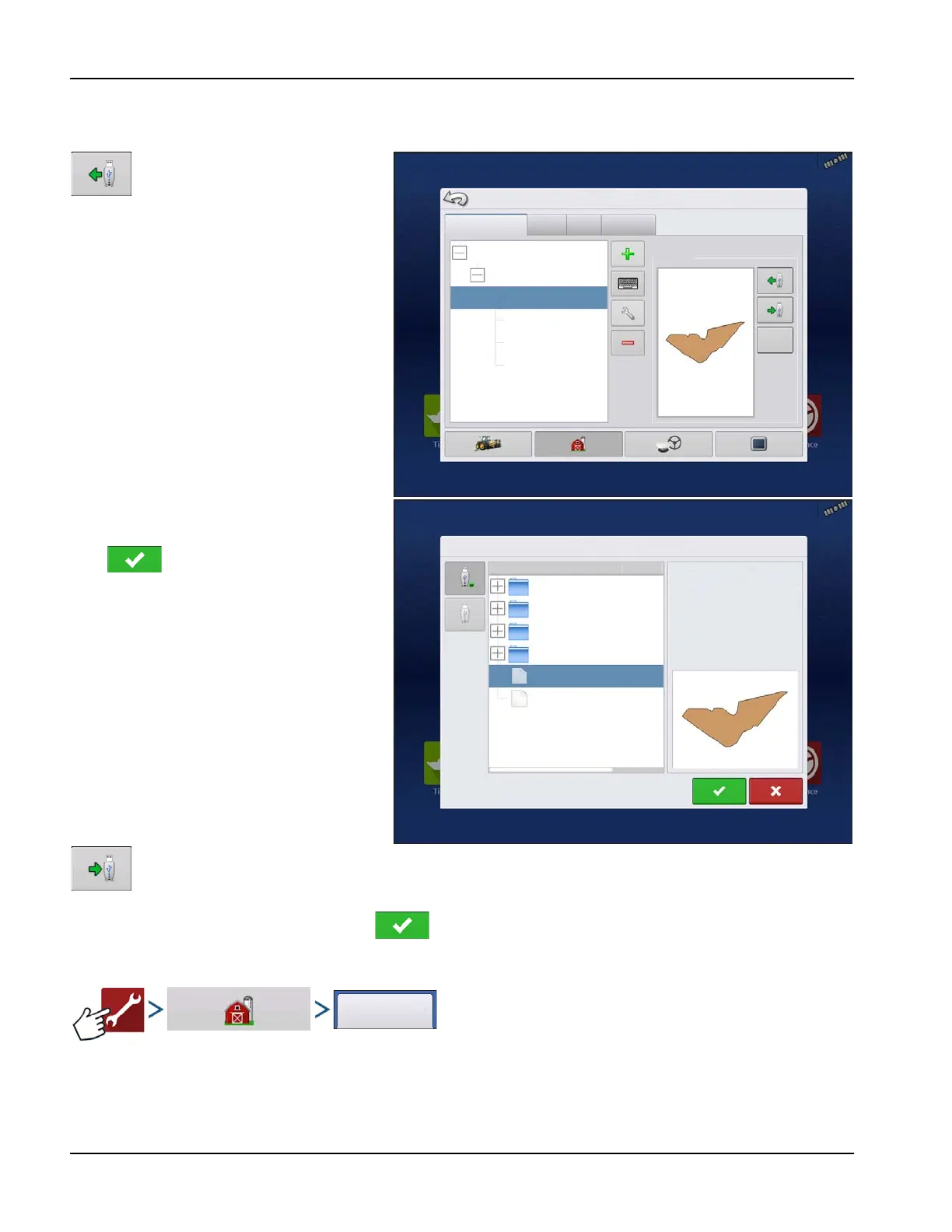
To import a boundary from the USB drive, first go
to the Setup Field tab, highlight the correct field
in the Farm/Field list and press the USB Import
button.
The File Selection screen appears. Highlight the
desired file to import.
Press to complete the import process.
Operator can import/export all fields and
boundaries at once with an .AGSETUP file.
÷
NOTE!: Reference “Data Transfer screen”
on page 31.
USB Export button
To export a boundary to the USB drive, highlight the correct field in the Farm/Field list and press the USB Export
button. At the File Selection screen, highlight the desired field to export. A screen will appear indicating that
the boundary was successfully exported. Press return to the field setup screen.
Season tab
A Season is defined as the calendar year that the crop will be harvested. A Season has a start and an end date. Creating a
Season and setting it to active is required prior to the system logging any data.
The seasons are displayed in lists, with the active season displayed in bold face type. All new data is logged to the active
season; therefore a Season must be set as active before any new data can be logged to it.
Management Setup
Grower: Ag Leader
Grower/Farm/Field
Season
Users
Businesses
Farm: Rented
Field: East 80
Field: Neighbor’s House
Field: North 40
Field: Creek Bottom 30
True Area: 28
Boundary
File Selection
Ag Leader Updates
Data to be imported
Display Backups
SteerCommand Backup
Creek_Bottom.iby
East_80.iby
664 bytes
448 bytes
Field:
Farm:
Grower
Creek Bottom
Home
Dittmer Farms
Name
Size
28.10



 To Next Page