38
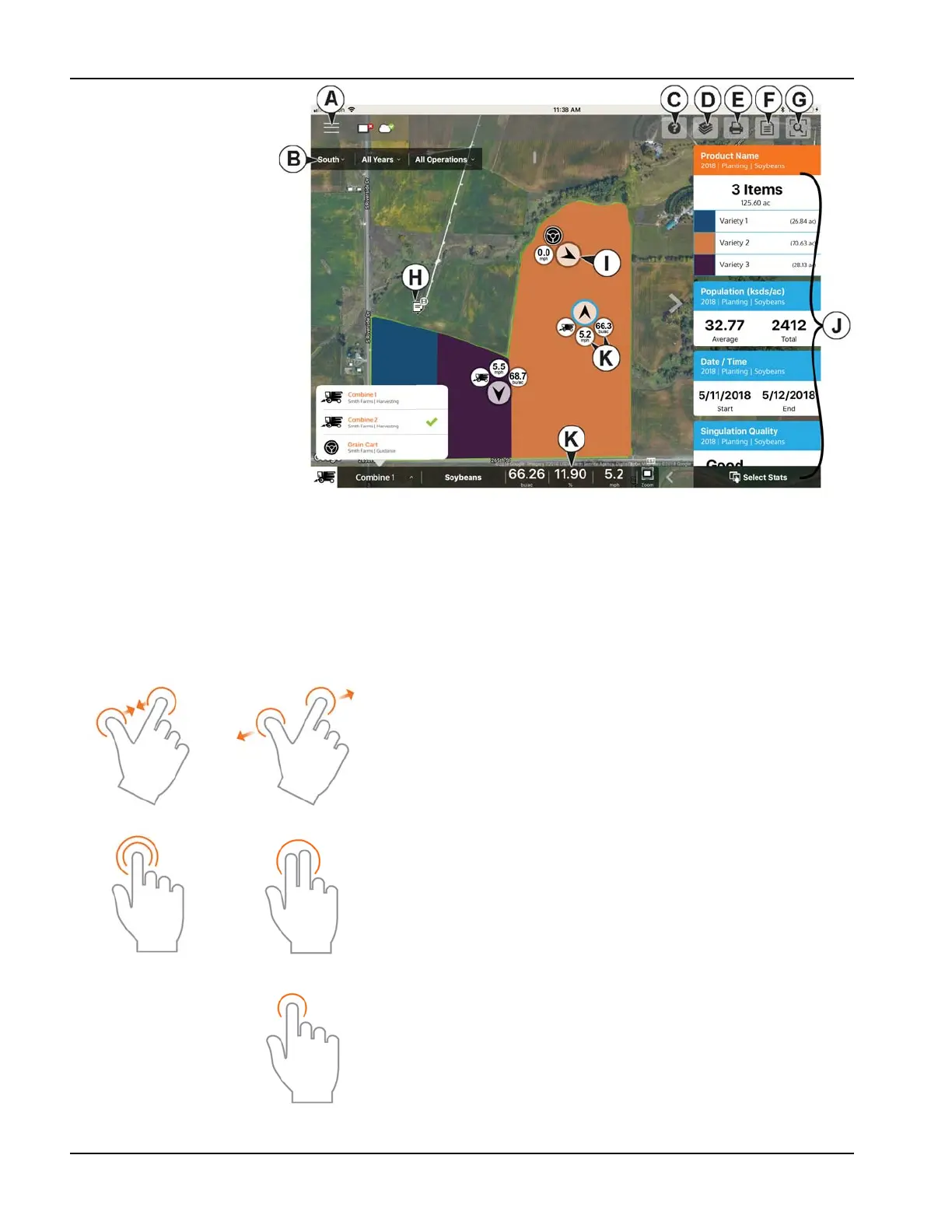
Tap any of these icons for
additional sync details.
Once data is present, the
layout shown is available:
A. Menu (page 45)
B. Filters (page 39)
C. Help
D. Area Query (page 42)
E. Print (page 44)
F. Summary Reports
(page 44)
G. Zoom Options (page 43)
H. Notes (page 43)
I. Display/Device Location
(page 48)
J. Stat Cards (page 40)
K. LIve Stats and Live Stat
Bar (page 48)
÷
NOTE!: An active internet connection is required to see satellite imagery.
Gestures
As with any iOS app, AgFiniti Mobile uses gestures. Navigate around the app, select items, and make various changes using
gestures. The most common gestures are outlined below.
Pinch In and Out— Using two fingers, touch the
screen and pinch in and out to adjust the zoom level of
the map. If zoomed out enough field coins will begin to
appear which can be selected to see data for other
fields. If zooming in far enough, row by row level data
will be shown on applicable fields.
Tap to Zoom—By tapping on the map the zoom level
can be controlled. Quickly double tap with one finger to
zoom in and single tap with two fingers together to
zoom out.
Tap—Tap items in AgFiniti Mobile to select them. Tap
on the map to set a manual location within the field and
view its specific data in the Stat Cards



 To Next Page