AgFiniti
49
PN 4004700–ENG Rev. K
F. Zoom
a. Pressing this allows the user the move the map directly over the top of the device selected in the live stat bar.
AgFiniti Display Settings
Logging into an AgFiniti Account
Press the login button and enter in the AgFiniti account user name and password. After entering proper credentials the
display will be logged into AgFiniti Cloud and the user can access services available on the account. Once logged into an
AgFiniti account, the display becomes registered to the users AgFiniti account and will automatically login on display
startup if internet access is available.
Logout and De-register Display
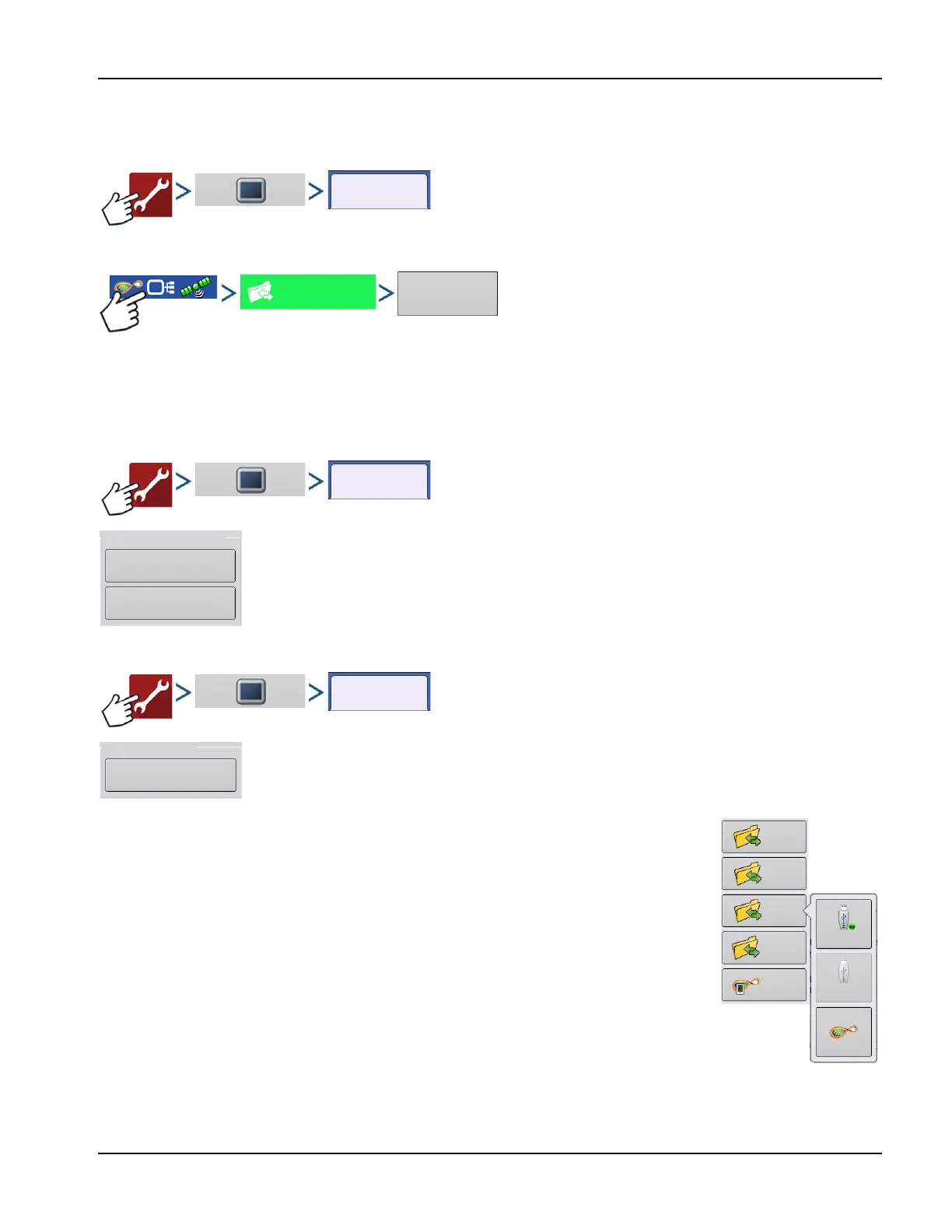
Logout—This will log the display out of the current AgFiniti Account. If the user does not want to
automatically connect AgFiniti Cloud on startup they must logout. Logging out of an AgFiniti
account does not deregister the display from an AgFiniti Account.
Deregister Display—When logged into AgFiniti Cloud the user can deregister the display from
their AgFiniti account. This will unlink any AgFiniti licenses tied specifically to the display.
Mobile Management
The “Deauthorize All” button will deregister any mobile devices that have been authorized to
access the display’s logged data.
File Transfer
To use file transfer on the InCommand display, the following requirements need met:
1. User account created at www.agfiniti.com.
2. Annual Essentials License purchased and activated.
3. InCommand display connected to internet source via WI-FI adaptor.
4. Be logged into AgFiniti account on InCommand Display.
5. AgFiniti will become an available option when an import or export function is chosen
from the data transfer page.
6. Press the AgFiniti symbol to export to AgFiniti Cloud.
Remote Support
To use remote support on the InCommand display, the following requirements need met:
1. User account created at www.agfiniti.com.
Connection Management
Logout
Deregister Display
Mobile Management
Deauthorize All
USB
Import
Setup
Export
Setup
Export
Data
Export
Reports
Manual
Sync



 To Next Page