54
At this point the InCommand display and iPad are connected and ready for data transfer. If there are any closed or
suspended events present on the InCommand display, they will be transferred to the iPad once the app is opened.
iPad
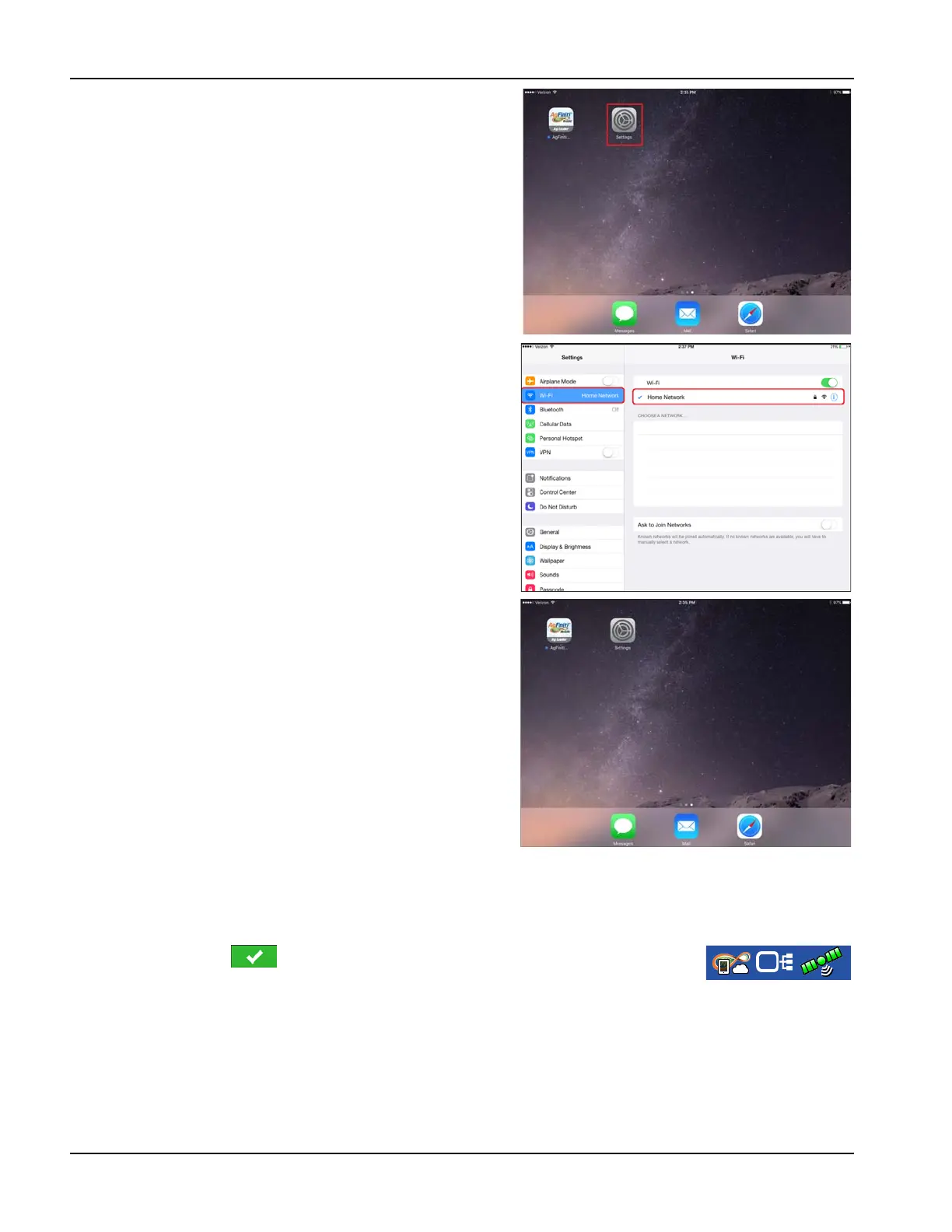
3. Connect the iPad to the same WiFi network by going to the
Settings app.
iPad
4. Select the “Wi-Fi” tab from the left side menu followed by
highlighting and connecting to the appropriate wireless
network.
5. Both the display and the iPad should now be on the same
network.
iPad
6. Open AgFiniti Mobile app on the iPad.
÷
NOTE!: Download AgFiniti Mobile from the Apple App
store.
7. Once the AgFiniti Mobile is open, it will automatically
attempt to connect to the InCommand display.
InCommand Display
8. Once the InCommand display has been found the display will prompt user to allow connection to happen.
÷
NOTE!: This should only happen once per device.
9. After pressing the mobile device will begin accepting data from the display as
it becomes available. The AgFiniti Status Indicator will show a device symbol within it
on the top right corner of the screen.
÷
NOTE!: If display is logged in to AgFiniti Cloud a cloud symbol will also appear in the AgFiniti Status Indicator.



 To Next Page