Chapter 8
8.1 Getting started
DTrack2 can be started with the command ./DTrack2.
8.1.3 Software update
The latest DTrack2 software is always available from our Download Center at http://www.ar-
tracking.com/support/. For the installation of the frontend dupdate, please proceed as
mentioned before in chapters 8.1.1 and 8.1.2.
After installing DTrack2 on the host PC the controller can be updated after establishing a
connection with the new frontend. Please refer to chapter 8.8.1 on page 188.
8.1.4 Start DTrack2 frontend software
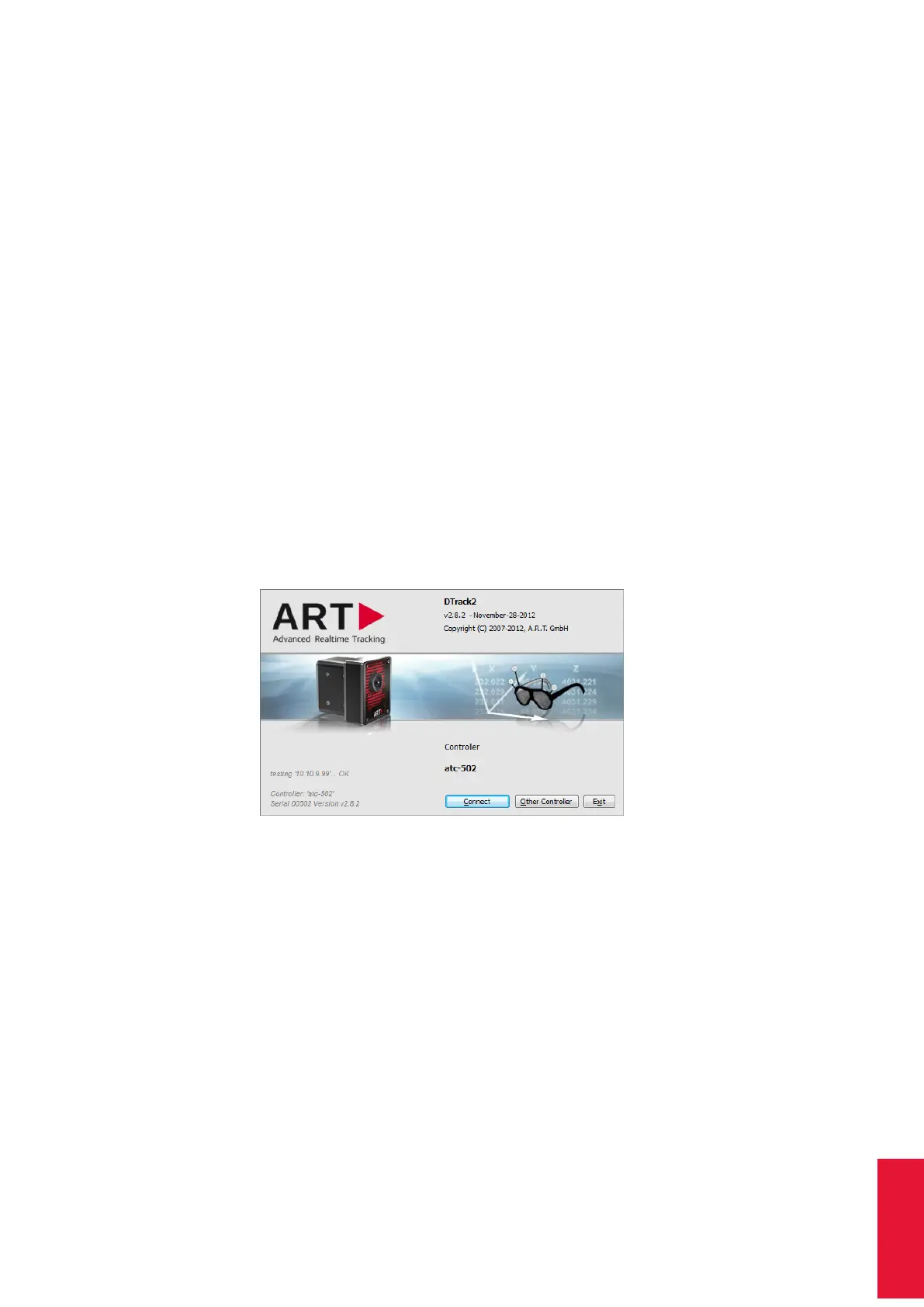
When you start up DTrack2 on the remote PC you will see the following splash screen
(see figure 8.1 on page 123).
Figure 8.1: Welcome screen of DTrack2
Using the mouse or shortkeys (2 = down, 4 = left, 6 = right, 8 = up) you can move around
the splash screen window, e.g. to a secondary screen. The position of the window is then
saved and will be used at the next start-up.
8.1.5 DTrack2 command line parameters
The following parameters (refer to table 8.1 on page 124 may be added to the command
line (i.e. DTrack2 icon → properties → shortcut → target) when starting the DTrack2 fron-
tend.
123



 To Next Page