8 DTrack2 frontend software
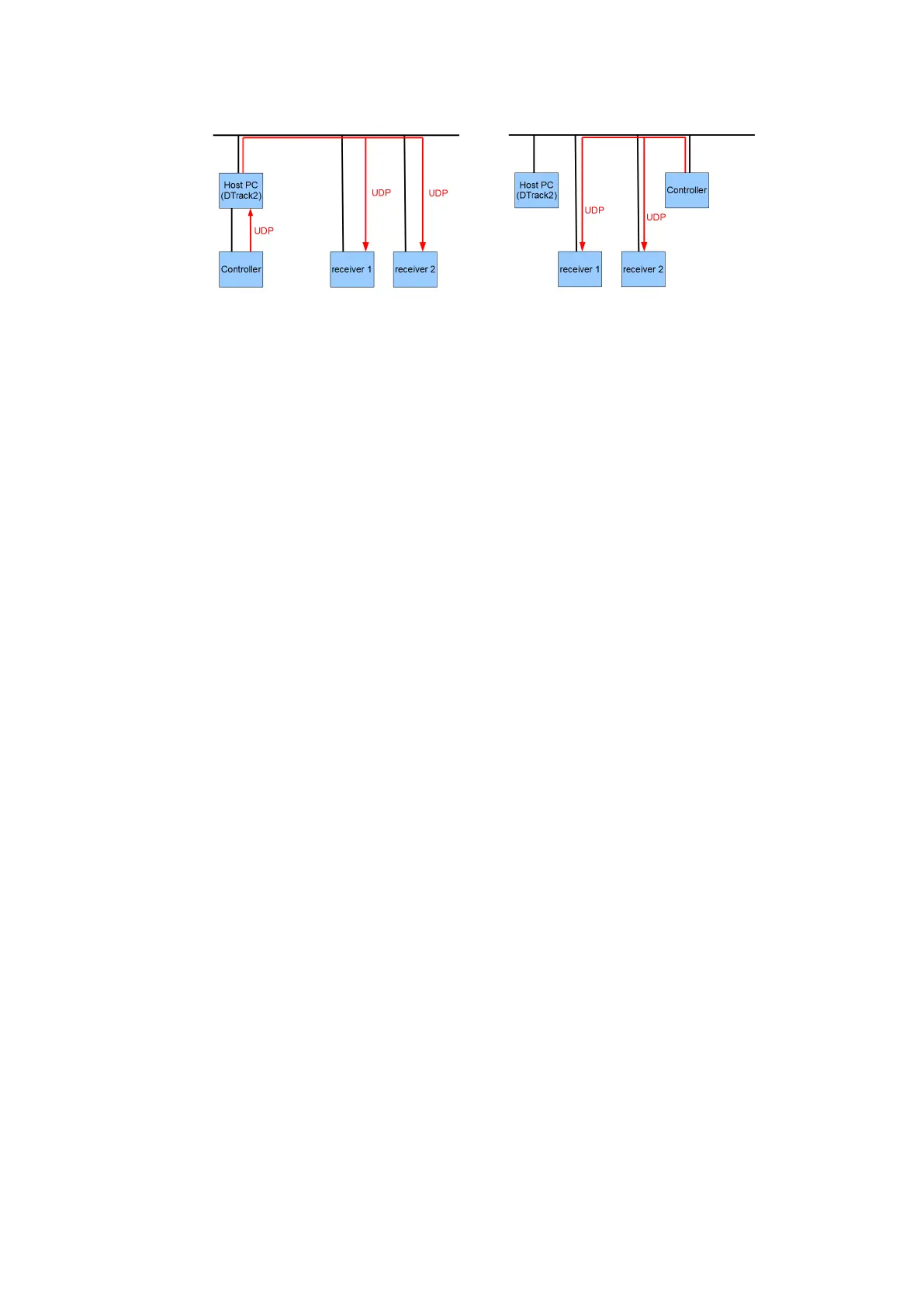
(a) act as router enabled (b) act as router disabled (default)
Figure 8.19: Depiction ’act as router’ functionality
Fingertracking.
8.5.9 Flystick Settings
Inside this dialogue you can manage the number of Flysticks (max. 20) as well as the
corresponding settings to be used.
For installation of Flystick2 please refer to chapter 6.1 on page 71. For Flystick3 see
chapter 6.2 on page 75.
8.5.10 Measurement Tool Settings
Within this dialogue you can define the number of Measurement Tools and the number
of references (max. 4 each).
Please refer to chapter 6.5 on page 101 to learn how to install the Measurement Tool .
8.5.11 Advanced Controller Settings
The menu Advanced Controller Settings is divided into two tabs - Network and Time.
8.5.11.1 Network Configuration
On the Network tab you may change the network specific settings and watch the CPU
temperatures inside the controller.
Network According to your network guidelines it may be necessary to specify e.g. host-
name (not recommended!) and the domain.
When the checkbox DHCP client is ticked the controller may be connected to a LAN with
DHCP support. The controller then works as a DHCP client. The IP address, subnet
mask, gateway and nameserver assigned to the controller by the DHCP server is shown
for your information.
162



 To Next Page