6 Interaction devices
Z
In case of multiple assignments (i.e. one hand geometry is to be as-
signed to more than one hand target calibration) a warning message
will pop up. Delete the current assignment prior to re-assigning.
Import / Export of hand geometries You can also import previously saved hand ge-
ometries by pressing the button ’Load’. A window will open to select the respective folder.
Choose the appropriate file and press ’OK ’.
In order to export hand geometries just press ’Save’ and select the hand geometries you
would like to export in the upcoming window. Press ’Save’ again, select the location of
the respective folder and choose an appropriate file name.
You can also remove entries from available hand geometries by left-clicking and pressing
’Delete’.
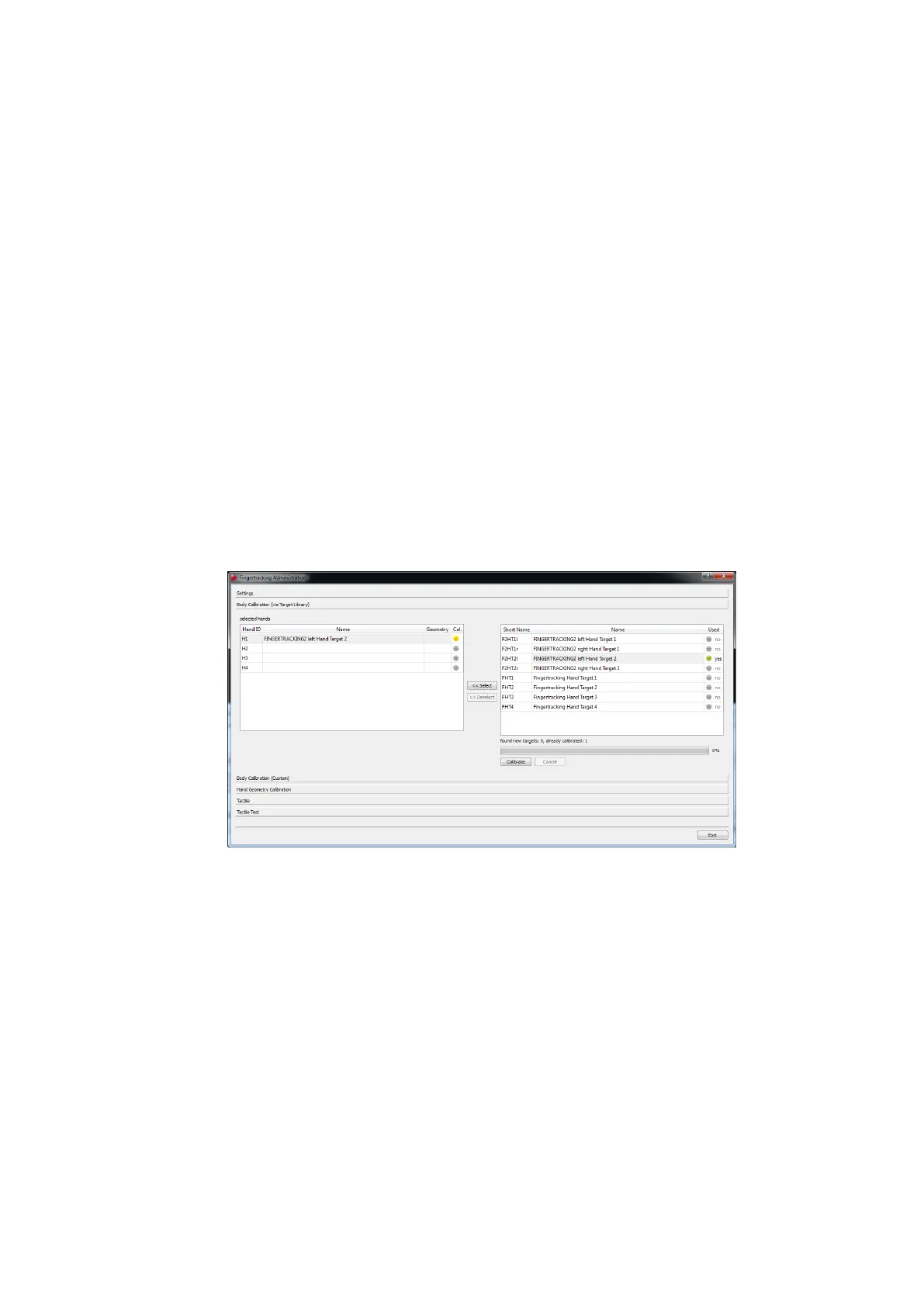
6.4.6.3 Fingertracking Body calibration via Target Library
Open the sub-dialogue Fingertracking → Body Calibration via Target Library to assign the
corresponding body calibration of each hand target to a selected Hand ID. All hand tar-
get body calibrations stored in the target library are shown on the right side of the window.
Figure 6.21: Fingertracking Administration - Body Calibration Target library
i
The integrated target library contains most hand target calibrations of
ART Fingertracking hardware. Perform a custom body calibration only
when the hand target cannot be identified automatically.
The body calibration can be assigned to a selected Hand ID the following way:
• turn on one Fingertracking device and place it inside the tracking volume
• run the target library identification by pressing Calibrate. The Short Name of the
corresponding hand target will be marked green
• mark the respective Hand ID from row ’H1...H4’ under selected hands by left-clicking
94



 To Next Page