8 DTrack2 frontend software
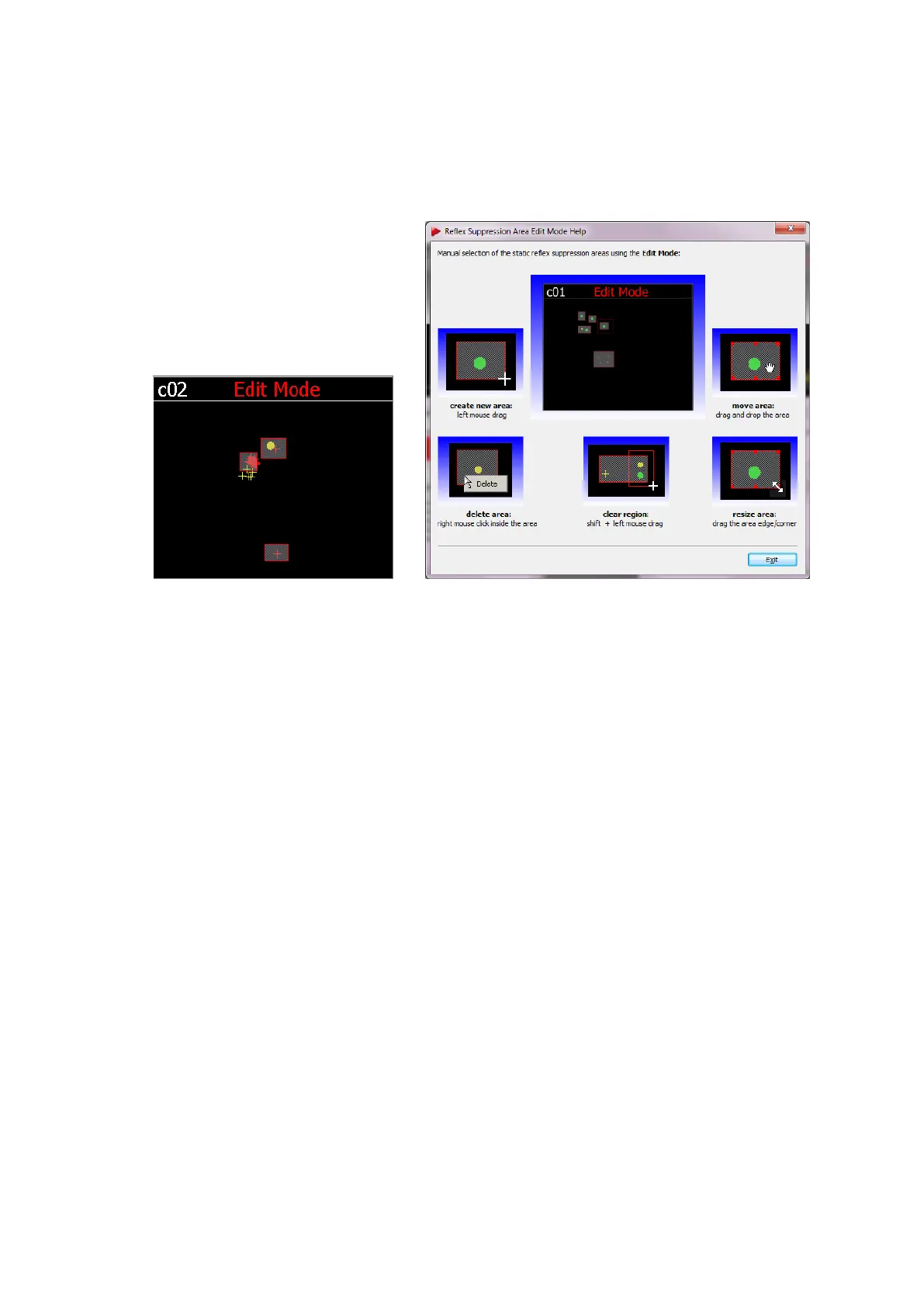
• clear regions,
• resize areas and
• move areas.
(a) Reflex suppression edit mode (b) Reflex suppression edit mode help
Figure 8.21: Reflex suppression
Reflex suppression areas are enabled as soon as you leave the edit mode (right
click on the respective camera window, then de-select ’Edit reflex suppression ar-
eas’) and accept the changes. The single areas defined are stored in the controller
and can be edited each time you enter this mode.
If you want to disable all reflex suppression areas for a camera at the same time, just
right-click on the respective camera and deactivate the option ’Active’. To perma-
nently delete the reflex suppression areas for one camera, right-click on the respec-
tive camera and select ’Delete all reflex suppression areas’ and accept the changes.
You can also delete the reflex suppression areas for all cameras at once by selecting
’Delete all reflex suppression areas for all enabled cameras’.
8.6.2 Inertial Sensor Calibration
This function carries out a drift correction for attached inertial sensors. Please refer to
chapter 7.2.4 on page 117 for more information.
8.6.3 Room calibration
Use the room calibration dialogue (see figure 8.22 on page 167) to set parameters of your
room calibration hardware and start the calibration process. After opening the dialogue,
166



 To Next Page