Chapter 8
8.3 Main GUI
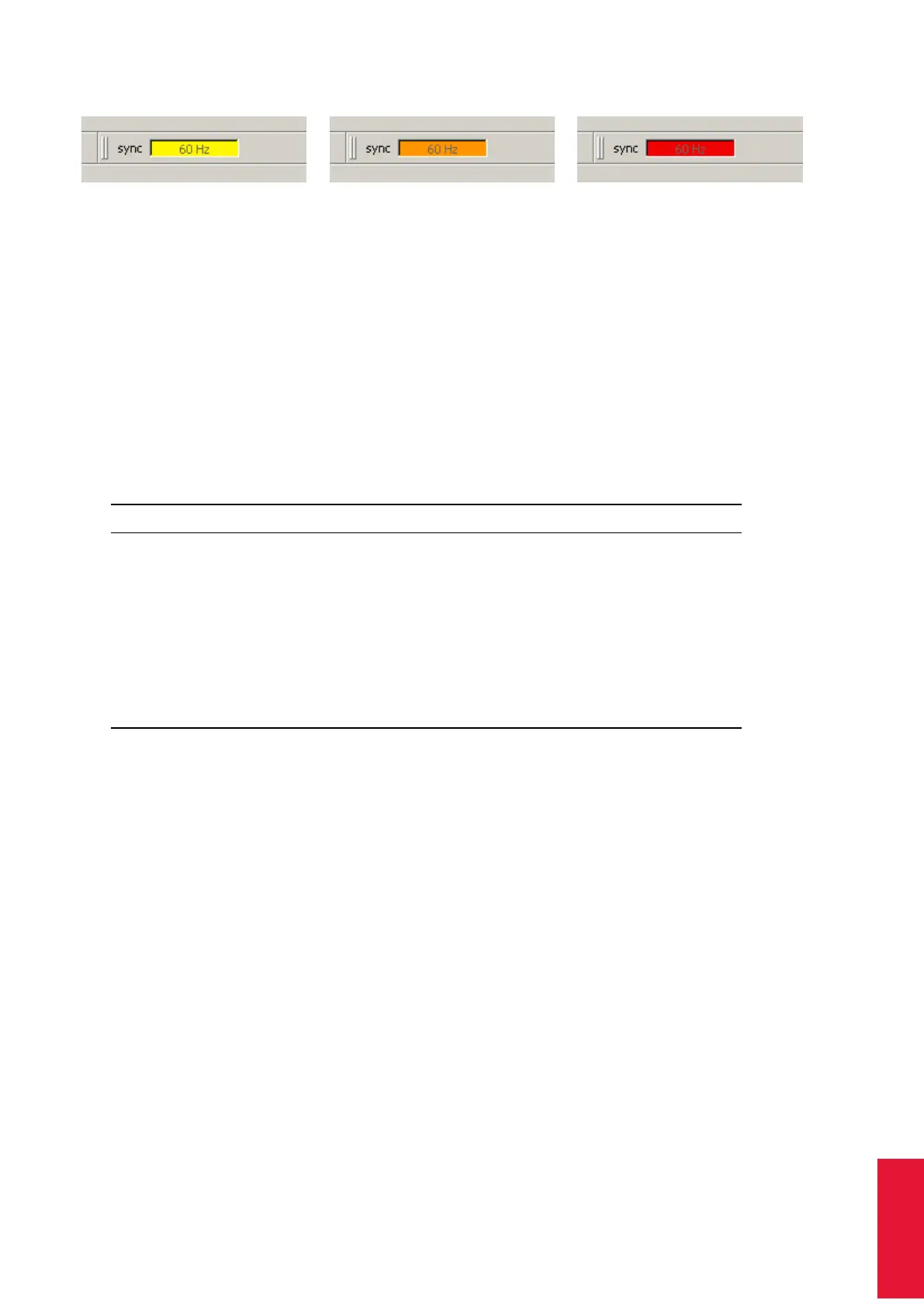
(a) yellow: 5 - 10 frames per
minute lost
(b) orange: 10 - 15 frames per
minute lost
(c) red: > 15 frames per minute
lost
Figure 8.6: Visualization of the synchronization frequency decrease
• orange: 10 - 15 frames per minute lost
• red: > 15 frames per minute lost
8.3.3 Docking Displays
By default the first three of the following docking displays are activated (see figure 8.5 on
page 132).
Docking Display Description
Monitor 2DOF Graphical display of all markers seen / tracked by the cam-
eras. Colour and shape represent the circularity and size of
the markers, respectively.
Data Display Displays measurement results (6DOF and / or 3DOF)
Event Display Displays DTrack2 events (e.g. "no valid room calibration")
Fingertracking Shows the measurement results of the hands
Flystick Shows the measurement results (6DOF) of the Flystick and
the operation of buttons and joystick
Measurement Tool Shows the measurement results of the Measurement Tool and
its reference body, if assigned
To change or activate the docking displays right-click anywhere on the toolbar or use the
menu Display (refer to chapter 8.7 on page 187. Drag & drop the display windows for
re-arrangement by left-clicking.
8.3.3.1 Monitor 2DOF display
The Monitor 2DOF display essentially is a 2-dimensional graphical display of all markers
/ flashes or other IR sources that can be seen inside the FoV of the cameras. It is par-
ticularly useful for the adjustment (especially orientation) of the cameras (refer to chapter
4.8.1 on page 48).
The Monitor 2DOF display shows a black window for each camera (equivalent to the field
of view) with a schematic display of positions, size and shape of all recognized markers.
Cameras per tab In case several ARTTRACK cameras are being used in one system,
it may prove helpful to adjust the number of cameras shown in the Monitor 2DOF display
135



 To Next Page