Define Instrument Settings | 73
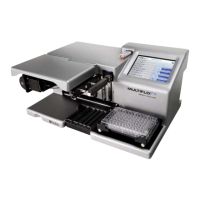
The MultiFlo FX supports voltage in the range of 100-240 V~ at 50-60 Hz.
1. Connect the power cable to the power supply.
2. Plug the power supply cable into the power socket in the side panel of the
MultiFlo FX.
3. Insert the three-prong plug into an appropriate receptacle.
Define Instrument Settings
LHC Users Only
When using the LHC to control the MultiFlo FX, an important first step is
defining your instrument’s settings. After installing the LHC, you can use the
desktop icon or the Windows Start button to launch the LHC:
> All Programs> BioTek> Liquid Handling Control
1. Click the Name link on the main page and, if required, select the MultiFlo FX.
2. Specify the COM Port used to connect the MultiFlo FX to the computer (use
the drop-down list to select the port) and click Test Communication.
o
Pass: proceed to the next step.
o
Fail: check the Com Port setting. See “About Com Ports” in the LHC Help.
3. In the Target Instrument Settings dialog that opens, click Get actual settings
now, and click OK.
Enable Waste Sensor
Wash models only: If you purchased the optional waste sensor accessory, enable
the waste sensor:
Using the Touch screen Using the LHC
1. Select Instrument>Washer.
2. Touch the field to enable Waste
detection under Sensors Enabled.
3. Press the Home button.
1. Select Tools>Instrument
Utilities.
2. Under Strip Washer, fill the
checkbox to enable Waste
Detection.
3. Click Send, and then, Exit.
BioTek Instruments, Inc.


 To Next Page