124 | Chapter 3: Operation
Operating with the BioStack
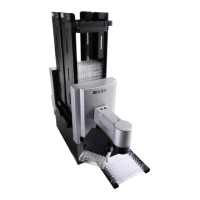
If you purchased BioTek’s BioStack Microplate Stacker to operate with the
MultiFlo FX, here is some important information about running it:
Touch Screen Control:
l The Quick Wash and Quick Dispense options do not function with the BioStack, i.e. the
BioStack will not deliver a plate. You must create a protocol to process plates using the
BioStack. Touch screen protocols must contain a BioStack loop.
l You can use the Quick Wash and Quick Dispense Prime options. This is recommended
especially prior to processing plates, to remove air from the tubing.
l
To process plates with lids (a BioStack4 feature), you must have a Lid Definition file
that precisely matches your plate and lid type, and you must enable this option when
defining the protocol (not at runtime).
LHC Control:
l LHC users: connect both the BioStack and the MultiFlo FX to the computer and control
them with the LHC.
l Design protocols that integrate BioStack controls with MultiFlo FX steps. LHC protocols
must contain a BioStack loop.
l In the LHC, select Help>Tutorials, click Sections in the toolbar for a drop-down menu,
select Controlling the Bio-Stack with LHC. It only takes a couple minutes to
complete this interactive demo. It is a great way to learn about the special BioStack
features offered with the LHC.
Install and Align the BioStack:
1. Set up the BioStack according to instructions in your BioStack Operator’s
Manual to interact with the MultiFlo FX. Connect the BioStack to the:
o
Host computer (PC) when using the LHC to control the MultiFlo FX.
o
MultiFlo FX when using the touch screen for instrument control.
2. Align the BioStack’s gripper with the MultiFlo FX’s plate carrier:
LHC:
Touch screen:
1. Select Tools> BioStack
Utilities.
2. Use the Alignment Utility.
Click the Help button for
detailed instructions.
1. At the Home screen, select
Instrument>Next>BioStack.
2. Fill the BioStack installed checkbox.
3. Press BioStack Alignment to launch
this utility.
MultiFlo™ FX Multi-Mode Dispenser


 To Next Page