14. Route Monitoring
14-2
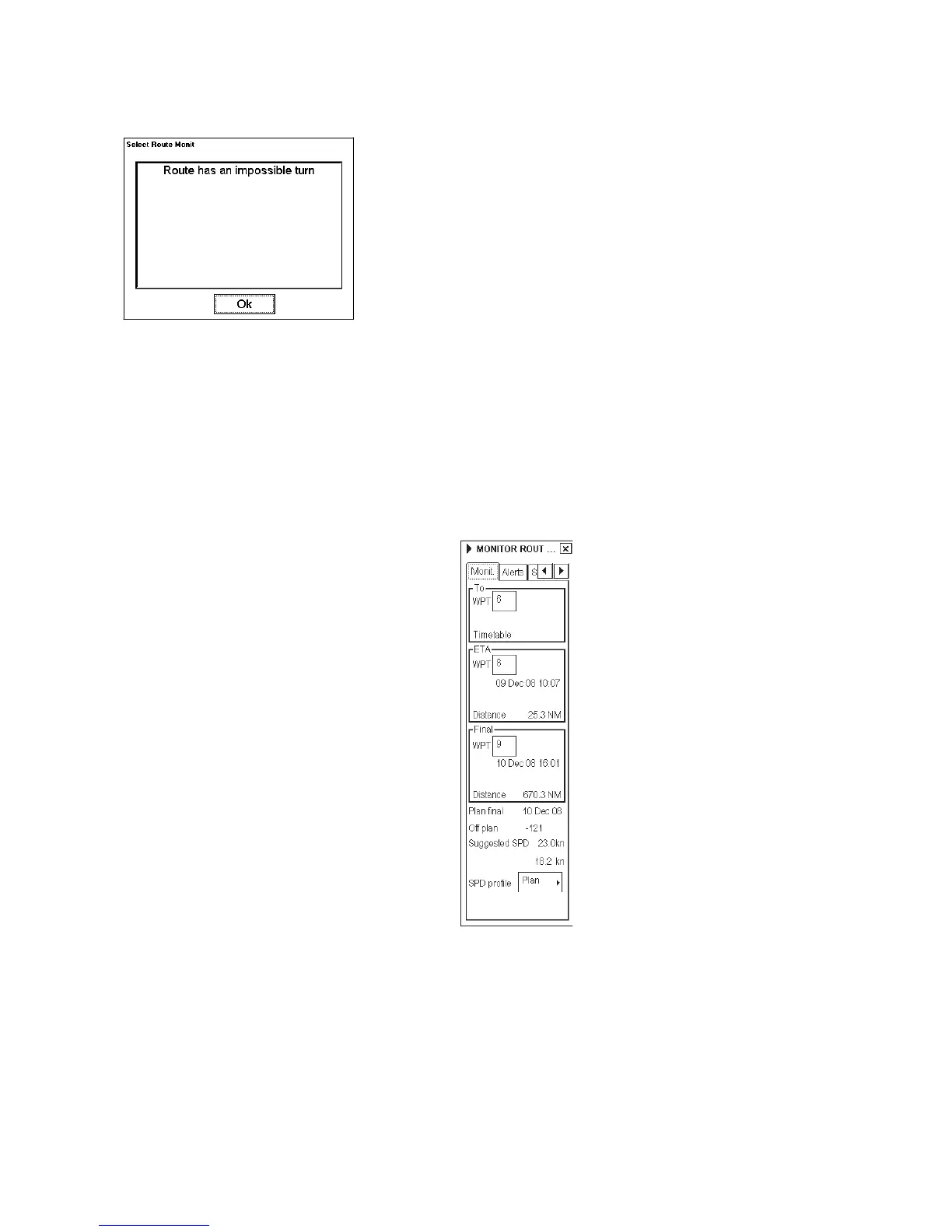
Note 1: When you select a route for monitoring, the message shown below may appear when the geometry of the
route makes it impossible to sail the ship. Select the Plan Route dialog box and make necessary modifications.
Note 2: Limitation of displayed route
If you have small-scale chart(s) on display that have the whole eastern/western (0-180°E/0-180°W) hemisphere and
a part of the other hemisphere on display, there is a limitation to display a route. To avoid this, set chart center so
that the whole eastern/western hemisphere is not on display.
Note 3: DNV mandates route checking. Mandatory route checking can be enabled from the Installation parameters –
Trackpilot menu. See the Installation Manual.
14.3 How to Select To WPT
To display this dialog box, click Route on the
information area then click the Monitor
button.
Average SPD
When you have selected a route to monitor, the system selects a next waypoint automatically. Check that the To
WPT is the desired one. The ECDIS will automatically advance to a next waypoint when you pass the To WPT.
The ECDIS automatically sets the last waypoint of your monitored route as the final waypoint.
To select a To WPT, do the following:
1. Click Route on the information area then click the Monitor button.
2. Put the cursor in the To WPT box then spin the scrollwheel to select desired WPT.
3. Push the scrollwheel to confirm your selection.



 To Next Page