EasyManua.ls Logo

HP 262SA - Graphics Drawing Mode Parameters

HP 262SA
390 pages
Print Icon
To Next Page IconTo Next Page
To Previous Page IconTo Previous Page
Loading...
Graphics
GRAPHICS
DISPLAY SET/CLEAR.
The
graphics
data
currently
displayed
on
the
screen
can
be
set
to
all
ones (a
white
screen)
or
cleared to
all
zeros (a
black
screen).
Clear
Graphics
Memory:
Ec*da
Set
Graphics Memory:
Ec*db
You
can
clear
graphics
data
on
the
screen from
the
keyboard
by
pressing
G. CLEAR on
the
graphics/numeric pad.
GRAPHICS DRAWING MODE PARAMETERS
There
are
several
drawing
parameters
that
can
be
set
to allow a wide
variety
of
drawing
capabilities.
These
parameters
select
whether
data
will be
stored
in
the
graphics
memory
as
l's
or
D's,
define line
or
area
patterns
to be used
when
drawing
vectors, position
the
relocatable
origin,
and
define
graphics
text
settings.
Graphics
drawing
control sequences begin
with
Ec
* mfollowed by one
or
more
of
the
drawing
parameters.
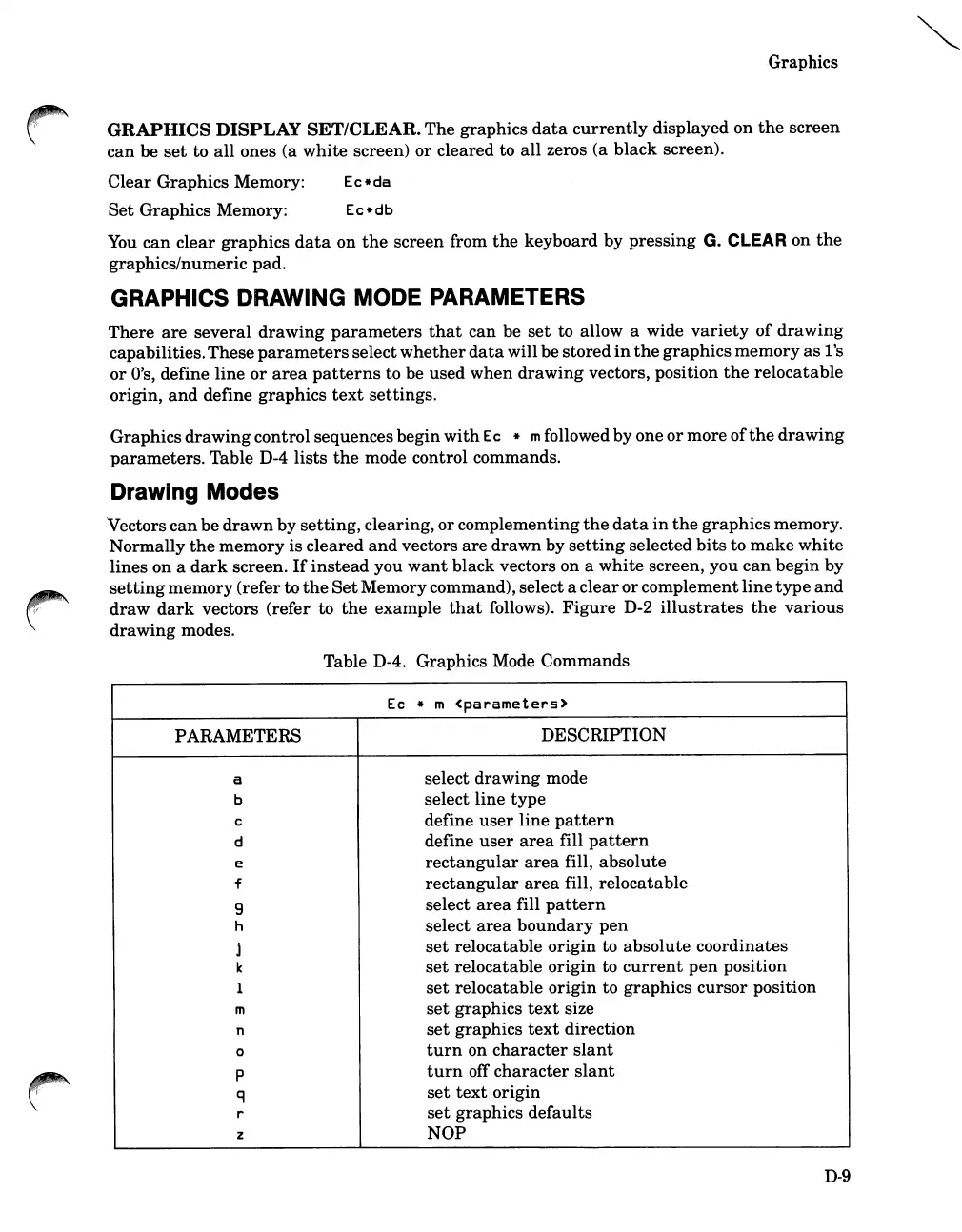
Table D-4
lists
the
mode control commands.
Drawing Modes
Vectors
can
be
drawn
by
setting,
clearing,
or
complementing
the
data
in
the
graphics
memory.
Normally
the
memory
is
cleared
and
vectors
are
drawn
by
setting
selected
bits
to
make
white
lines on a
dark
screen.
If
instead
you
want
black vectors on a
white
screen, you
can
begin
by
setting
memory
(refer
to
the
Set
Memorycommand), select a
clear
or
complement
line
type
and
draw
dark
vectors (refer to
the
example
that
follows).
Figure
D-2
illustrates
the
various
drawing
modes.
Table
D-4. Graphics Mode
Commands
Ec
* m
<parameters>
PARAMETERS
DESCRIPTION
a
select
drawing
mode
b
select
line
type
c
define
user
line
pattern
d
define
user
area
fill
pattern
e
rectangular
area
fill,
absolute
f
rectangular
area
fill,
relocatable
9
select
area
fill
pattern
h
select
area
boundary
pen
j
set
relocatable
origin
to
absolute
coordinates
k
set
relocatable
origin
to
current
pen
position
1
set
relocatable
origin
to
graphics
cursor
position
m
set
graphics
text
size
n
set
graphics
text
direction
0
turn
on
character
slant
r
p
turn
off
character
slant
q
set
text
origin
r
set
graphics
defaults
z
NOP
D-9

Table of Contents

Related product manuals