EasyManua.ls Logo

HP 262SA - Designing and Using Forms; Introduction; Sample Form Created Using Format

HP 262SA
390 pages
Print Icon
To Next Page IconTo Next Page
To Previous Page IconTo Previous Page
Loading...
Designing
and
Using
Forms
INTRODUCTION
5
Using
the
terminal's function keys, you can
create
a
data
entry
form on
the
screen
to
simulate
a ready-made form on
the
line printer, or to
structure
data
sent
to
a
data
base.
After
the
data
entry
form
is
created, you
can
read
it
into computer memory,
using
a
program
designed for
the
purpose,
and
incorporate
it
into a computer program. Then, you
can
use
this
program
to
print
out
the
data
entry
form on
the
terminal
screen for easy
data
entry.
To
expedite
data
entry
into
the
form, you
can
initiate
Format
mode,
in
which you
can
tab
from one field
in
which
data
is to be
entered
to
the
next. When
the
form contains
all
the
desired
data,
you
can
press
the.
key to send
the
entered
data
to
the
computer.
The
data
entry
form
can
contain
four types of fields: ((unprotected", ((protected", Utransmit-
only"
and
«security" fields.
Data
can
be entered
in
unprotected
and
transmit-only
fields
and
sent
to
the
computer
using
the.
key;
data
in
protected fields
stays
fixed on
the
screen-and
cannot
be modified;
data
entered
into a security field is
not
displayed,
when
it
is
typed
in. By
using
the
line
drawing
set
and
display enhancements to
create
your
form, you
can
highlight
these fields for
the
operator.
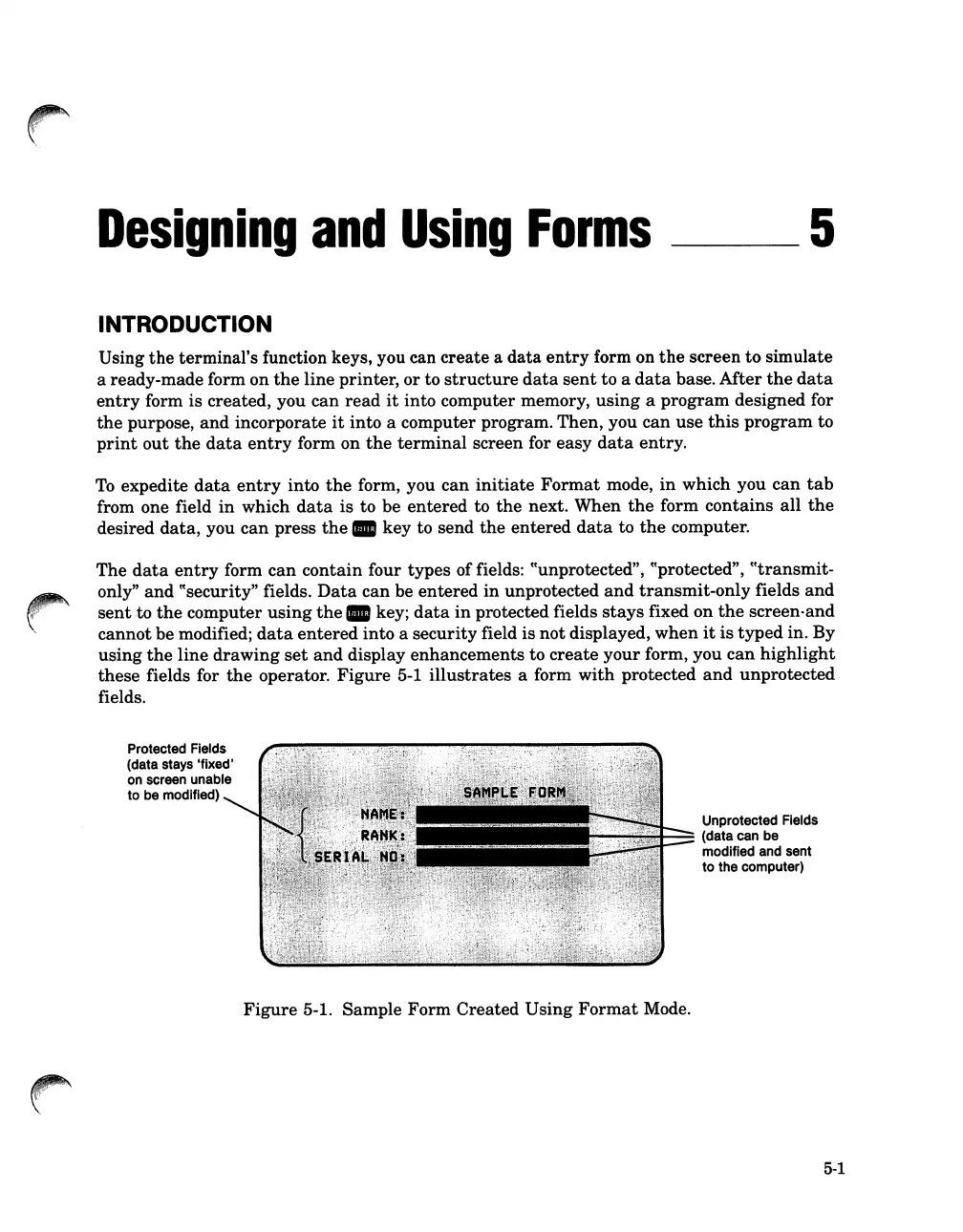
Figure
5-1
illustrates
a form
with
protected
and
unprotected
fields.
Protected Fields
(data stays 'fixed'
on
screen unable
to be modified)
Unprotected Fields
(data can be
modified and sent
to the computer)
Figure
5-1. Sample
Form
Created
Using
Format
Mode.
5-1

Table of Contents

Related product manuals