EasyManua.ls Logo

HP 262SA - Workspace Addressing

HP 262SA
390 pages
Print Icon
To Next Page IconTo Next Page
To Previous Page IconTo Previous Page
Loading...
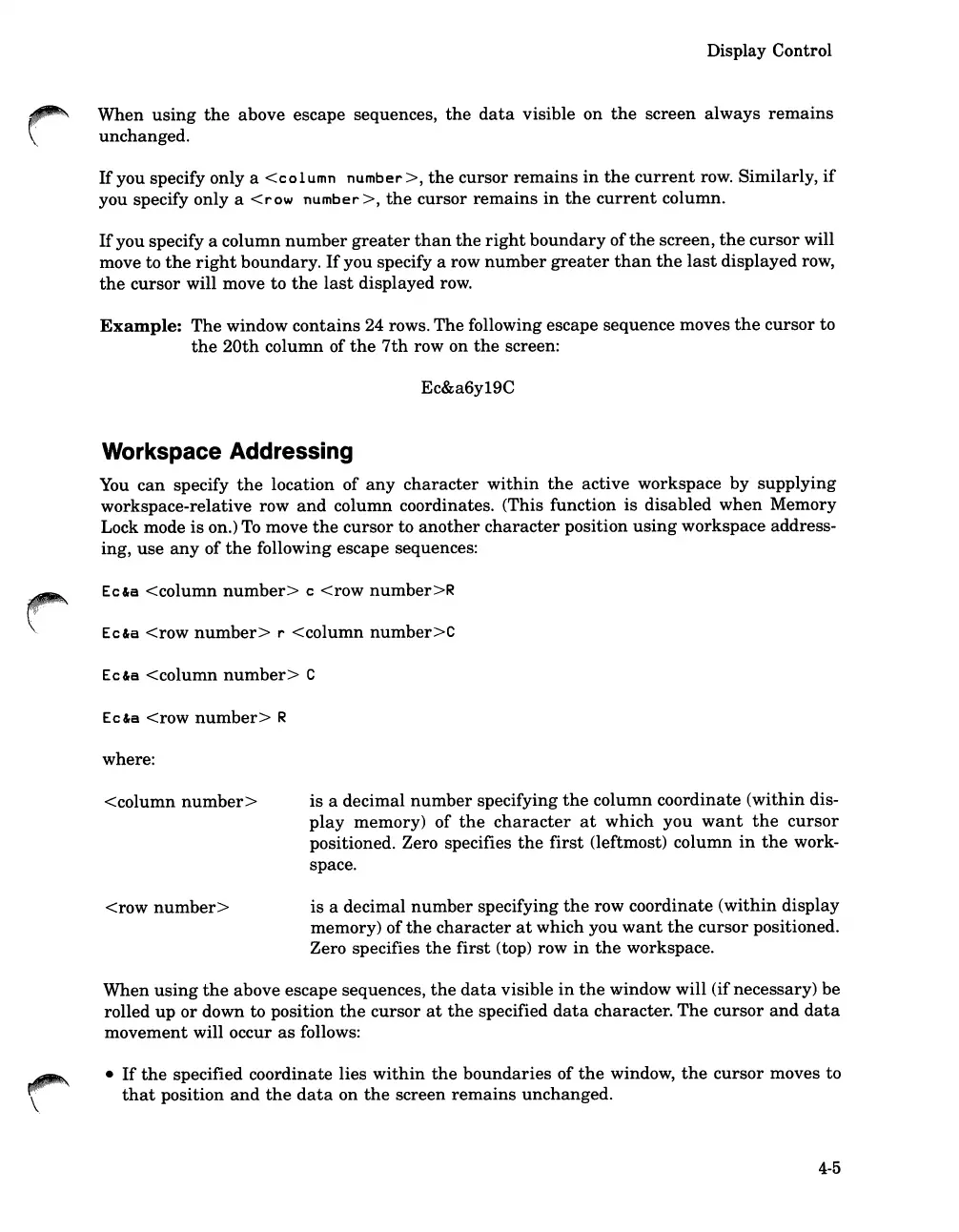
Display Control
When
using
the
above
escape sequences,
the
data
visible on
the
screen
always
remains
unchanged.
If
you specify only a
<column
number>,
the
cursor
remains
in
the
current
row. Similarly,
if
you specify only a
<row
number>,
the
cursor
remains
in
the
current
column.
If
you specify a
column
number
greater
than
the
right
boundary
of
the
screen,
the
cursor
will
move to
the
right
boundary.
If
you specify a row
number
greater
than
the
last
displayed row,
the
cursor
will move
to
the
last
displayed row.
Example:
The
window
contains
24 rows.
The
following escape sequence moves
the
cursor
to
the
20th
column of
the
7th
row on
the
screen:
Ec&a6y19C
Workspace Addressing
You
can
specify
the
location of
any
character
within
the
active workspace by
supplying
workspace-relative row
and
column coordinates. (This function
is
disabled
when
Memory
Lock mode
is
on.)
To
move
the
cursor
to
another
character
position
using
workspace address-
ing,
use
any
of
the
following escape sequences:
Ec&a
<column
number>
c
<row
number>R
Ec&a
<row
number>
r
<column
number>C
Ec&a
<column
number>
C
Ec&a
<row
number>
R
where:
<column
number>
<row
number>
is
a decimal
number
specifying
the
column
coordinate
(within
dis-
play
memory)
of
the
character
at
which
you
want
the
cursor
positioned. Zero specifies
the
first
(leftmost) column
in
the
work-
space.
is
a decimal
number
specifying
the
row coordinate
(within
display
memory)
of
the
character
at
which you
want
the
cursor
positioned.
Zero specifies
the
first
(top) row
in
the
workspace.
When
using
the
above escape sequences,
the
data
visible
in
the
window will (ifnecessary) be
rolled
up
or
down to position
the
cursor
at
the
specified
data
character.
The
cursor
and
data
movement
will occur
as
follows:
If
the
specified coordinate lies
within
the
boundaries
of
the
window,
the
cursor
moves to
that
position
and
the
data
on
the
screen
remains
unchanged.
4-5

Table of Contents

Related product manuals