17-19 Operators’ Manual
990400 Rev C 2010 May 1
10-6
Export DICOM
Export DICOM enables both original CT and PAN (DX) studies and
rotated CT studies to be exported. Files are placed in the DICOM
Export Destination Folder specified on the Setup dialog, from where
they can be placed on a network or other media.
Export an Original CT or PAN study
1. Click (highlight) a patient from the Study List. Allow time for
the Patient Image to load.
2. From the Main menu, select Tools > Export DICOM >
Original Study.
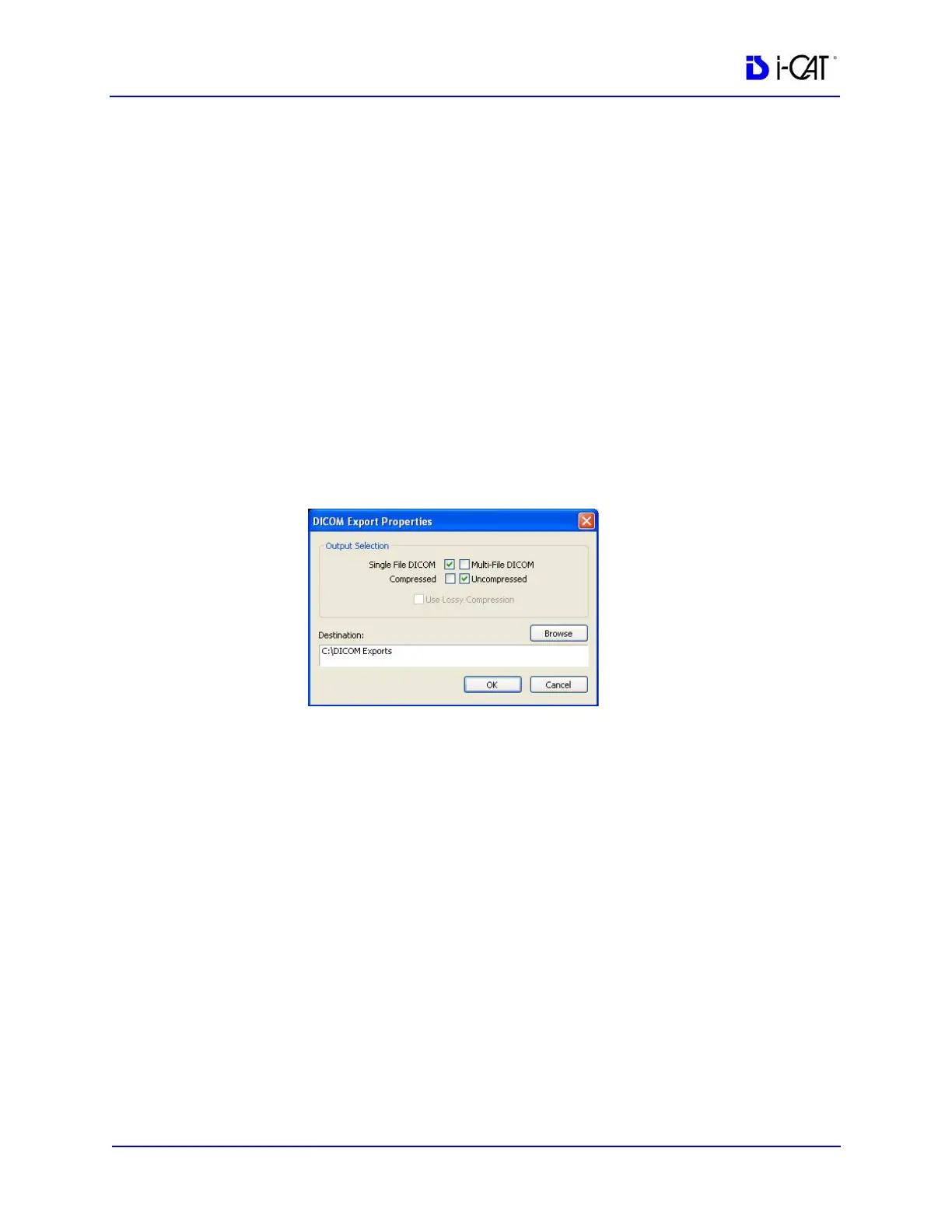
3. Select desired Output Selections.
NOTE: For PAN studies, only the Destination field can be changed
on the DICOM Export Properties dialog.
• Single File DICOM - one large image file (recommended)
• Multi-File DICOM - a separate file for each image slice,
resulting in many small files. Some earlier model viewers
require this format.
• Compressed - files are compressed to save space (smaller
file size)
• Uncompressed - files are converted to DICOM and stored
(original file size)
• Use Lossy Compression - files are compressed using lossy
wavelet compression. Lossy compressed images are not
intended for Hounsfield measurements.
• The Destination field was setup at the start of this section.
4. Click OK. A Please Wait dialog displays until export is done.


 To Next Page