17-19 Operators’ Manual
990400 Rev C 2010 May 1
B-2
To get started, an image dataset
must be loaded. The case
MUST be in DICOM format.
If importing a case from
Vision, make sure to export the
case in DICOM3-Multi File
format.
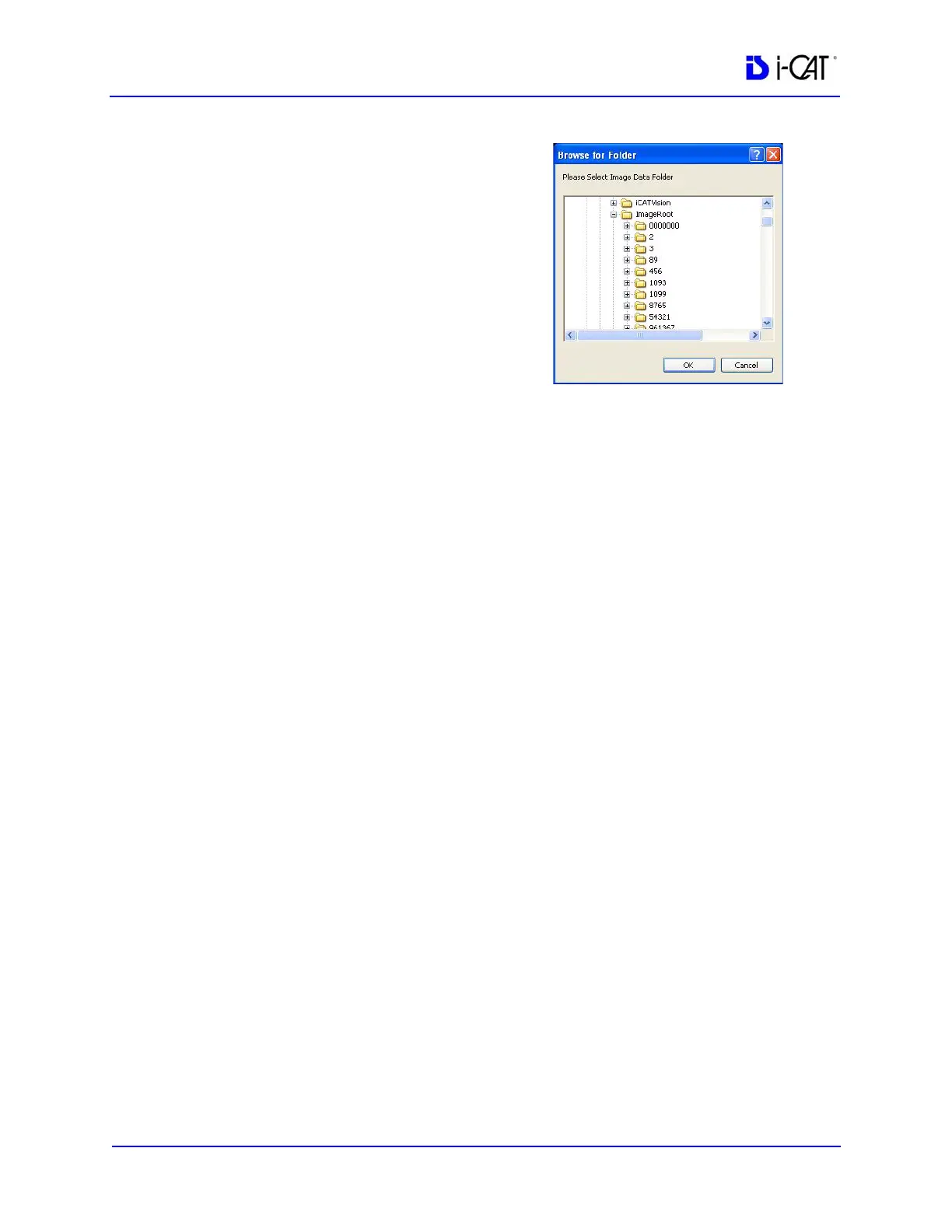
2. Click Open Dataset, a browse
window is displayed.
3. Select the drive/folder for the
DICOM dataset and click OK.
The first view displayed is an Axial slice.
The Axial Functions menu, under the View Axial button, is
enabled.
Axial Functions
There are 5 tools under Axial Functions.
• Paging
• W/L (Window Level)
• ROI (Region of Interest)
• Distance
• Identify
Paging
Paging is the tool that allows for scrolling through all the axial slices
of the dataset. Notice at the top of the DVR window, the axial slice
number currently displayed is next to the word DVR. In this sample
it is slice 10 of 256.
To scroll through each slice:
1. Click Paging Radio button.
2. Drag the cursor either UP or DOWN to scroll through the axial
slices.
Dragging the cursor upward scrolls towards the top of the skull
and ragging downward scrolls towards the bottom of the skull.


 To Next Page