17-19 Operators’ Manual
990400 Rev C 2010 May 1
8-20
Rotating Views
NOTE: The Volume Rotation feature is disabled on studies that are
using the Tru-Pan feature.
The Sagittal, Coronal and/or Axial views can be rotated.
To rotate a view:
1. Hover the cursor over the lower right corner of the
desired view. The cursor changes to the rotation tool.
2. Using the rotation tool, click and drag to rotate the
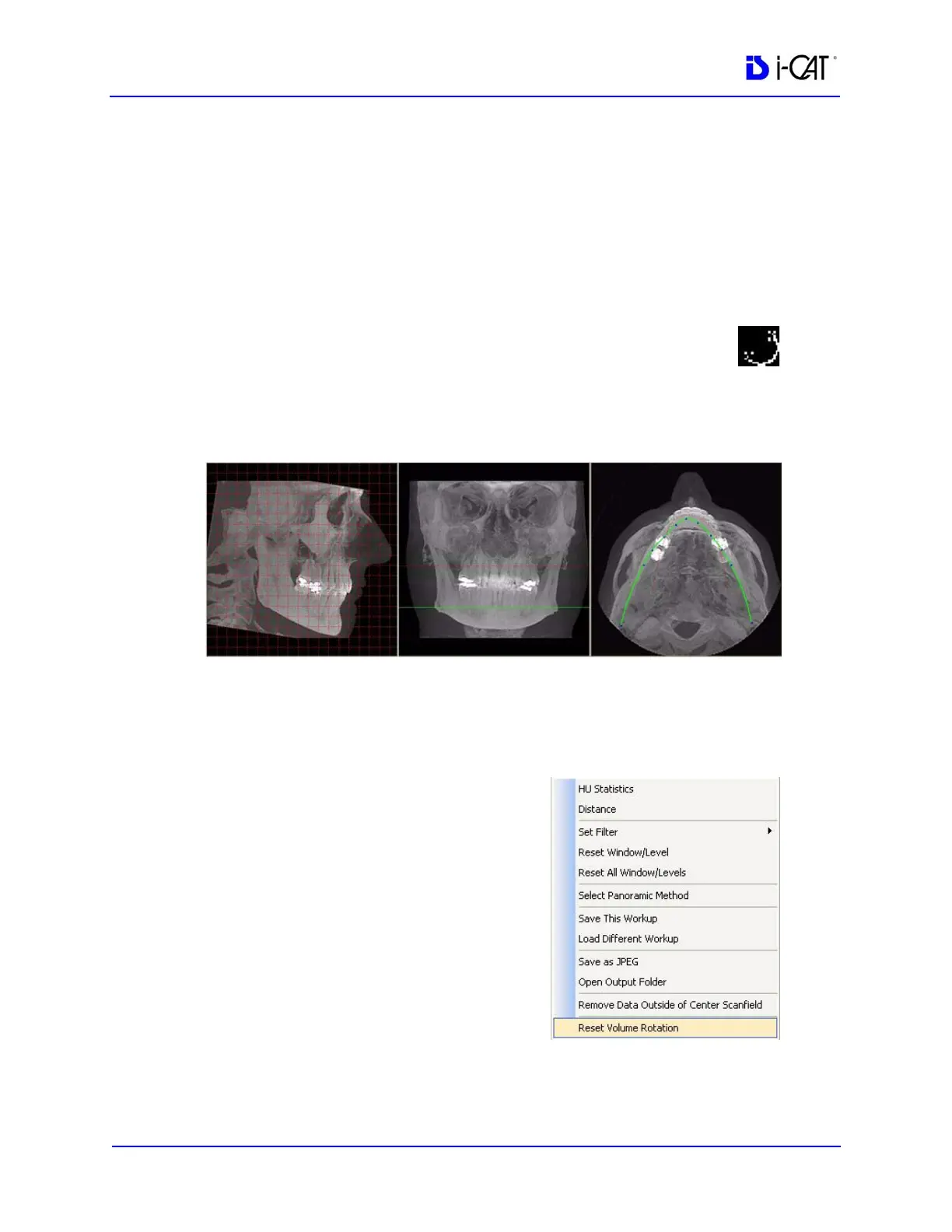
selected image. A grid appears over the selected image to
provide a reference for rotation.
3. After the selected image is rotated, release the mouse. All views
adjust to the new position and the grid is no longer present.
To return to the original rotation
orientation:
4. Right click image and select
Reset Volume Rotation.
The menu closes and the software
recalculates the original rotation in
all views.


 To Next Page