990400 Rev C 2010 May 1
C-4
17-19 Operators’ Manual
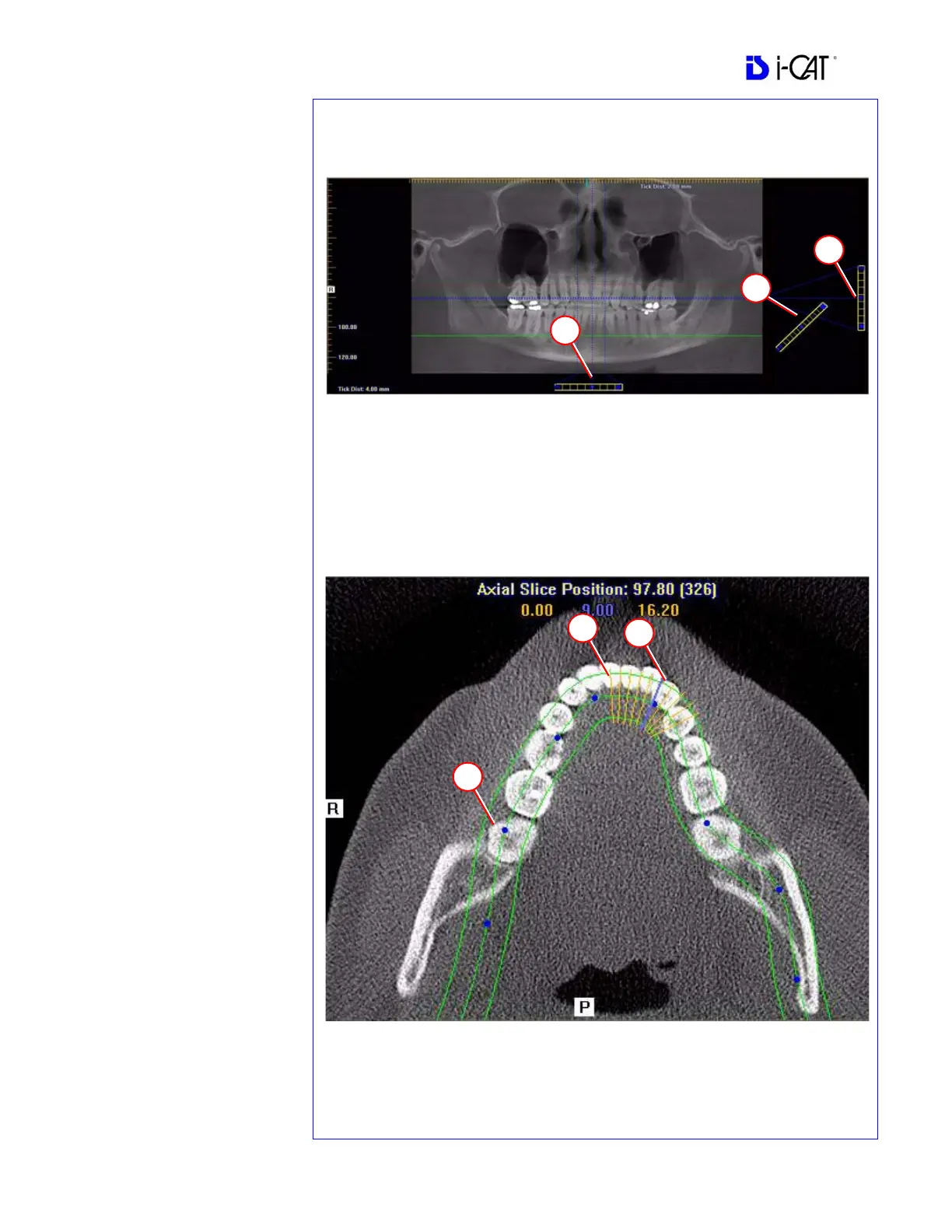
PAN TOOLS
1. Horizontal Tool Bar
Drag the center control button
of tool left to right to move the
slice location of the Cross
Sections. The center slice is
outlined in Blue on the Cross
Sections.
Drag the right control button of
tool to the right to adjust the
slice thickness of the Cross
Sections.
2. Diagonal Tool Bar
Drag the top control button of
the tool to adjust slice thickness
of Panoramic View.
Drag the center control button
of the tool to adjust Pan Focal
Trough. Not functional with the
Tru-Pan feature.
3. Vertical Tool Bar
Drag the control button of the
center tool up or down to adjust
height of anatomy viewed in the
Cross Sections and Axial.
NOTE: Click the M tool to
change the Pan view from
Radiographic to MIP.
AXIAL TOOLS
1. Drag blue dots to adjust Pan
Map.
2. Orange hash marks are Slice
Location Indicators.
3. Blue hash mark represents the
centerline of the axial slices
displayed on the Cross Section
views.
Panoramic Map
Axial Slice Position


 To Next Page