17-19 Operators’ Manual
990400 Rev C 2010 May 1
16-10
RSSM Logs
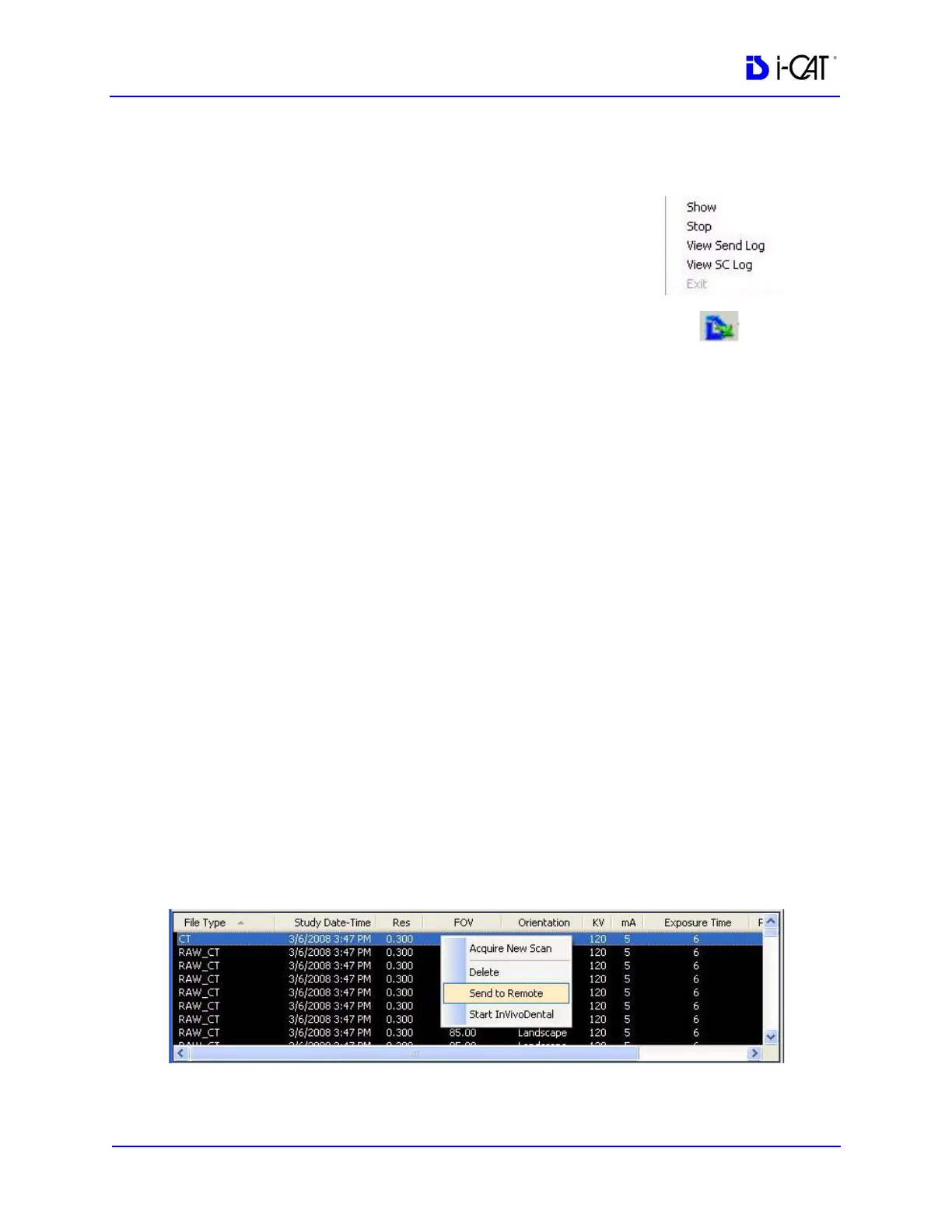
While RSSM is transferring data to the remote
system, an icon is displayed in the system tray.
Right-click the icon to display a popup menu.
The RSSM logs can be accessed by selecting the
option for the desired log or by selecting Show.
The Show option displays the DICOM Send
Module with the following options:
NOTE: The buttons that are active on the DICOM Send Module
dialog will depend on whether or not Storage Commitment is
enabled with the New Connection option.
• View Send Log - Displays Send log. This log shows the
transfer syntax used and the sent status for each file.
• View SC Log - This option is active only when Storage
Commitment is enabled and New Connection is selected.
Displays the Storage Commitment log which shows the
storage commitment status of each study.
• Clear Log(s) - Clears Send log and SC log of all previous
activity.
• Clear Queue - Clears the queue of all studies. A study is
queued when RSSM has exhausted all attempts to transmit
the study.
• Start/Stop - Toggles to either start or stop RSSM.
• Close - Closes the DICOM Send Module window.
Send Patient Data to a Remote System
1. With a Patient selected in the Study List, right-click on the scan
to be sent and select Send to Remote.


 To Next Page