990400 Rev C 2010 May 1
C-2
17-19 Operators’ Manual
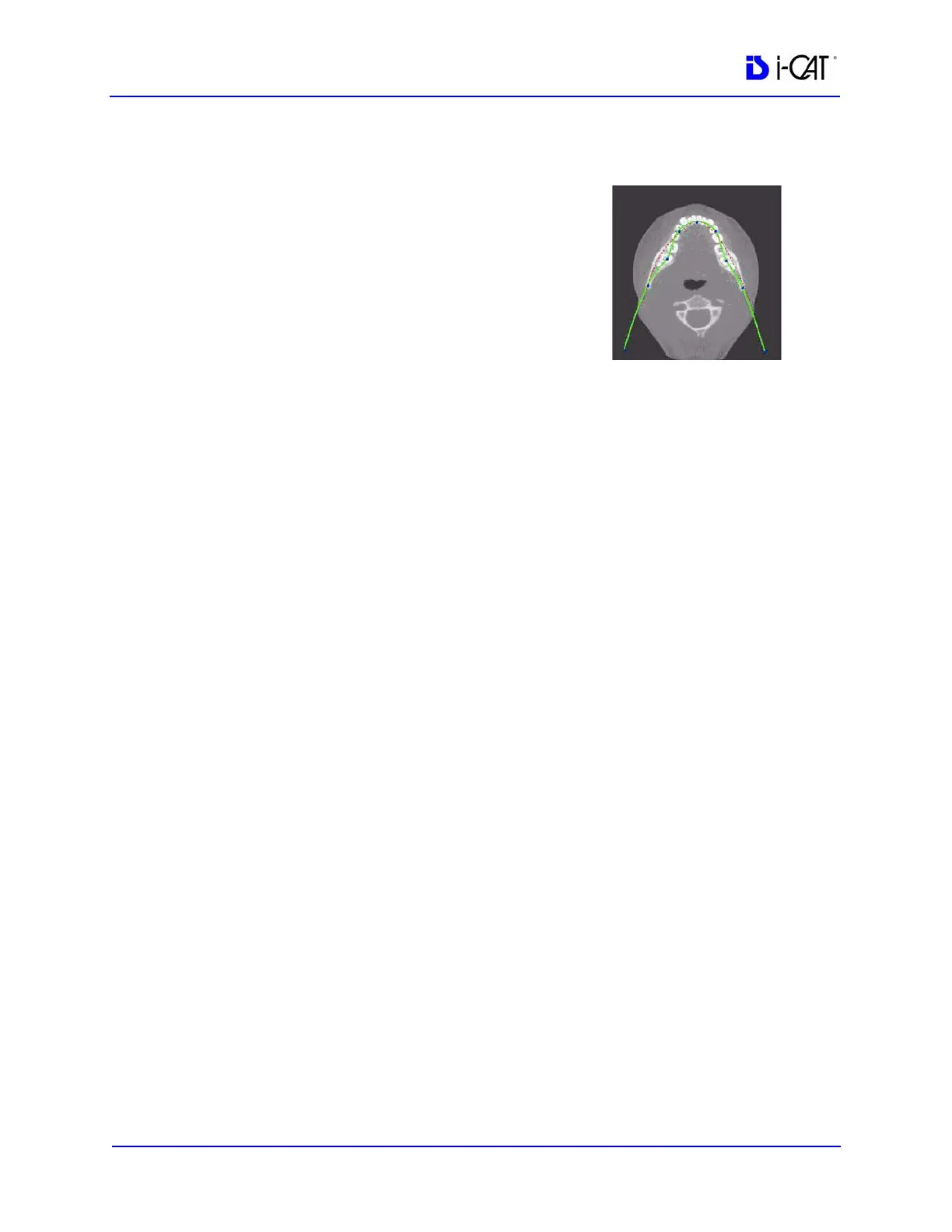
Suggestions for Adjusting Panoramic Map
Start adjusting the Panoramic map from the Preview Screen. It is
recommended to center the anterior point at midline and then move the
next two points up closer to the anterior point on each side. Place them
a few teeth away from anterior center. Then move the next two points
closer to the molars.
NOTE: If the Tru-Pan feature is set as the default on your system, you
do not need to adjust the panoramic map.
Filtering Defaults
There are already filters applied to all images. The filters are defaulted as seen below.
1. Preview Screen: Hard on Panoramic and Sharpen Mild for all others.
2. Implant Screen: Sharpen Mild on Axial Slice and Cross Sections - Hard on Panoramic Map.
3. TMJ Screen: Hard for top row images and Sharpen Mild for Condyle Ceph Images.
4. MPR Screen: Sharpen Mild all images.
5. Ceph Screen: Sharp for Upper Left Right Lateral and Hard for all others.
These defaults can always be changed by clicking Tools > Filter Settings > Set Filters. They can
also be changed “on the fly” by right clicking an individual image, selecting Filter Setting > Set
Filter and clicking the desired option (Smooth, Normal, Hard, Sharp, Very Sharp). They can be
changed back to the default by clicking Tools > Filter Settings > Reset to Default.
Removing Circumference Artifact
Circumference Artifact are seen visually in the Preview Screens as horizontal lines in the Coronal
and Sagittal images and a white partial circle around the axial image. This can be removed from the
dataset by right clicking the screen and selecting Remove Data Outside of Center Scanfield. The
data re-calculates and the image is displayed without that artifact.
Saving and Loading Workups
Created plans can be saved for retrieval. When a plan is changed and an attempt to exit or switch
patients is made, the program prompts to save the workup. To save the workup, click Yes. A window
is displayed to Create New Workup. Click this button and enter a new title for the workup or choose
an existing workup name (if one) from the list to overwrite. Once the workup is named, click OK to
save.
Or, before exiting or switching patients, from the Preview Screen, right click to access the pop up
menu and select Save this Workup. Then proceed as instructed above.
To load a workup, click a Patient Name, and Patient Image, and then a workup. To select another
workup (if there are multiple workups), right click the screen to access the pop up menu and select
Load Different Workup. Then select the workup from the list.
Keyboard Shortcuts
Alt + S - Opens Setup dialog
Alt + F - Opens File menu
Alt + T - Opens Tools menu
Alt + R - Opens Screen menu
Alt + H - Opens Help menu


 To Next Page