iZ Technology Corporation
To transfer the project to a DAW:
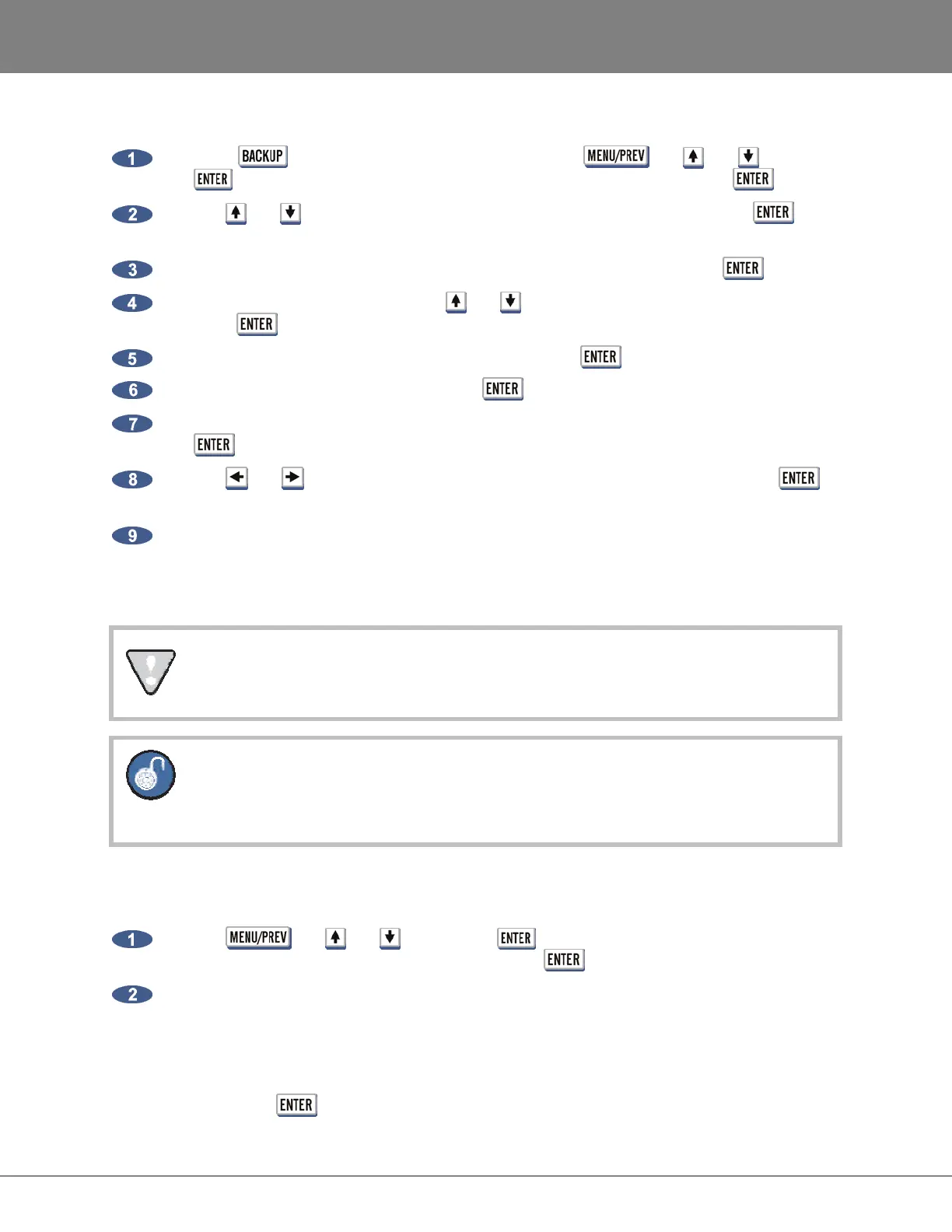
Press the key on the Session Controller or use the , the and keys and
the key to go to the MAIN MENU / FILE MENU / BACKUP and press the key.
Use the and keys to select the device in the BACKUP TO: dialogue press the key.
For direct transfers to the DAW, select N: NETWORK.
Select the DAW recording drive in the SELECT FOLDER dialogue and press the key.
At the BACKUP PROJ dialogue use the and keys to select CURRENT PROJECT and
press the key.
Select BWAV at the BACKUP TYPE: prompt and press the key.
Select ALL or MARK IN/OUT and press the key.
At the BACKUP NAME: type the name of the backup using the QWERTY keyboard and press
the key. (This will be the name of the folder written to the DAW recording drive.)
Use the and keys to select YES at the backup confirmation prompt and press the
key.
Once the RADAR backup is complete, on the DAW, open a new session and import the files from
the DAW recording drive (N:DAW RECORDING DRIVE/BACKUPNAME/AUDIO FILES/) into
a project with the option of the DAW to locate each audio file to the time stamp in the BWAV
header.
In the folder /BACKUPNAME/PROJECT INFO FILES/ there is a RADAR Project Notes
text file which contains useful information.
If the project is being sent to another studio with an unknown system, backup directly to a
DVD-R disk as a BWAV backup, as this format can be restored to a RADAR system or
imported into any DAW program.
If the RADAR project does not contain edits or if undos are not required, the project can be File Flattened.
To flatten a project on a RADAR Broadcast WAV disk:
Use the , the and keys and the key to go to the MAIN MENU / FILE
MENU / FLATTEN PROJECT dialogue and press the key.
At the FILL SILENCE?: prompt the options will be:
• NO (each region will be one file)
• GAP (each track will be one file with potentially different start times)
• ALL (each track will be one file with the same start time)
Then press the key.



 To Next Page