Group 7 Data/Programming Page 124
Release R1.03e LEIBINGER JET3
The graphic editor menu can be opened with the option <Editor> (2) and selection
afterwards of the option <Graphic-Editor> (3) in the faded in submenu.
With the buttons in the menu bar (5) you can select the accordant submenus of the
graphic editor. The following submenus are available:
File Edit Function View
With the input field <Graphic> (6) you can create a graphic.
In the display <Coordinates>
(7) the current or the last cursor position is
displayed.
In the display <Activities to carry out>
(8) the input (activity) which is expected
next from the operator is displayed.
The button <OK> (9) closes the menu. If the inputs have been not saved yet, a
safety query is faded in.
With the button <Cancel> (10) the graphic editor will be closed without a further
safety query and without memory.
7.5.5.1 Edit tools
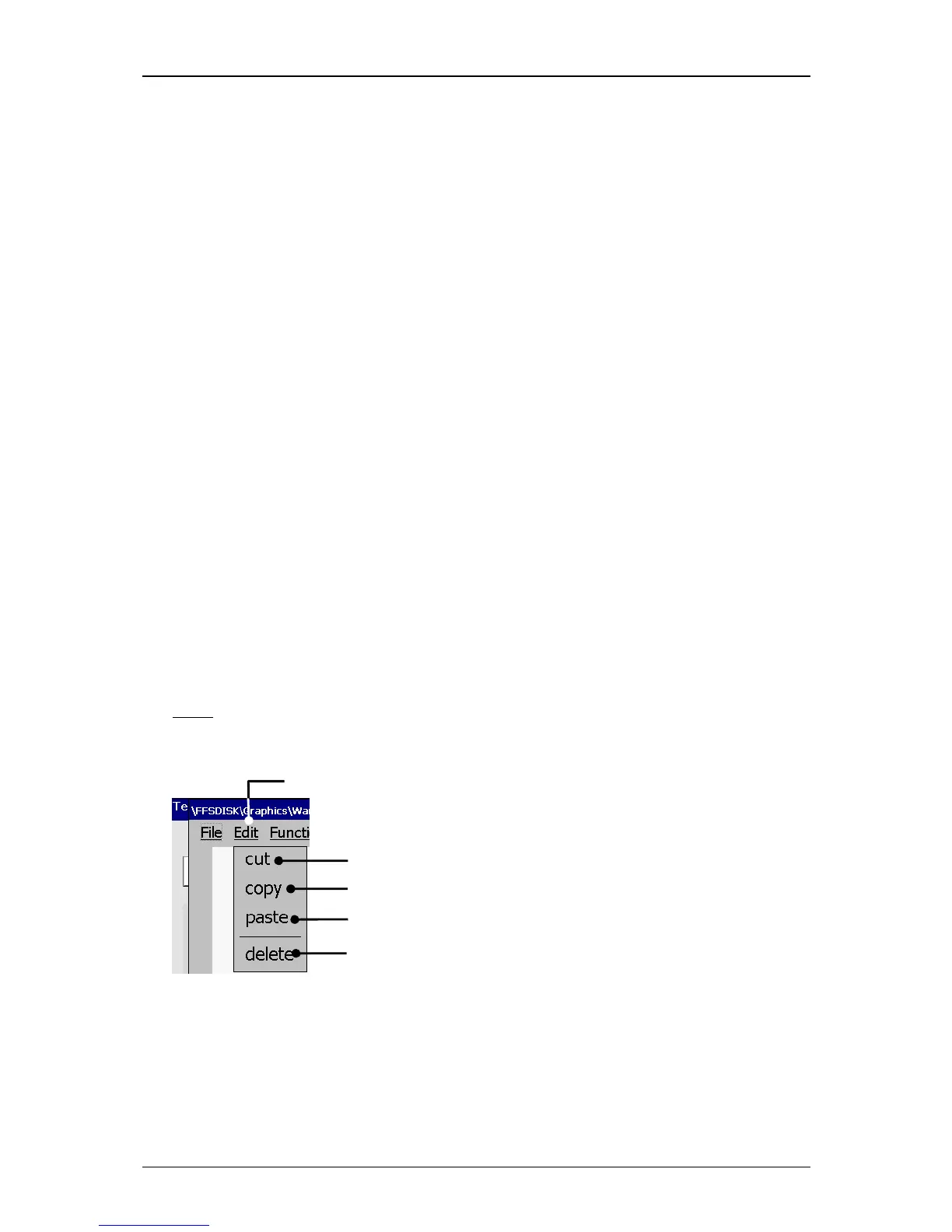
With the button <Edit> you can select the edit tools.
Note:
The function of the tools corresponds to the Windows™-functions.
Figure 68
Graphic editor (Edit tools)
1 – Button <Edit> 3 – Edit tool <copy> 5 – Edit tool <delete>
2 – Edit tool <cut> 4 – Edit tool <paste>



 To Next Page