MI-42-0001 Rev. 19 185
QUALITY TESTING: Quality Check Reporting
exporting to USB storage device. For cases where the user needs control over the size and
location of the ROI, Mobius recommends importing the scan DICOM data (exported to USB
or pushed to a DICOM server) into a 3rd-party application that supports these features.
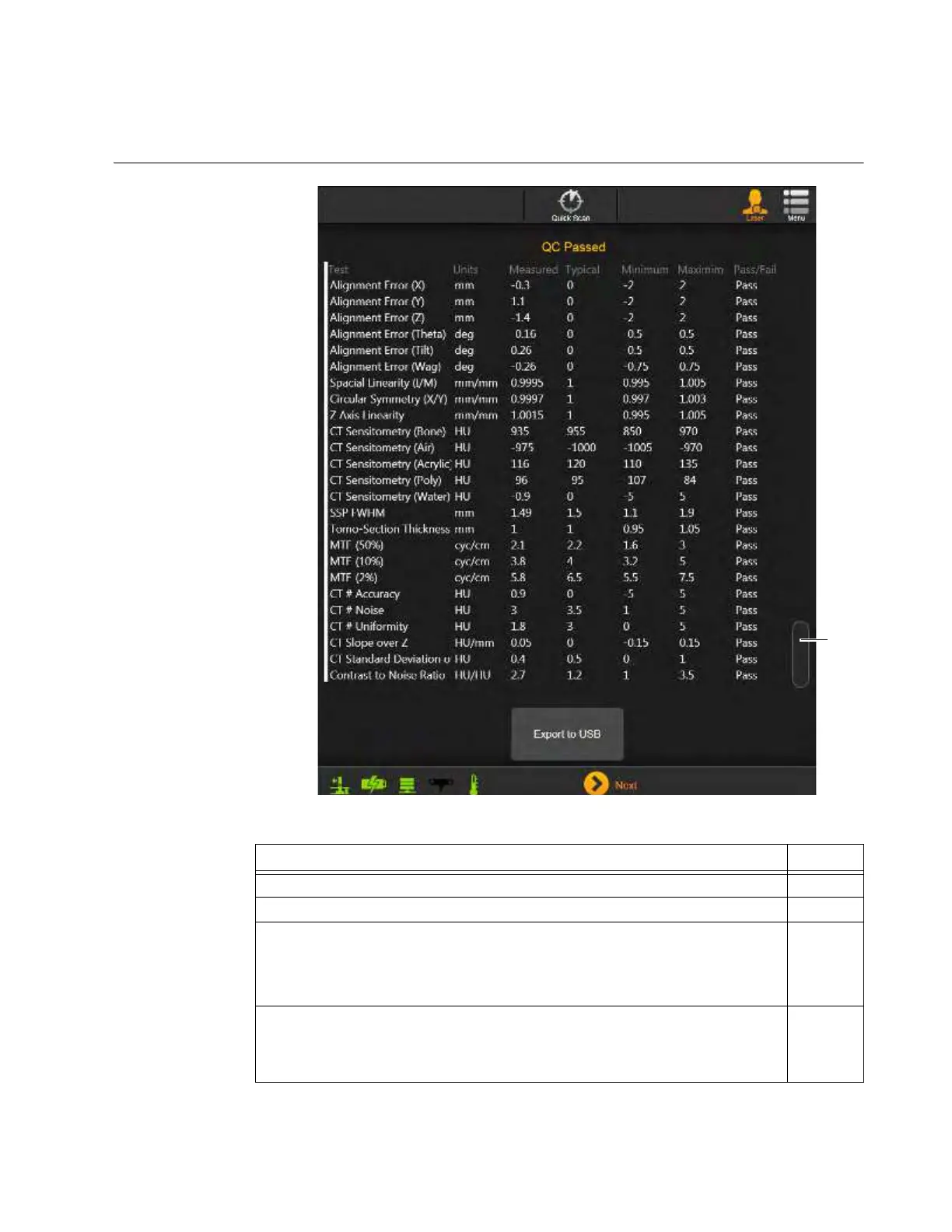
Full Quality Check
Results Summary
Report
Figure 150
Steps See
1. Use the scroll bar
a to view the metrics included in the report.
2. Insert a USB storage device into the available port on the Pendant Holster 3.2
3. Choose
Export to USB
to copy the report files to the USB device.
NOTE: For any QC scan, the QC Result Report is available for export on this
screen and the Please Select DICOM node screen that displays when viewing
a 3D image after a scan or through the DICOM Viewer. See Figure 145.
4. To view the exported quality report, use a web browser on a facility computer to
open the
Mobius Airo Image Quality Report Helical.html
or
Mobius Airo
Image Quality Report Axial.html
file in the
Airo IQ Report
archive folder on
the USB storage device.



 To Next Page